
Claude Code for Business Users (Getting Started)
How to start from square one. Simply install Claude Code, and then Claude can do everything else for you.


You can turn Claude Code into your personal assistant. You can have it comb through all your expenses. You can have it compare terms across lengthy contracts. You can have it compare every investment committee memo you’ve ever done. You can even have it build entire websites and apps for you.
But how do you start? And should you bother if you’re not a developer?
It’s way easier than you think and YES! As you learn more about Claude Code, that knowledge compounds into really powerful functionality that isn’t possible with traditional AI chat.
Are we sure you can do it?
Yes!
You just speak to Claude Code in English.
We will step you through installation. It involves pasting a few things into an application called the Terminal and all-in is less than 10 minutes.
Once you’ve installed, you can work with Claude Code in the Claude Desktop app which is a traditional graphical interface (use the “Code” tab in the upper left). No requirement to use the Terminal if you don’t want to.
What’s special about Claude Code?
Regular AI chat is great, but it has its limitations - chats start fresh (limited memory), you can easily run out of context with large documents, and complex tasks and workflows are frustratingly difficult.
Claude Code is different:
It stays on task. Give it something with 10 steps and it actually works through all 10. It tracks its own progress through complex tasks, rather than losing the thread or shortcutting to finish faster.
It can be your second brain. Regular AI chat forgets most things between sessions. With Claude Code, you build up persistent context in simple files - client notes, project briefs, your weekly to-do list. Claude remembers because you control what it knows.
It can navigate large volumes of information. Need to analyze 15 long contracts? Regular Claude struggles. Claude Code can work through them methodically, one at a time, without losing track of what it’s looking for.
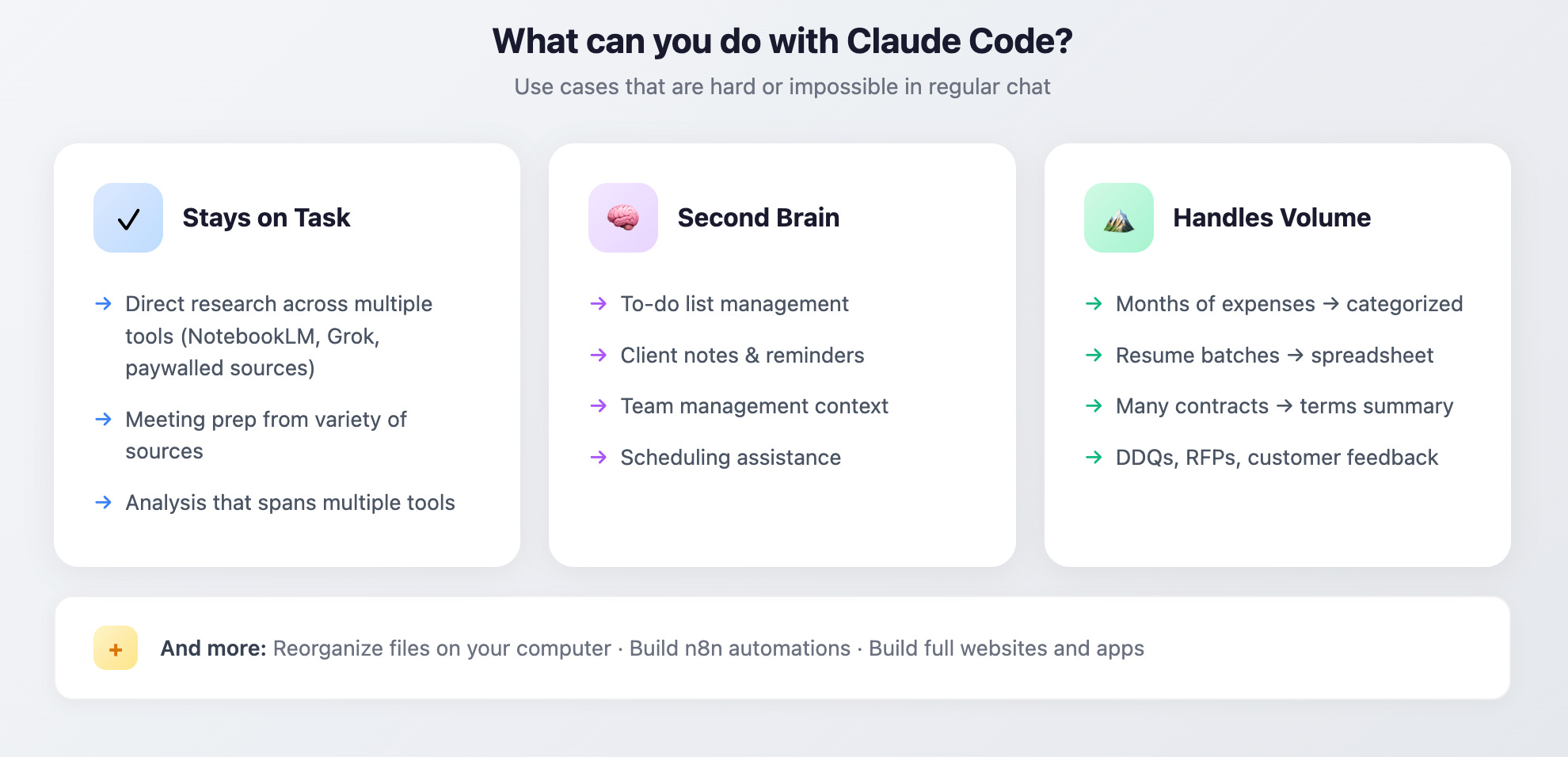
These compound. The more you learn to use it, the more useful it will become. And someday you might find yourself automating tasks you never thought possible.
But you don’t need to worry about that, or about any of the things that can feel overwhelming (developer tools, MCP integrations) - none of that is necessary. The biggest thing is getting started.
Install Claude Code
Getting Started
This process involves opening the Terminal > pasting some commands > signing in > then you’re able to use Claude Code. There are many screenshots but it’s actually a short process. Also once you’re done, we can jump back into a graphical interface (Claude Desktop) for interacting with Claude Code.
IMPORTANT: If you get stuck at any step, just take screenshots and give them to regular Claude or ChatGPT for help getting unstuck.
Note, you need a Claude Pro ($20/month) or Max ($100-200/month) subscription. Start with Pro and if you later hit usage limits you can upgrade (or pay as you go for API credits or just pause until your limits reset).
Note: If this already seems like too much, consider trying Claude Cowork. It’s a lighter-weight point-and-click version - no terminal required - but is currently only available on Macs. Claude Cowork post coming soon.
Up next: Mac installation instructions and Windows installation instructions. Read the section for your kind of computer. Then go to “Start Using Claude Code”.
For Mac users:
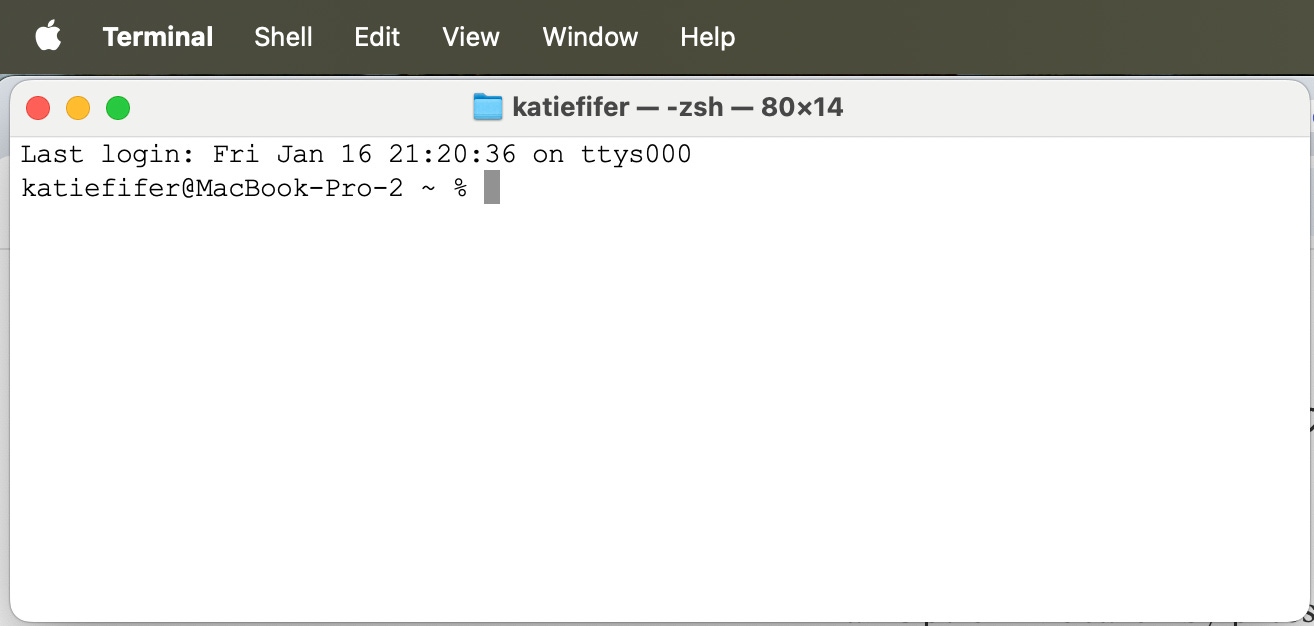
Open Terminal
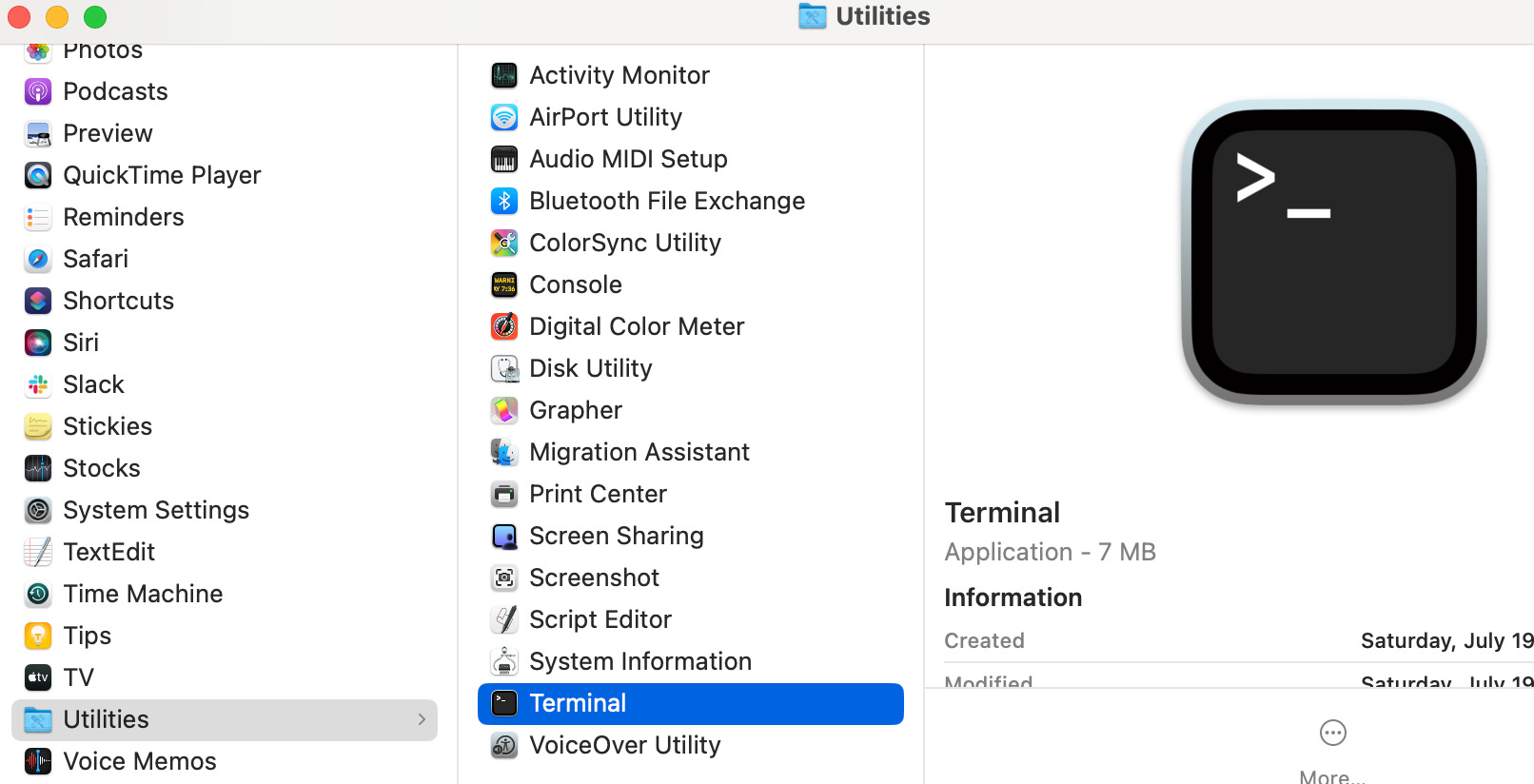
Search for it by pressing Command + Space, type “Terminal”, and hit Enter. Or go to Finder > Applications > Utilities > Terminal
Tip: If the dark terminal feels intimidating, you can switch to light mode. Go to Terminal → Settings → Profiles and choose a light theme like "Basic."
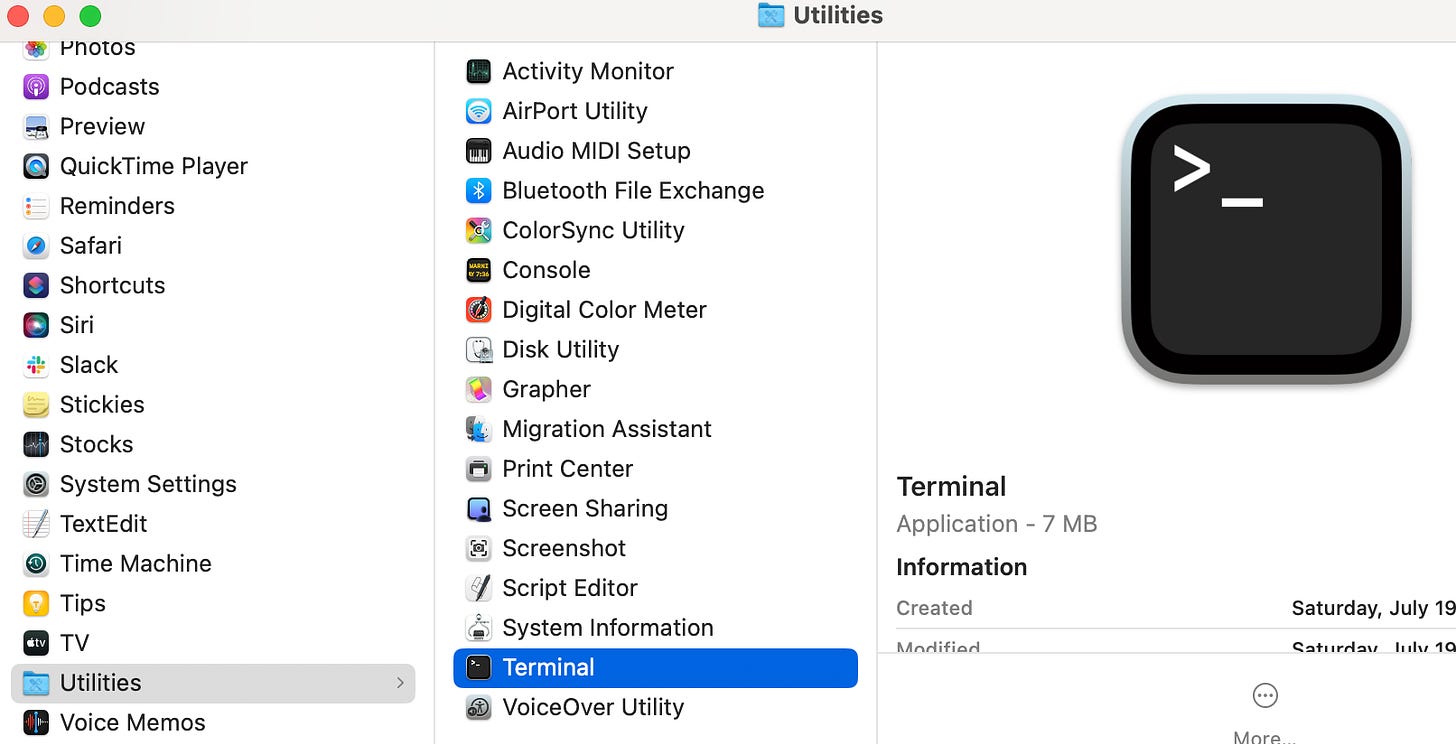
Find Terminal in Applications > Utilities > Terminal. Open it. Then pin it to your dock with Ctrl + click the icon in the dock > Options > Keep in Dock 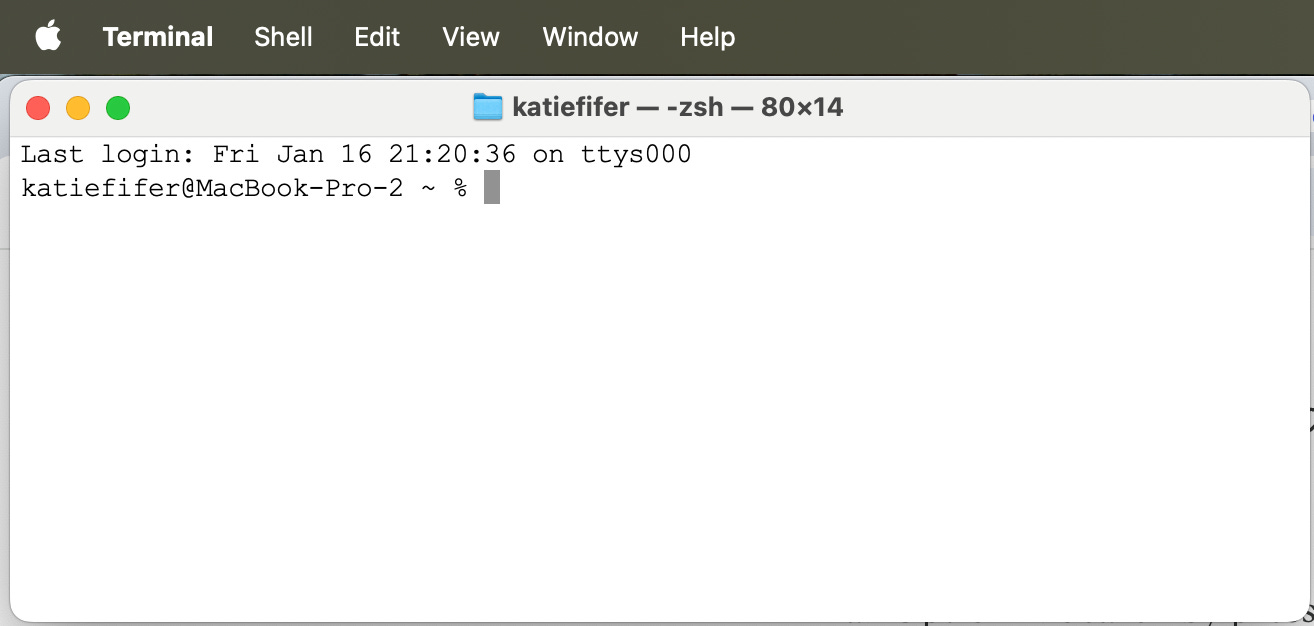
The Terminal just looks like a window where you can type things. Once we get Claude running, you’ll just talk to Claude in English Install Claude Code
Copy and paste this text into your Terminal, then press Enter (return):
curl -fsSL https://claude.ai/install.sh | bash Below is the screenshot from my Terminal once I’ve pasted, then hit Enter. You should see “Installation complete!”.
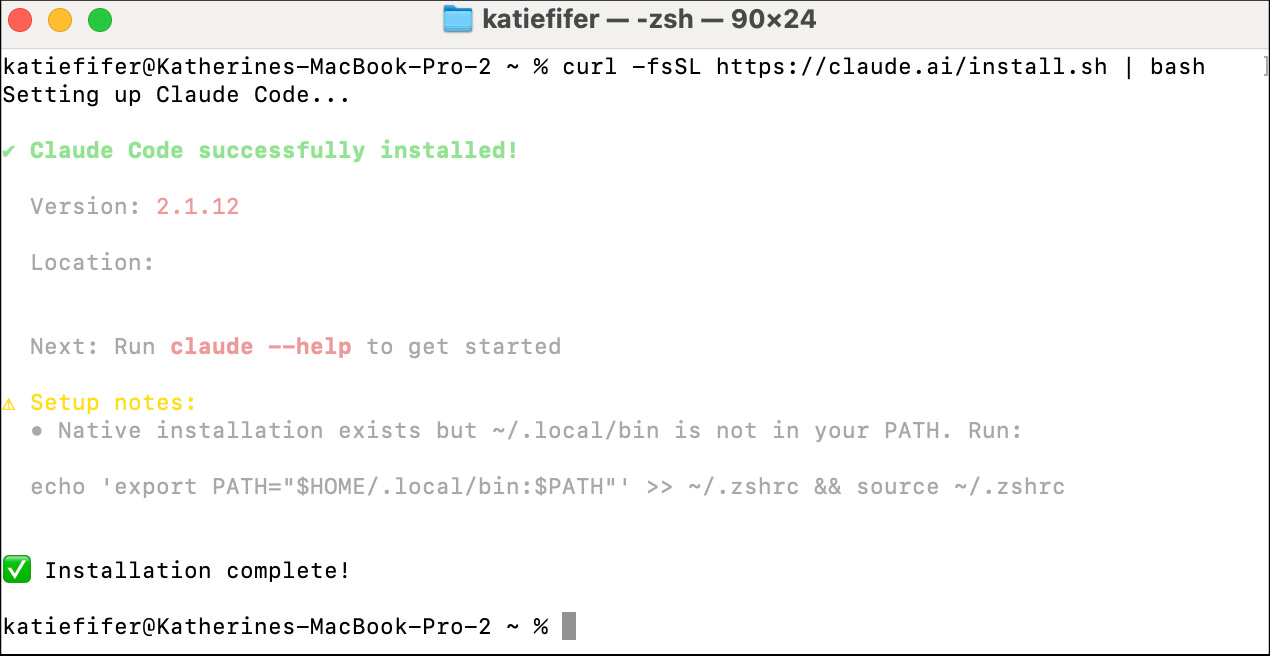
Make sure your Terminal can find Claude from anywhere
Copy and paste this line of text into the Terminal, then press Enter. This may look intimidating but it just instructs your computer on where to find Claude, and once you copy-paste-enter into the Terminal, you’re done.
echo 'export PATH="$HOME/.local/bin:$PATH"' >> ~/.zshrc && source ~/.zshrcFor Windows users:
Install Git for Windows
Git is a tool Claude Code needs to run - you won't interact with it directly. Go to https://git-scm.com/downloads/win and download the installer. Run it with the default settings. (When it asks about the default editor, “Notepad” is the simplest choice but any are fine.)
Open Terminal
Click the Start menu and search for “Terminal”. Open it. (If you can’t find it, press Windows + X and click “Terminal” or “Windows PowerShell”.) Tip: Right-click the Terminal icon and select “Pin to taskbar” so it’s easy to find later.
Install Claude Code
Copy and paste this line of text into the Terminal, then press Enter:
irm https://claude.ai/install.ps1 | iexWait for it to finish.
Make sure your terminal can find Claude
Copy and paste this line of text into your Terminal, then press Enter. This may look intimidating but it just instructs your computer on where to find Claude, and once you copy-paste-enter into the Terminal, you’re done.
[Environment]::SetEnvironmentVariable("Path", $env:Path + ";$env:USERPROFILE\.local\bin", "User")Close and reopen Terminal
This refreshes your settings so Terminal can find Claude.
Start Using Claude Code (Mac + Windows):
Create a workspace folder
Claude Code works within whatever folder you run it from. Creating a dedicated workspace is a good place to begin your experimentation. Copy paste the following into your Terminal:
   mkdir claude-workspace
   cd claude-workspace
As an fyi, “mkdir claude-workspace” tells it your computer to make a folder (directory) called claude-workspace and then “cd claude-workspace” navigates us into that folder (change directory)
Start Claude Code
Simply type
claudeand press Enter to start Claude Code
Continue through the Claude Setup Screens
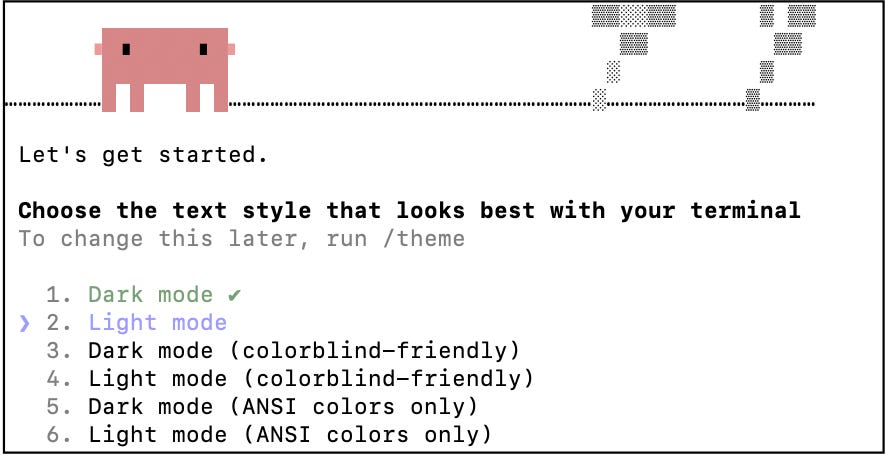
A message will pop up in the terminal, including the claude icon. Select your color mode and press Enter. I love light mode and while most developers + Claire will make fun of me, the inventor of Claude Code also uses light mode 😎
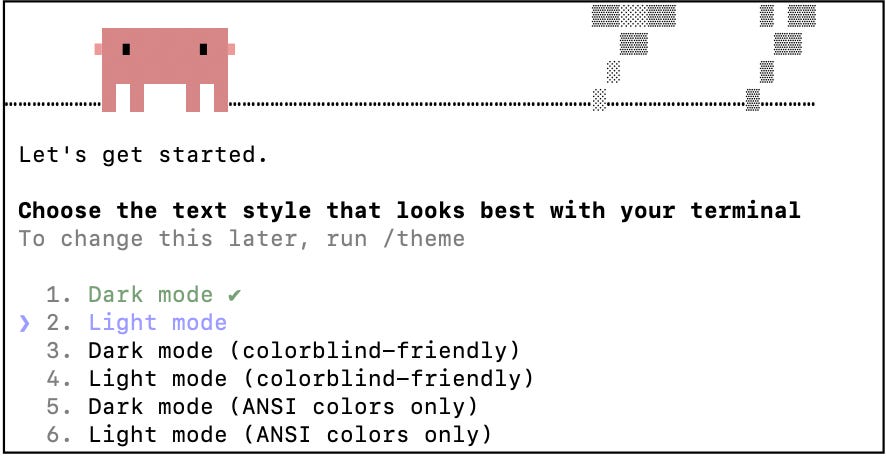
Select your preferred color mode and hit Enter Sign in
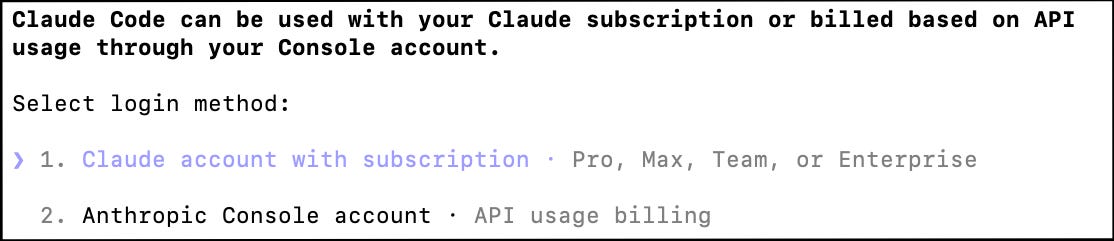
Select the first sign-in method and hit Enter
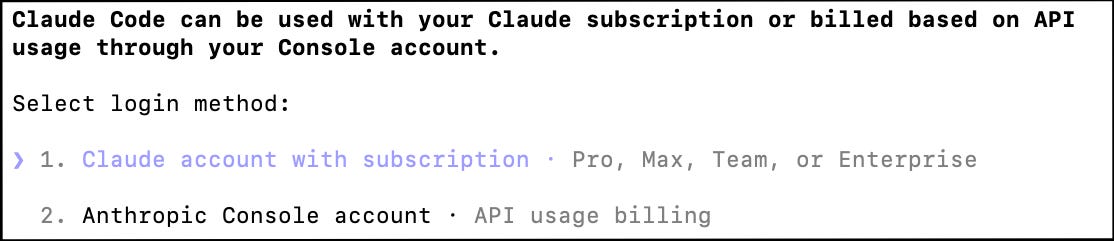
Once you hit Enter, a browser window will open. Sign in with your Claude account (the same one you use for claude.ai).
Go back to the terminal
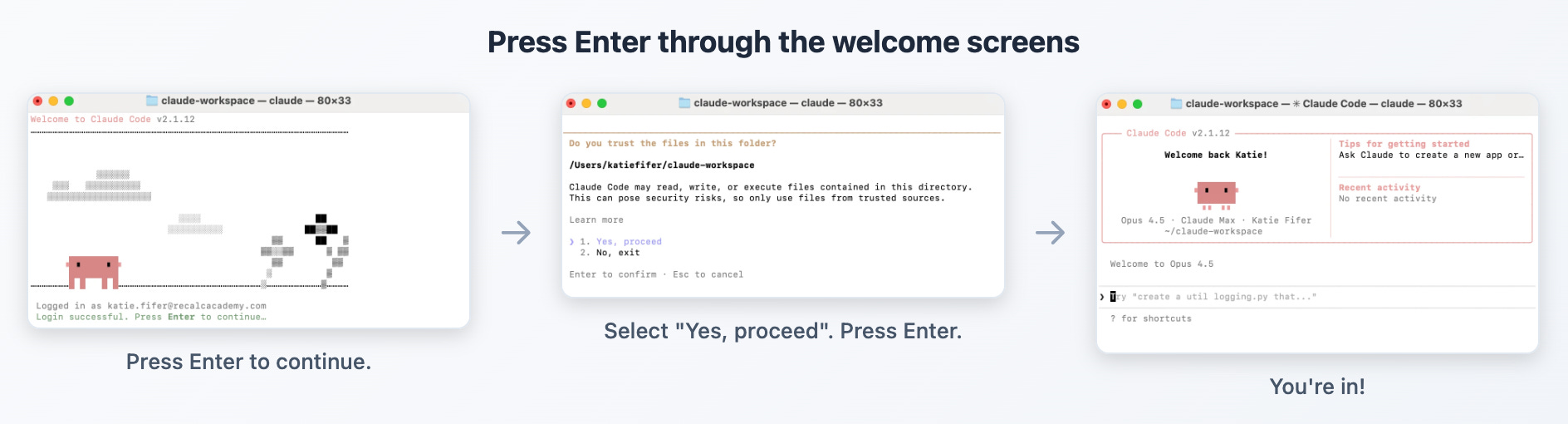
Hit Enter to navigate through each of the onboarding screens and you’ll be ready to use Claude!
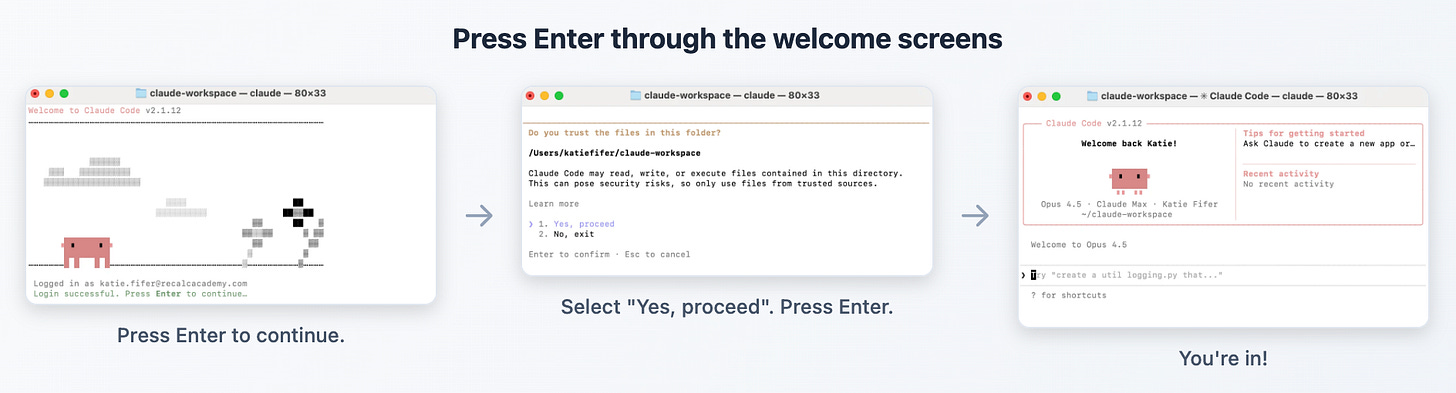
Go back to the Terminal and hit Enter to navigate through the welcome screens. Then you’re good to go! Try using it. Say hello to Claude!

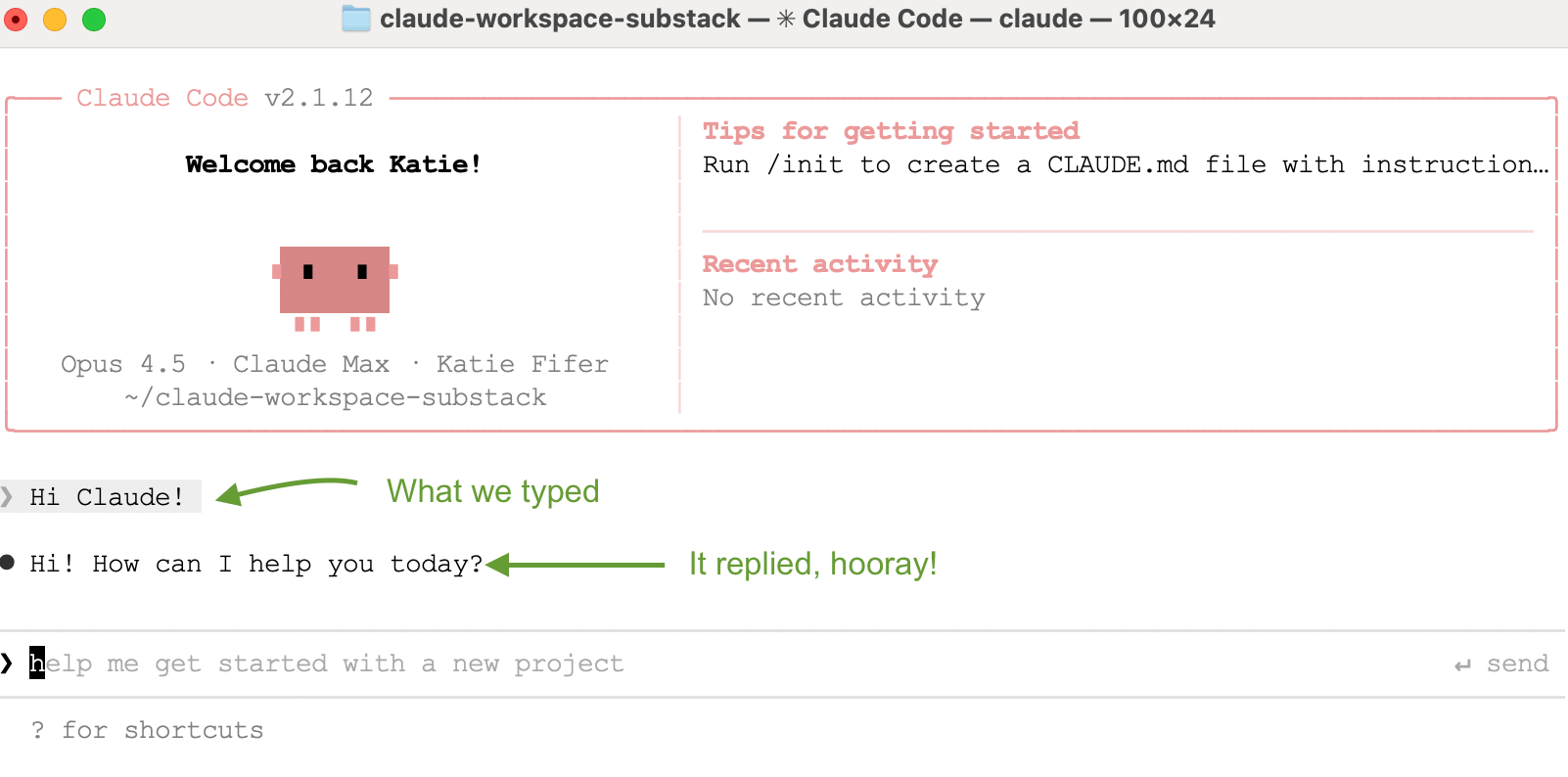
If something goes wrong, don’t panic. Paste a screenshot into regular Claude or ChatGPT for help troubleshooting.
Interface Options
You can interact with Claude Code through the Terminal (popular with developers) or the Claude Desktop app. If you’re more comfortable with a point-and-click interface, we’d recommend downloading the Claude Desktop app and using the “Code” interface instead of using the Terminal (look for “Code” on the upper left).
Claude Desktop
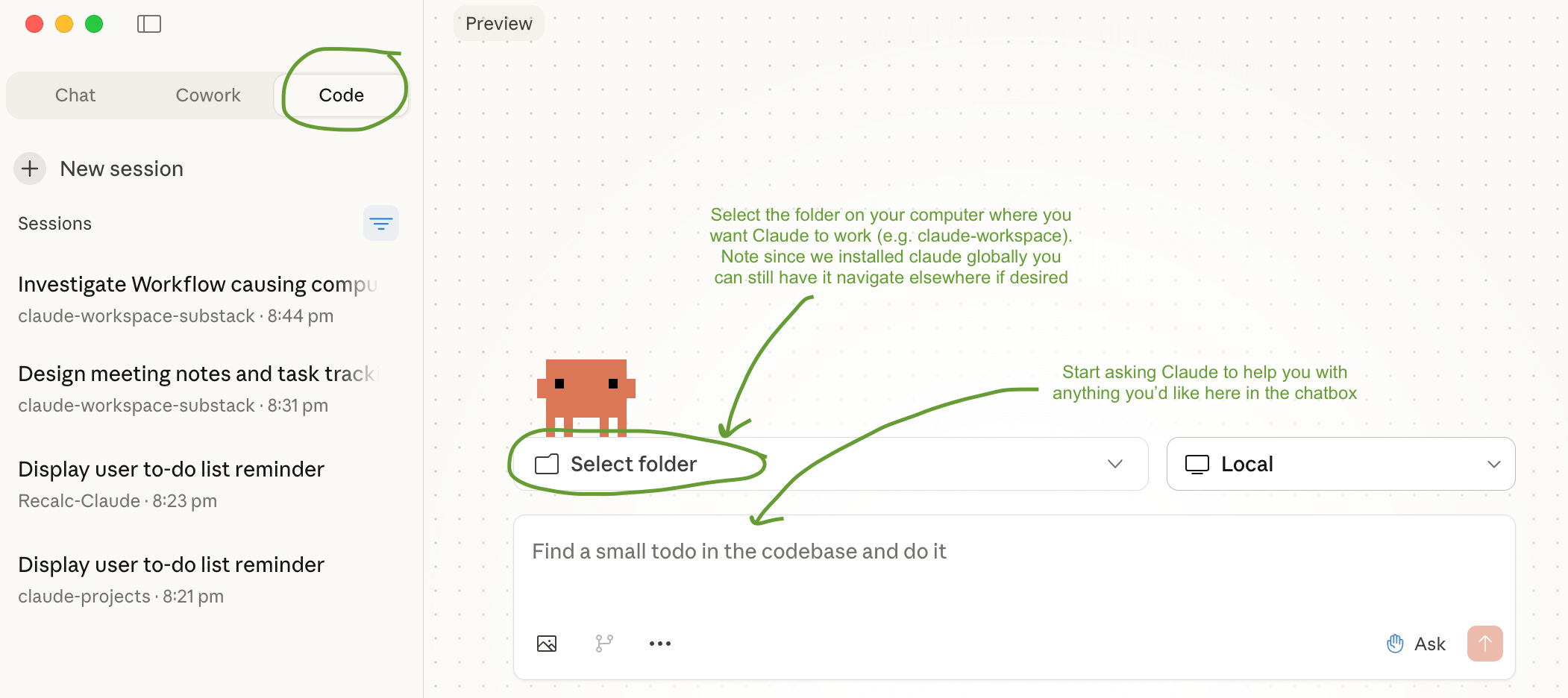
The Terminal
The Terminal is a way to interact with your computer by typing commands instead of clicking icons. Think of as typing instructions instead of clicking through menus.
If you ever want to try the Terminal:
Once you start Claude, you can just prompt it in English
When you have Claude running, you can exit by typing
/exitor pressing Ctrl+C multiple times.To start Claude again, just type
claudein the Terminal. Claude will work within whatever folder you run it from.If you need to navigate to a different folder:
cd ~returns to your home folderlslists what’s in the current foldercd folder_namemoves into a folder
Quick Examples To Try
1. Set up a place for keeping Client notes and a To-Do list. Have Claude help you stay on top of everything.
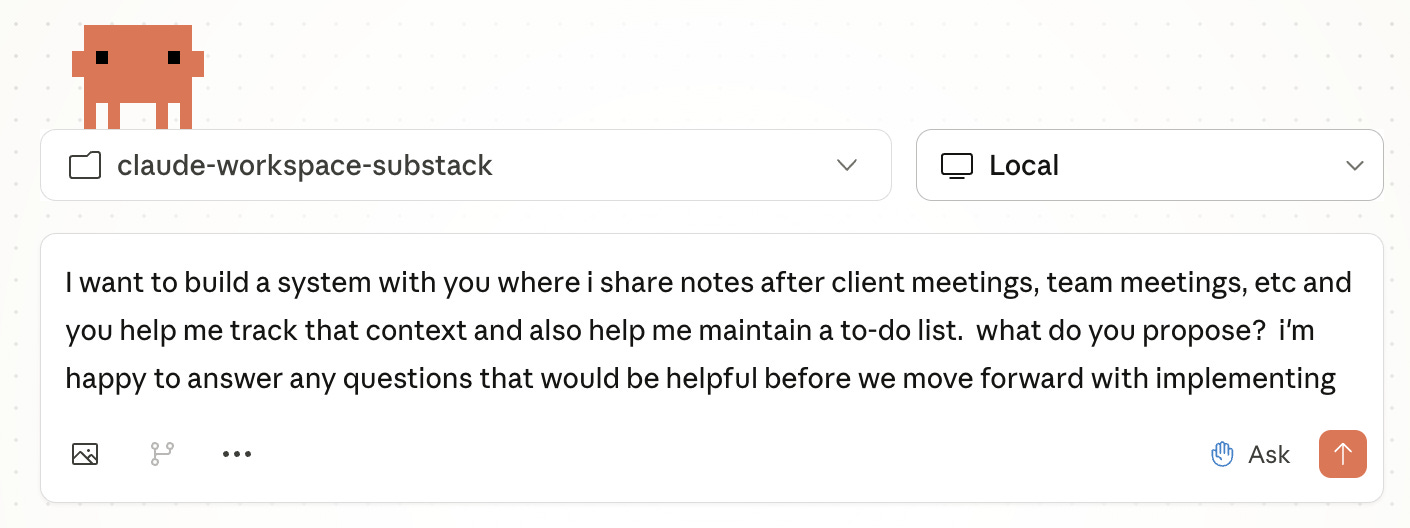
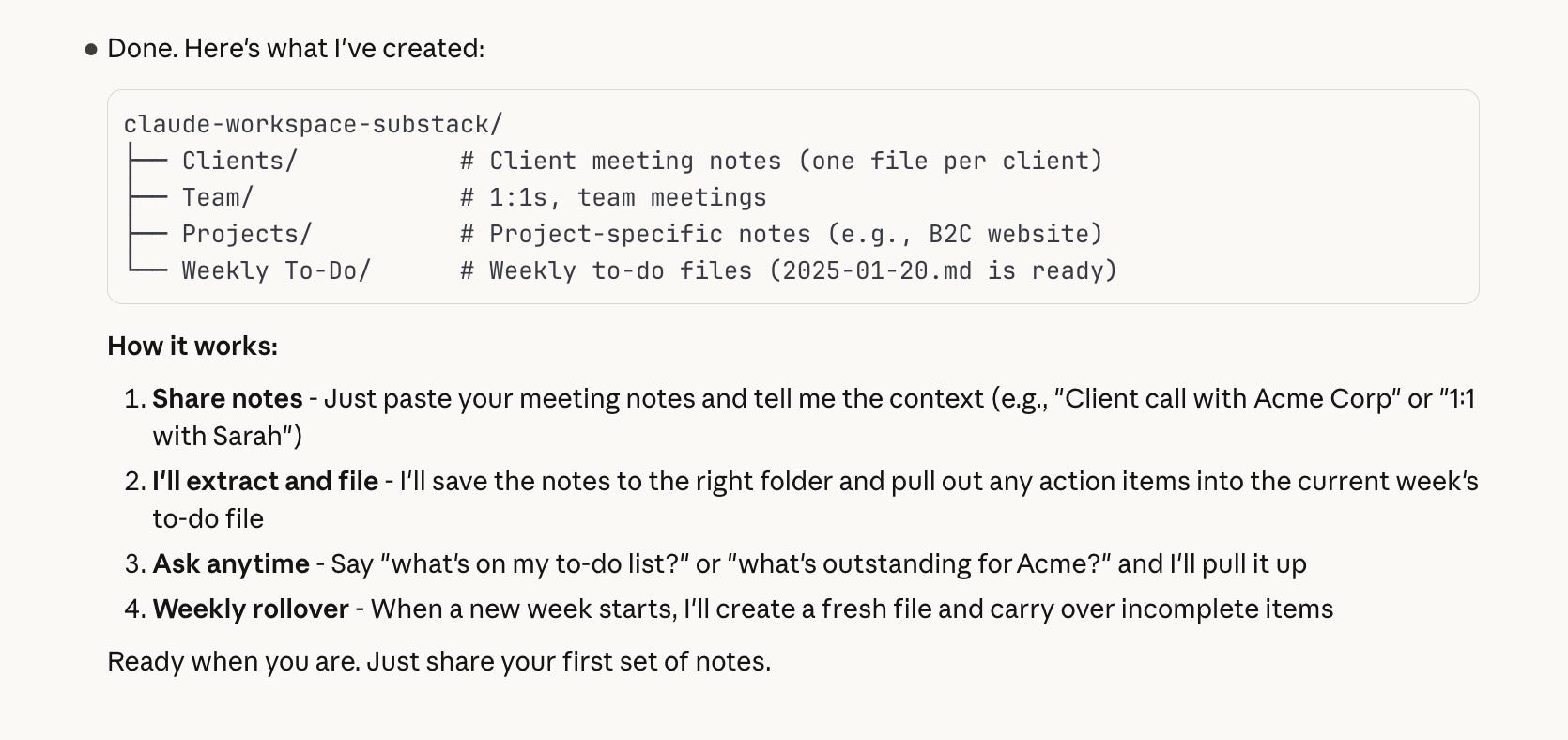
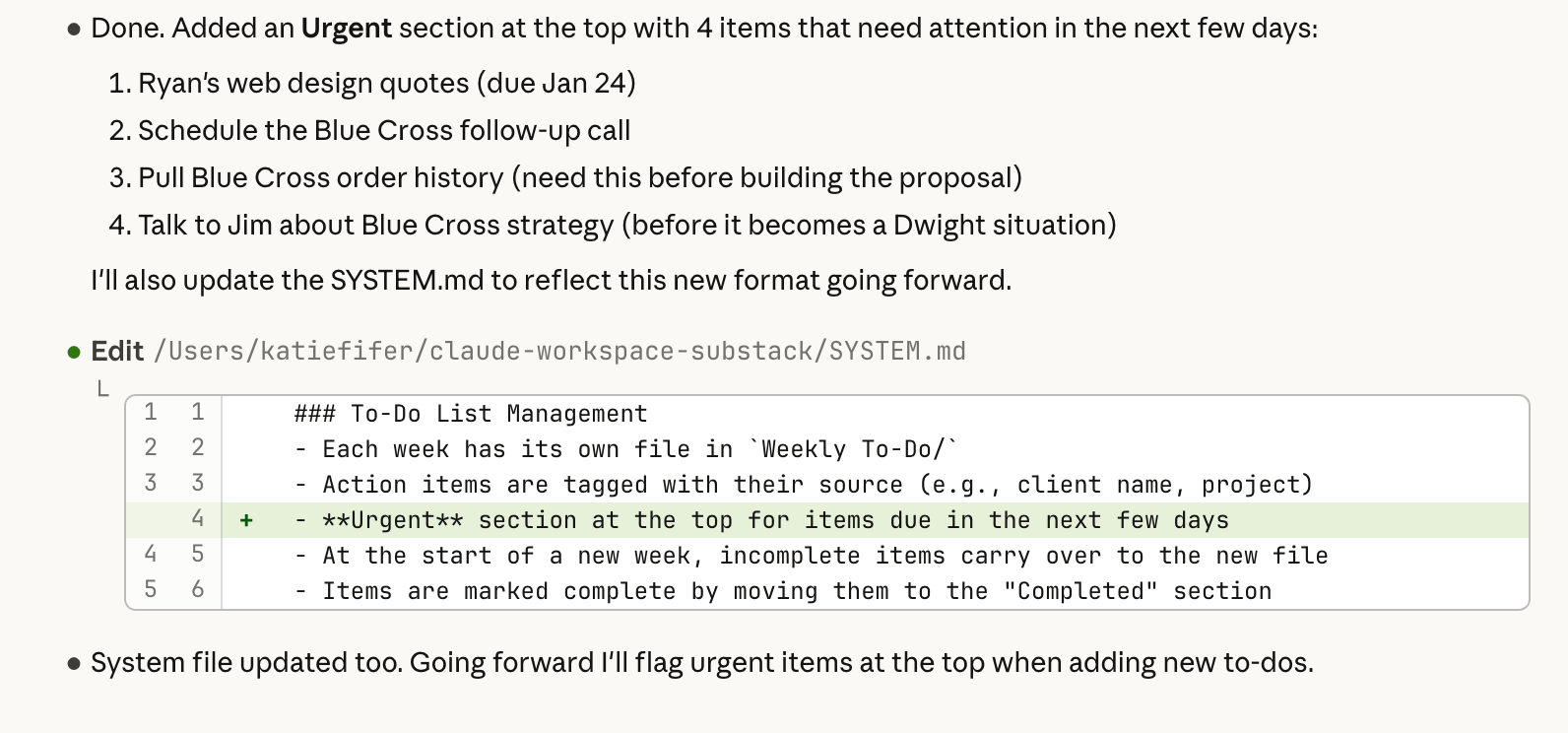
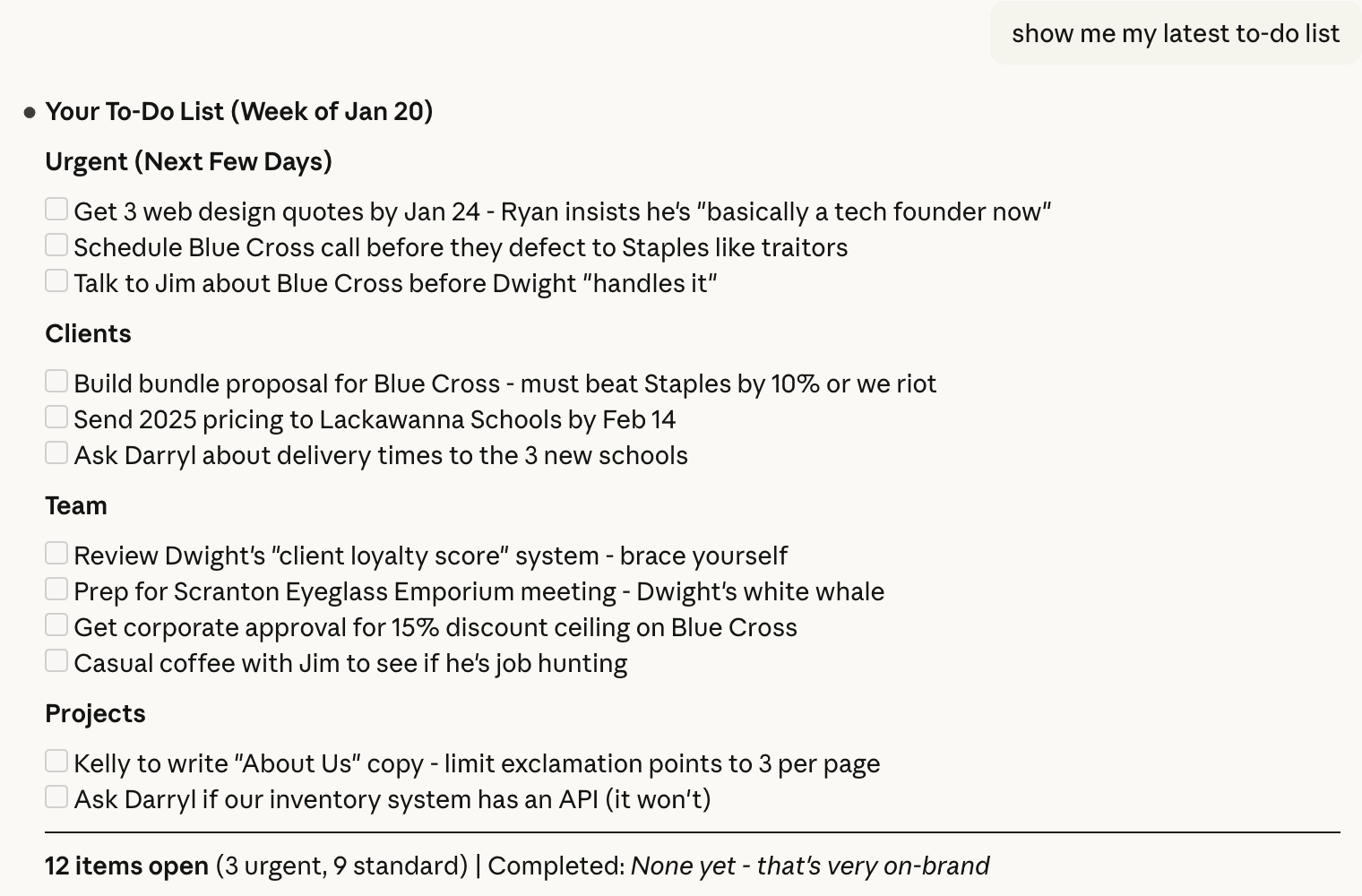
This is just the start of turning Claude into your second brain and personal assistant. There’s much more we’ll say here in a future post.
2. Review personal credit card statements for possible business expenses
Put all your credit card statements in one folder. Run Claude in that folder and ask it to go through all your statements and identify what might be business expenses that you need to be reimbursed for. You can ask it to have a conversation with you about the first statements to learn your patterns and also have it clarify whatever else it might be unsure on. At the end, have it put all the relevant expenses in an Excel sheet in the same folder.
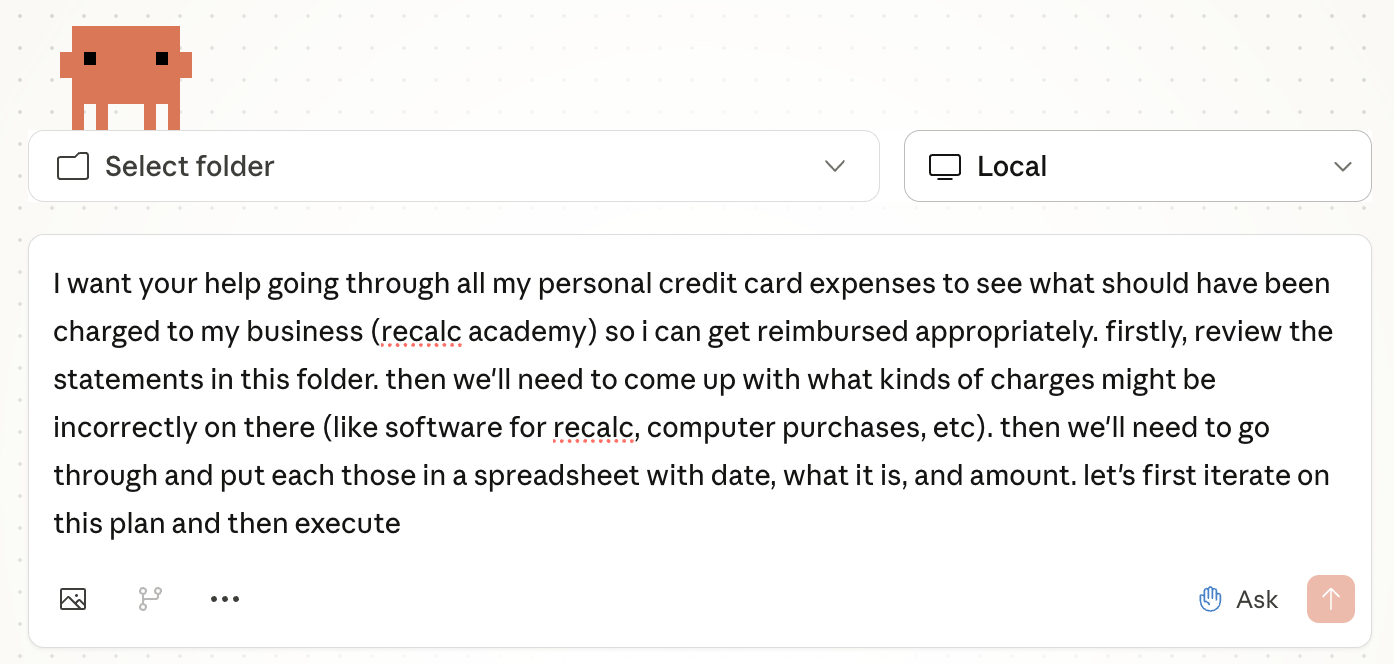
This is something I did with Claude last week and it saved me hours. Next up will be having it review and help me cancel any subscriptions I don’t need.
Similarly, if you do any family budgeting or expense management, Claude can help with the tedious work of expense categorization / review and comparisons between budget and actuals.
3. Get help with your computer
Anytime your computer is slow, you need to free up space, or need to reorganize files, you can ask Claude to help you figure it out or get it done.
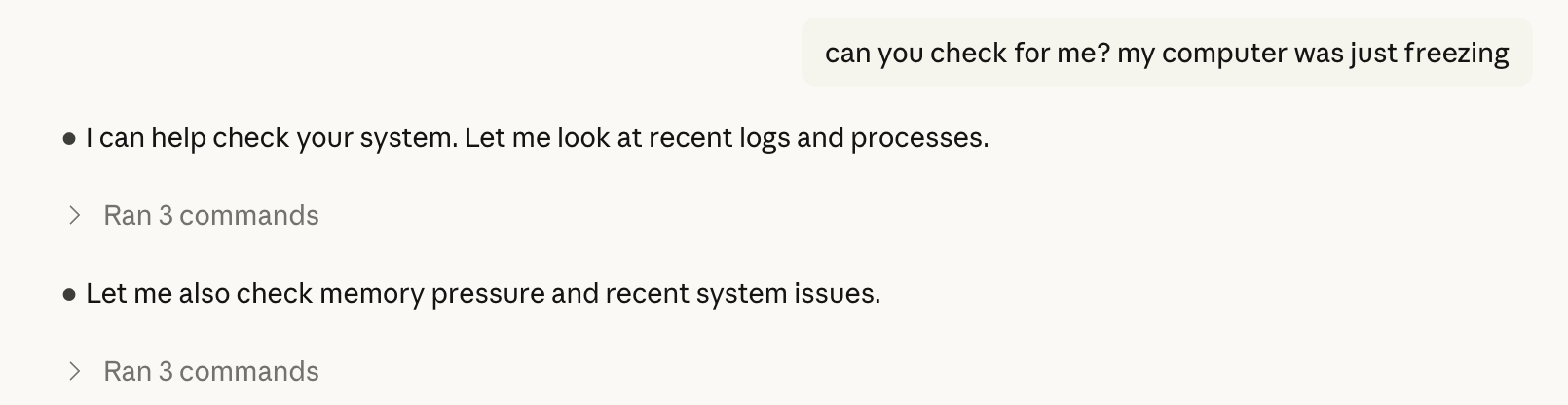
These will get you started. The fun thing about Claude Code is that the sky is truly the limit. But it takes some time and tinkering and a few additional concepts to unlock the most powerful use cases.
The good thing is if you’ve made it this far, you’re off to the races! We’ll share more on Claude Code tips and more advanced use cases soon.
Technically Curious Substack Disclaimer
We’re figuring this out and sharing what we learn as we go. This is intended to be practical advice based on our own experimentation - not professional guidance. We make no representations about accuracy or outcomes and aren’t responsible for how you use this information. Features and interfaces may change. You are responsible for your own use of AI.
Finally, we’d be remiss to not thank our talented co-writer and increasingly capable assistant, Claude!
Share Your Claude Code Use Cases & Questions
We’d love to hear more about what you’re up to with Claude Code in the comments below.
Love that you're targeting non-developers. The persistent context point is what makes Claude Code different from ChatGPT - it remembers your preferences, file structure, and workflows across sessions.
One thing I'd add: start with CLAUDE.md instructions for your specific use case. Mine handles expense tracking, blog publishing, and job searches autonomously because I frontloaded the context.
Just wrote about how model selection impacts cost/performance: https://thoughts.jock.pl/p/claude-code-vs-codex-real-comparison-2026
What business workflows are you automating first?
All these Claude Code hype articles and applications are certainly great, BUT employers also have a say in the matter. I doubt that Claude Code can be used so easily in many companies for data protection reasons. And then employees are left empty-handed.