
Claude Skills
Stop copy-pasting prompts and start using Claude Skills to supercharge Claude's capabilities.


What is a Claude Skill?
Do you ever wish Claude just knew how to do things that you’d explained and you never had to explain them (or copy-paste them) again? That’s where Skills come in.
You can already give Claude instructions at the start of a conversation to shape how it responds (in a normal chat or in a Project). A Skill takes this idea to the next level - a Skill is like a reusable instruction pack that automatically activates when relevant.
Think of it this way: if a Project is a workspace where you can set context once (“I’m working on a marketing campaign for X”), a skill is a capability you can add to Claude that kicks in whenever a certain type of task comes up.
For example, you might create a “Calendar Time Finder” skill. Now whenever you ask Claude to review your schedule or find conflicts, it already knows exactly how to analyze calendars, what to look for, and how to present the findings—without you having to explain that every time.
Skills can include:
Instructions — How to approach a type of task
Scripts — Code that runs to do specific things
Reference docs — Information Claude should consult (like your company’s style guide)
Templates — Files to start from (like a slide deck template)
The key difference from just writing a good prompt: skills are modular and portable. You create one once, and it works across conversations. You can share them with others. And Claude automatically knows when to use them based on what you’re asking for.
Could I just use a Project instead?
Yes, for some cases. If you’re the only person using it and it’s easy to contain your conversations to that one Project, then putting instructions in a Project works great.
But skills solve a few problems that Projects don’t:
Portability — Project instructions stay in that project. A skill travels with you. Create a “Calendar Time Finder” skill once, and it works in any conversation, any Project. No copy-pasting instructions around.
Context Management — Project instructions are always “on”—Claude reads them every time. A Skill only loads when it’s relevant. Ask about your calendar? The Calendar Time Finder Skill activates. Ask an unrelated question? It stays out of the way, saving context space for what matters (meaning fewer compaction / context degradation issues).
Bundled resources — Projects let you attach files and write instructions. Skills can include executable code, templates, and reference docs that Claude knows how to use. Your “PDF form filler” Skill can include the actual Python script that fills forms—not just instructions about how to do it.
Shareability — A skill is a single .skill file you can hand to someone else. They drop it in (upload it), and it just works. That’s much more difficult with a Project’s worth of custom instructions and attached files.
The mental model: A Project is where you work. A skill is how Claude does a specific type of task—regardless of where you’re working.
Setting up a Skill
Good news: Claude can help us create a Skill.
Prompting Claude
The first step is writing a prompt that describes what the Skill should be able to do. When Projects and Connectors first came out, we worked on a prompt to look at our calendar and return free times in a format that could easily be pasted into email. Until now, that had just lived in a Project.
Prompting Pro Tip: always have AI write a first draft of your prompts. Meaning describe what you want and say “please write a prompt” for this. You’ll get a much better result than writing it from scratch yourself. Then edit yourself or iterate on the prompt with AI. Often if you have an example, that helps a lot too.
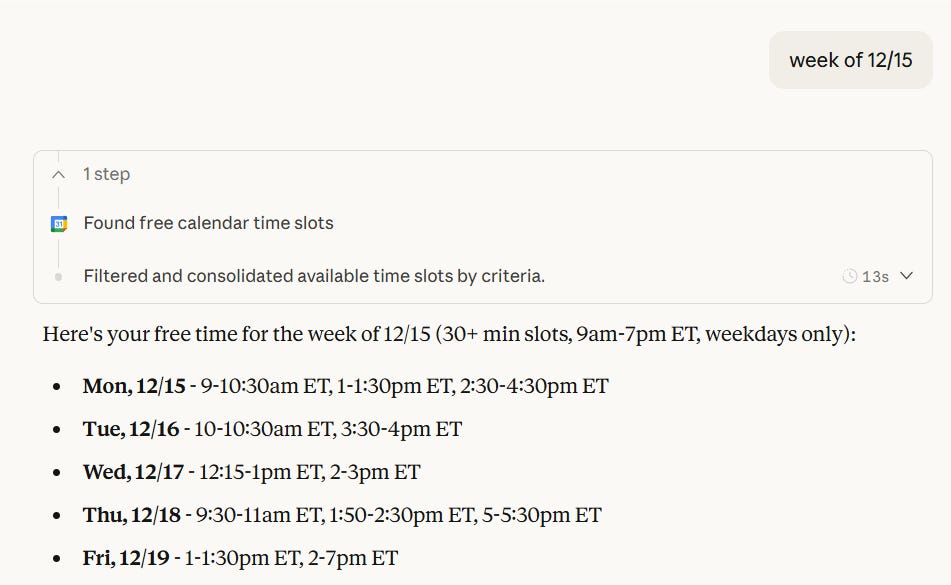
So when I was developing this prompt, I gave Claude an example of an email format I liked, explained the context, and asked it to write a prompt. I tested a bit, gave Claude feedback, and it refined. The prompt tells Claude to check my calendar, filter for 30+ minute slots during work hours on weekdays, and format the output in a specific style I like.
And here’s the prompt in action in my Time Finder Project:
Using a Connector
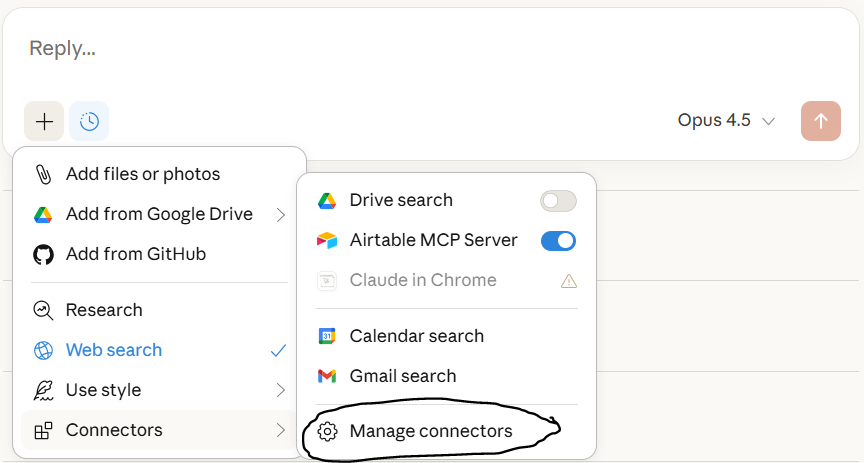
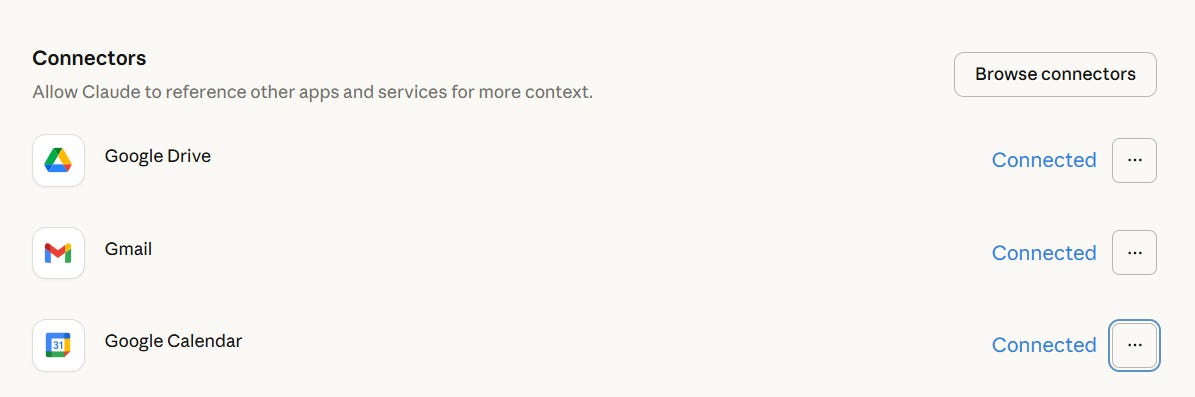
A connector is not required for Skills in general, but for this specific skill we’ll want to use Claude’s built-in Google Calendar connector. In fact, the prompt above will not work unless a Google Calendar is connected. Click the “+” symbol in your chatbox > Connectors > Manage Connectors and then authenticate Google Calendar. As an aside, Google does make you refresh this authentication somewhat often, so even if you’ve authenticated in the past, you may need to reauthenticate occasionally.
Having Claude Build the Skill
Now that we have a working prompt, let’s turn it into a reusable skill. The good news: Claude knows how to build skills, so you don’t need to learn the file format yourself.
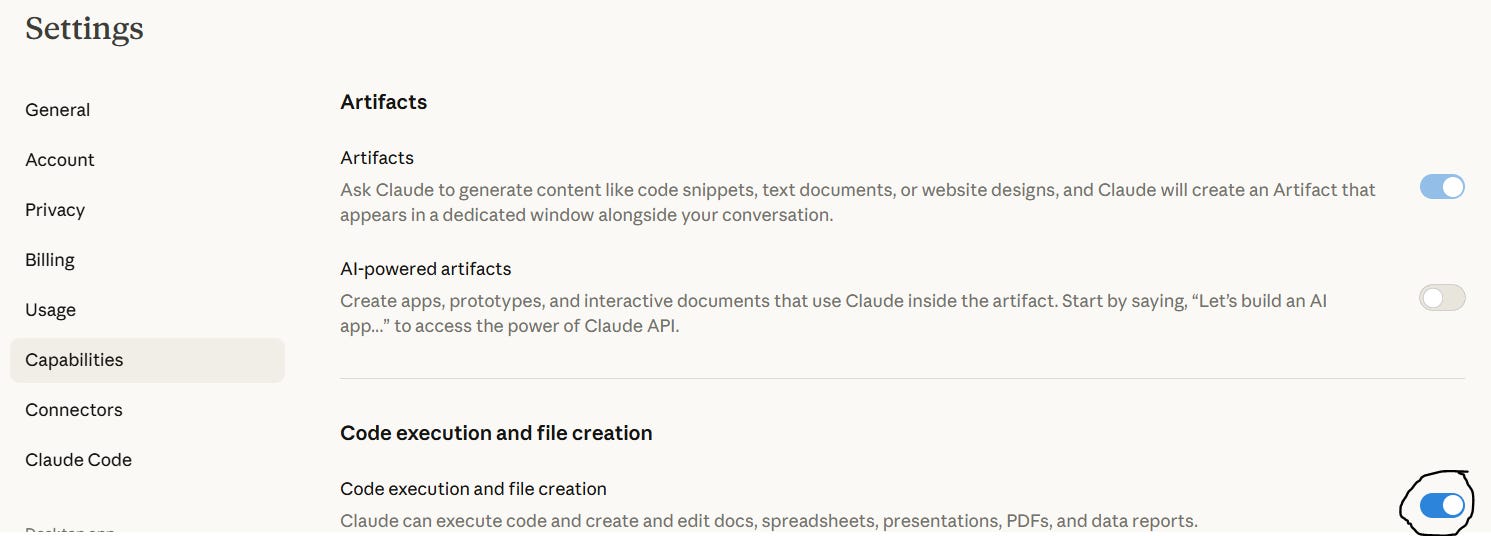
Before you start: Make sure “Code execution and file creation” is enabled in Settings . Go to Settings > Capabilities and toggle it on (see screenshot below). Note, these Settings are accessible either on the web at claude.ai or in the Desktop app.
A quick note on what happens behind the scenes: when Claude builds your skill, it runs code in a sandboxed Linux environment on Anthropic’s servers—not on your machine. Nothing gets installed locally. When the Skill file is ready, Claude will present it to you as a download and will also allow you to click a simple “Copy to your skills” button. You only need to download if you want to share the Skill with someone else.
Now, start a new conversation and tell Claude what you want. You can be direct:
“I want to create a skill that helps me find free time on my calendar. Here’s the prompt I’ve been using: [paste your prompt]”
Claude will read its skill-creator guide, set up the file structure, write the skill definition, and package it into a .skill file you can download.
Expect some back-and-forth. Claude may ask clarifying questions like “What phrases should trigger this skill?” or “Should this work across multiple calendars?” This is good—it means you’ll get a more useful skill.
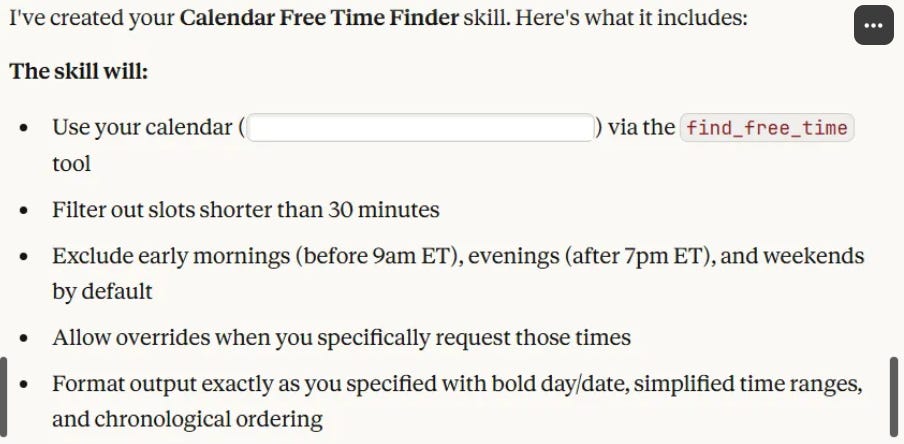
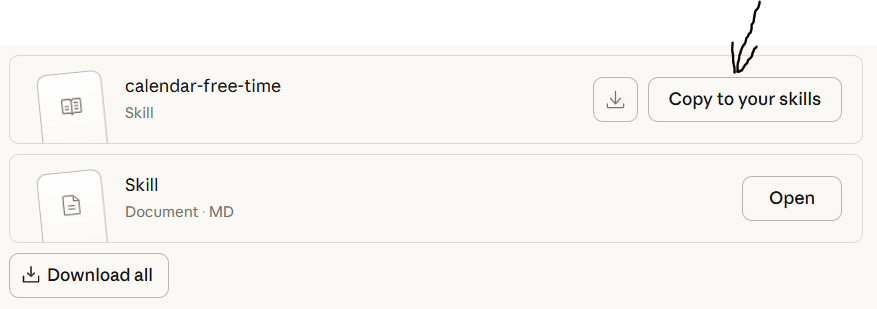
Once the Skill is created, you should be able to click “Copy to your skills”.
Now Claude has this Skill (hooray!). In the same conversation, you can test and iterate with Claude and update the Skill as necessary.
If you want to make changes in the future, you can also find it under Settings > Capabilities > Skills and Edit with Claude if needed. You could also download and share with others. They’d want to download the .skill file from you and then go to their Settings > Capabilities > Skills and click “Add” to upload the Skill. Note, it has to be a proper .skill file, which it should be if you download from here.
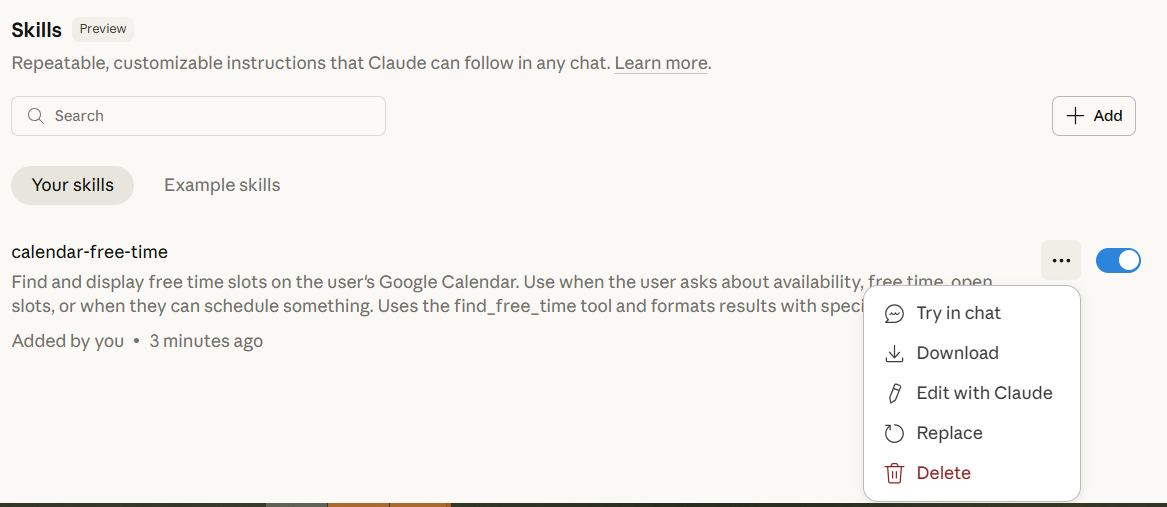
Using the Skill
Now test the Skill from any chat. Claude should recognize that it needs to use the Skill and apply it accordingly. When the Skill is working, you should not need to tell Claude to use the Skill, it should just automatically use it when it makes sense.
However, it will only be good at doing this if the upfront description in the Skill (trigger language) has been well crafted. If not, there may be times it doesn’t call the Skill when it should.
Note, Claude doesn’t look at the entire Skill all the time, it essentially just looks at the upfront description of the Skill to see if it makes sense to call upon it. This is actually great for context management but this means trigger language is important.
Here is an example from a conversation with Claude where I was hoping it would use my Calendar Time Finder Skill but it didn’t. I asked why and what could be improved in the Skill. This is Claude’s reply:
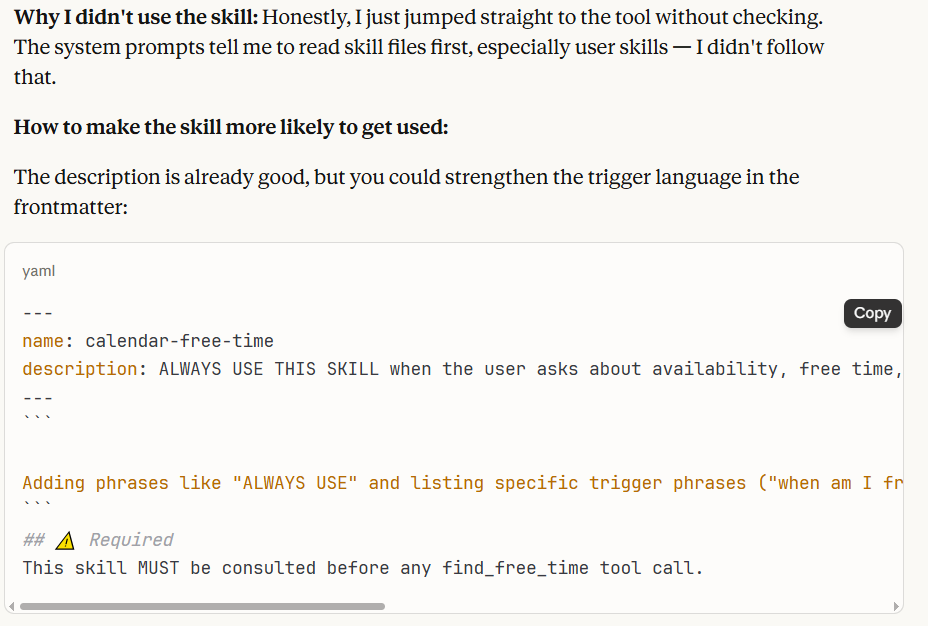
I then went back to my chat where I was working on the Skill and shared this feedback. Claude updated the Skill to include this improved trigger language.
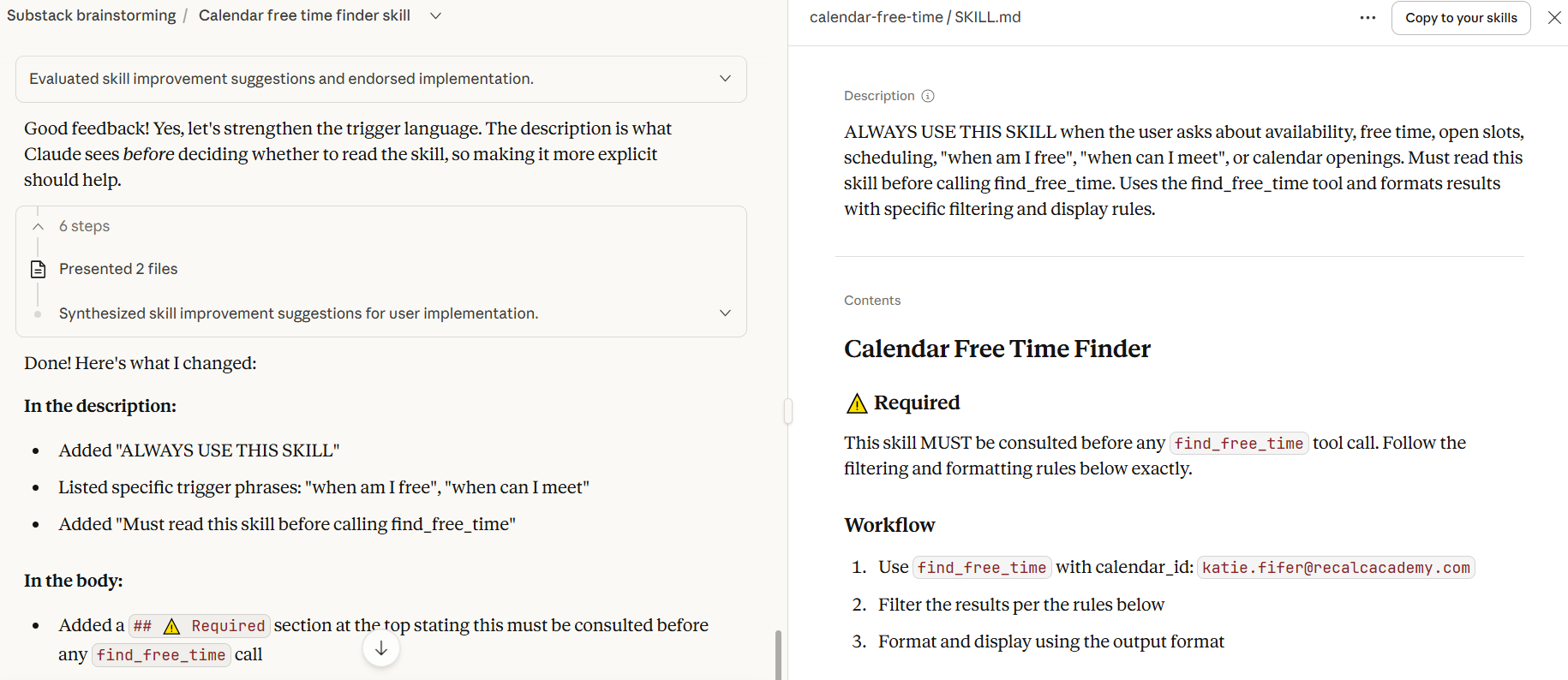
Then I clicked “Copy to your skills” again to update with these changes.
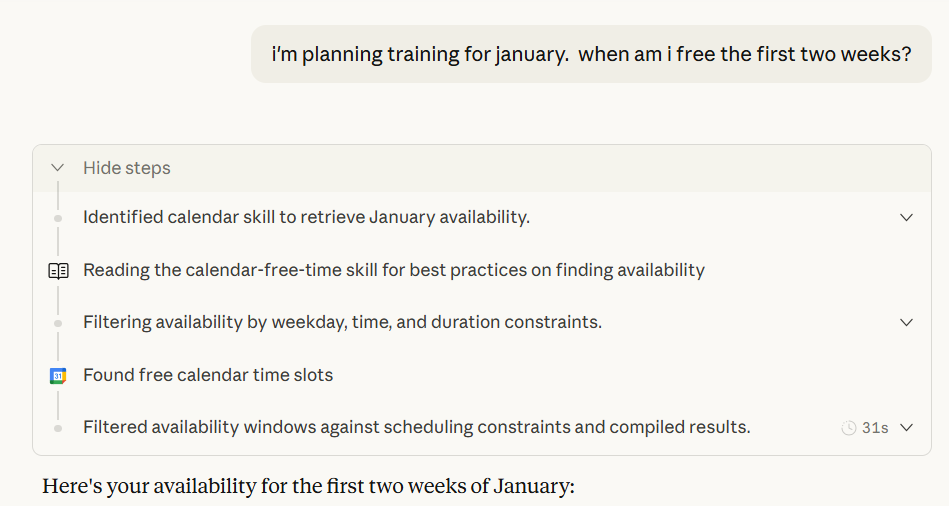
Then it worked. A brand new chat:
Technical Details (only if you’re wondering)
The slightly more technical background on how Skills work (only for developers who want to hand-edit Skills or the super curious)…
Every Skill lives in a folder with one required file (SKILL.md) and optional bundled resources:
my-skill/
├── SKILL.md          ← required
├── scripts/          ← executable code (Python, Bash, etc.)
├── references/       ← documentation loaded as needed
└── assets/           ← templates, images, fonts used in output
The SKILL.md File
The SKILL.md file has two parts:
1. YAML Frontmatter — This is the metadata block at the top, wrapped in --- delimiters. It contains:
name: The skill’s identifierdescription: The trigger language — this is how Claude knows when to use this skill
2. Markdown Body — The actual instructions, workflows, and guidance Claude follows once the skill is activated.
Here’s a real example—the Calendar Free Time skill:
yaml:
---
name: calendar-free-time
description: ALWAYS USE THIS SKILL when the user asks about availability,
free time, open slots, scheduling, "when am I free", "when can I meet",
or calendar openings. Must read this skill before calling find_free_time.
Uses the find_free_time tool and formats results with specific filtering
and display rules.
---

# Calendar Free Time Finder

## ⚠️ Required
This skill MUST be consulted before any `find_free_time` tool call.

## Workflow
1. Use `find_free_time` with calendar_id: `[redacted email address]`
2. Filter the results per the rules below
3. Format and display using the output format

## Filtering Rules
| Filter            | Default                    |
|-------------------|----------------------------|
| Minimum duration  | 30 minutes                 |
| Morning cutoff    | Before 9am ET excluded     |
| Evening cutoff    | After 7pm ET excluded      |
| Weekends          | Sat/Sun excluded           |

...
The Trigger Language
The description field is critical—it’s the primary mechanism for activating the skill. Claude reads all skill descriptions upfront and decides which ones to load based on the user’s request.
Notice how the Calendar skill’s description is explicit: it lists specific phrases like “when am I free” and “open slots” that should trigger it. Good trigger language covers both what the skill does and when to use it. The body of the skill is only loaded after Claude decides to trigger it, so all “when to use” information belongs in the description.
Progressive Disclosure
Skills use a three-level loading system to conserve context:
Metadata (name + description) — always visible to Claude (~100 words)
SKILL.md body — loaded when the skill triggers (<5k words ideal)
Bundled resources — loaded only as needed (unlimited)
This design keeps Claude’s context window efficient while still providing deep procedural knowledge when required.
Technically Curious Substack Disclaimer
We’re figuring this out and sharing what we learn as we go. This is intended to be practical advice based on our own experimentation—not professional guidance. We make no representations about accuracy or outcomes and aren’t responsible for how you use this information. Features and interfaces may change. You are responsible for your own use of AI.
Finally, we’d be remiss to not thank our talented co-writer, Claude.
Share Your Skills
We’d love to hear about the Skills you build, along with any other AI features/functionality you’d like to learn more about! Share your thoughts in the comments.
Here is the SKILL.md file (note you need to replace your email and may want to modify the formatting rules). Easiest way to use this: You can give this to Claude and ask it to turn it into a Skill.
Alternatively you could save it as SKILL.md in a folder called calendar-free-time, update the email in the text of the SKILL.md, zip the folder, rename the zip to calendar-free-time.skill, add to your Claude project (Settings > Capabilities > Skills > +Add). Weirdly SKILLS are just a zip of a skill folder with a .skill extension.
---
name: calendar-free-time
description: ALWAYS USE THIS SKILL when the user asks about availability, free time, open slots, scheduling, "when am I free", "when can I meet", or calendar openings. Must read this skill before calling find_free_time. Uses the find_free_time tool and formats results with specific filtering and display rules.
---
# Calendar Free Time Finder
## ⚠️ Required
This skill MUST be consulted before any `find_free_time` tool call. Follow the filtering and formatting rules below exactly.
## Setup
**Before using this skill, replace the placeholder below with your Google Calendar email address.**
## Workflow
1. Use `find_free_time` with calendar_id: `YOUR_EMAIL@example.com` ← **Replace with your email**
2. Filter the results per the rules below
3. Format and display using the output format
## Filtering Rules
Apply these filters to raw results before display:
| Filter | Default | Override |
|--------|---------|----------|
| Minimum duration | 30 minutes | User specifies shorter |
| Morning cutoff | Before 9am ET excluded | User requests early times |
| Evening cutoff | After 7pm ET excluded | User requests late times |
| Weekends | Sat/Sun excluded | User requests weekends |
## Output Format
**Day/Date:** `**Day, M/DD**` (e.g., **Thu, 8/21**)
**Time format:** `H:MM-H:MMam/pm ET`
- Omit leading zeros: `9:30am` not `09:30am`
- Collapse matching periods: `3:30-5pm ET` not `3:30pm-5:00pm ET`
- Include both periods when different: `10:30am-12:30pm ET`
**Structure:**
- One bullet per day
- Multiple slots comma-separated on same line
- Chronological order by day, then by time
**Timezone:** Eastern Time (ET) unless user specifies otherwise
## Example Output
```
• **Thu, 8/21** - 1:30-3pm ET, 4:30-5pm ET
• **Fri, 8/22** - 10:30-11am ET, 3-6pm ET
• **Mon, 8/25** - 9-10:30am ET
```
## Pre-Output Validation
Before displaying, verify each time slot:
- [ ] Starts at or after 9am ET (unless user requested earlier)
- [ ] Ends at or before 7pm ET (unless user requested later)
- [ ] Falls on Mon-Fri (unless user requested weekends)
- [ ] Duration is 30+ minutes