
Keep Clauding From Anywhere
Use your phone to remotely control Claude Code and Cowork on your computer.


Claude can feel like playing a (mostly productive?) video game. It’s fun and addicting and hard to stop. But we don’t want to be chained to our computers all day. We want to go outside.
Now we can, and Claude keeps working while we’re away!
Anthropic recently released three new ways to control Claude Code/Cowork from your phone. What does this mean?
When you’re out on a walk and have an idea you want to work on with Claude, you can ask Claude to get started. Return to a completed document, research brief, or dashboard draft.
When you’re away from your computer but need to look something up from your files or connected systems, just ask Claude.
When Claude is working for an extended stretch of time and you’re afraid of walking away because Claude might need your permission, walk away stress-free. Approve any permissions from your phone.
If you’re Claire, you’re on the Peloton (or alternatively lying flat on the couch) and keeping Claude on track.
Yes, we may have the AI psychosis (we know). But if you’re like us and want to keep Claude running without being tethered to your desk, read on.
These features are still somewhat buggy. We expect them to improve over time.
Three Options
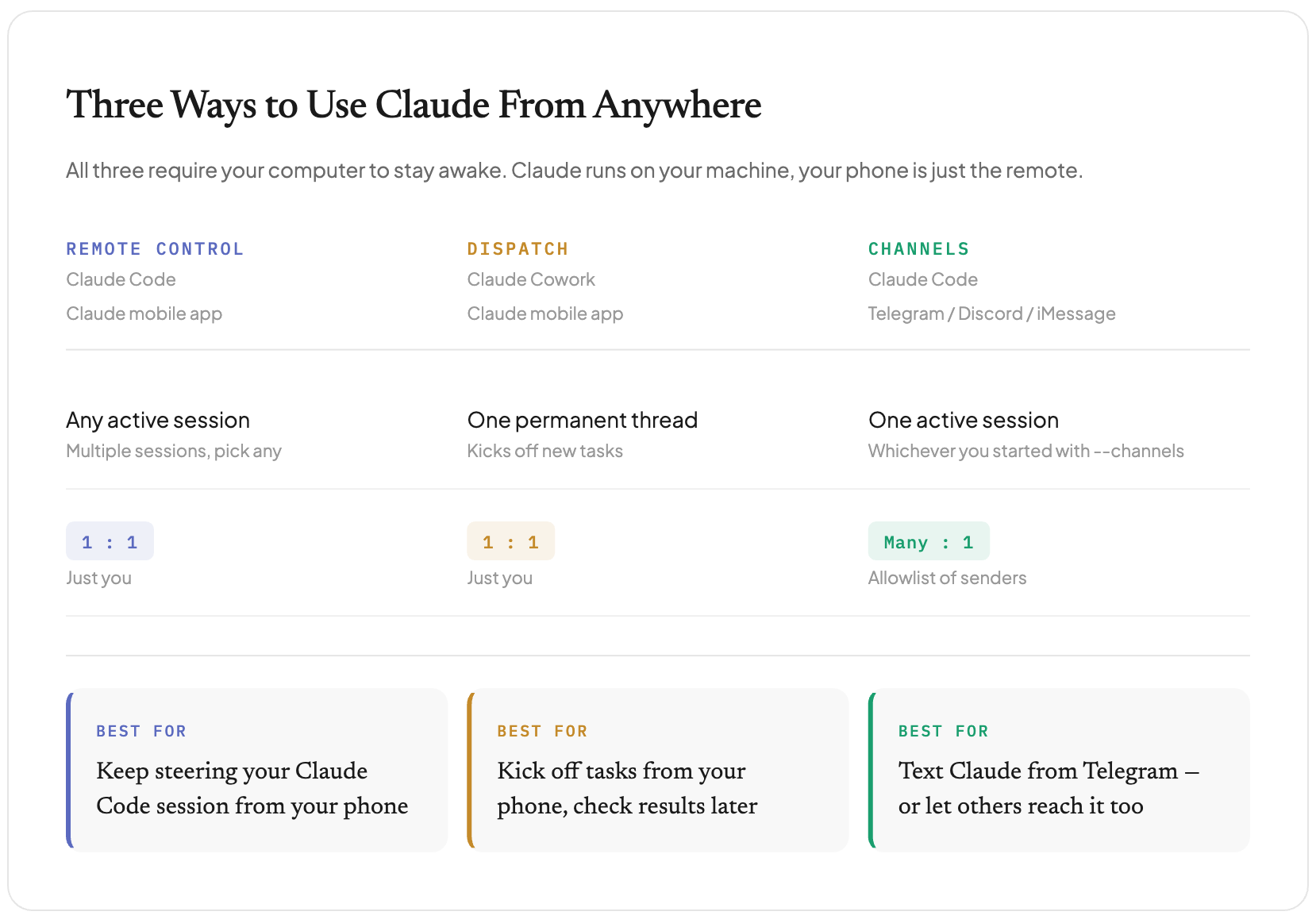
There are three ways to use your phone to control Claude on your computer: Remote Control, Dispatch, and Channels.
Remote Control - our favorite, works well for Claude Code users.
Dispatch - interesting but not yet very useful for Cowork users.
Channels - fun to try but more setup than Remote Control.
Remote Control
Remote Control enables you to use your phone to continue a Claude Code session on your computer. The session runs locally on your computer just like it would if you were sitting at your desk. You can have many Remote Control sessions in parallel - each Claude session shows up as a separate remote control thread on your phone. Remote Control is generally reliable and we use it often.
Dispatch
Dispatch enables you to use your phone to kick off work in Claude Cowork or Claude Code on your computer. With Dispatch you’ll have one long thread with Claude, and as you ask Claude to do work, it will initiate new tasks (as separate threads). These tasks will land in Cowork if they relate to general business tasks (spreadsheets, research, etc) and in Claude Code if they relate to a codebase. However, for Code, we’d recommend using Remote Control over Dispatch - it’s much easier to see what’s going on from your phone.
Dispatch is helpful when you have a new workstream you want to initiate in Cowork while you’re away from your computer. However, Claude won’t show you any back-and-forth or progress updates. It is supposed to send a push notification when your task completes, but it often doesn’t. Ultimately, you’ll need to check on the outputs in Claude Cowork when you are back at your computer.
In practice, it’s hard to use because you can’t see what’s happening with your tasks from your phone. We expect this will improve over time.
Channels
Channels connects Claude Code to a messaging app like Telegram, essentially giving your Claude session its own messaging account that you can ping. You message your telegram bot, Claude Code on your computer reads it and responds to you through the bot. The key difference from Remote Control: you can add other people to an allowlist, meaning multiple users could interact with your Claude session - not just you. You could also set up automated hooks (triggers in another program) that send messages to Claude.
This feature is reminiscent of OpenClaw, a popular always-on AI assistant you message from your phone. Channels could be helpful, for example, for two parents coordinating kid logistics, or for a small team messaging an AI assistant (provided the Claude Code session doesn’t disconnect).
Channels setup is more involved than Remote Control, and for most solo users, Remote Control is the better choice. But if you want to experiment with multi-user access or just think it’s fun to text Claude, you can try it out.
General Setup
You’ll want to make sure Claude is up-to-date and that your computer stays awake.
Update Claude
Claude Desktop App: go to the upper left menu > Help > Update or Check for Updates
Claude Mobile App: go to the App Store on your phone and search for Claude. If it says “Update” instead of “Open”, you need to click Update.
Claude Code: if you use Claude Code, go to the terminal in VS Code. Make sure you’re not in Claude (type /exit if you are). Then type
claude updatein the terminal and hit Enter.
Keep Your Computer Awake
Your phone is going to be a remote control for your computer. If your computer falls asleep, your chats will end. Here’s how to configure your computer to stay awake:
Mac users
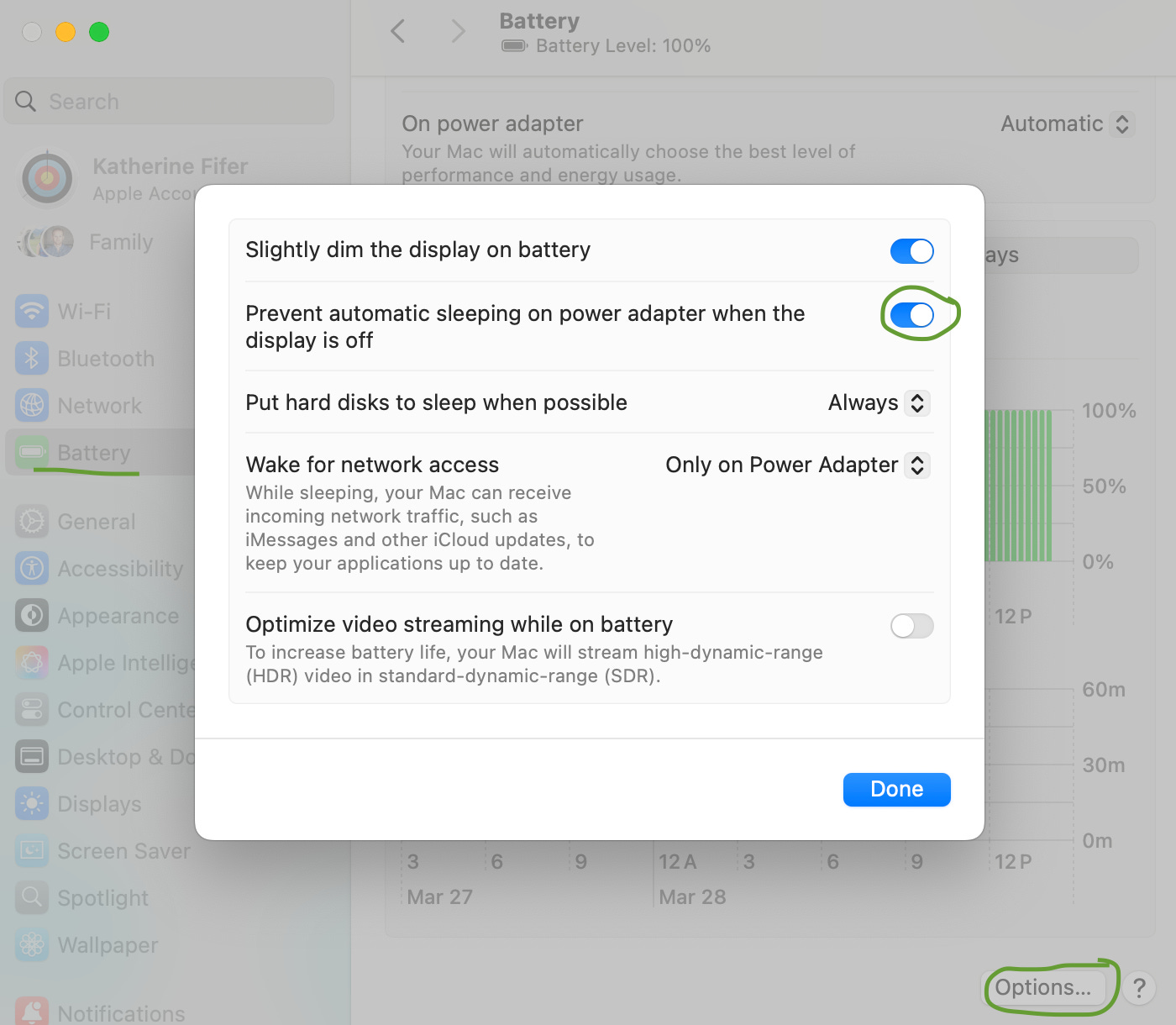
On a MacBook (laptop): Make sure it’s plugged in. Go to System Settings → Battery → Options → toggle on “Prevent automatic sleeping on power adapter when the display is off.”
On a Mac desktop (and older macOS): Go to System Settings → Energy Saver → toggle on “Prevent automatic sleeping when the display is off.”
Your screen will still turn off on its own, but the computer stays awake and reachable.
Or alternatively run these commands in your terminal:
# Prevent system sleep on AC power
sudo pmset -c sleep 0

# Prevent disk sleep
sudo pmset -c disksleep 0
Note: if you close the lid on your laptop, everything sleeps (unless connected to external keyboard/display). If you’re walking away from your Mac laptop hoping to continue talking to your Claude agent, leave the lid open.
PC users
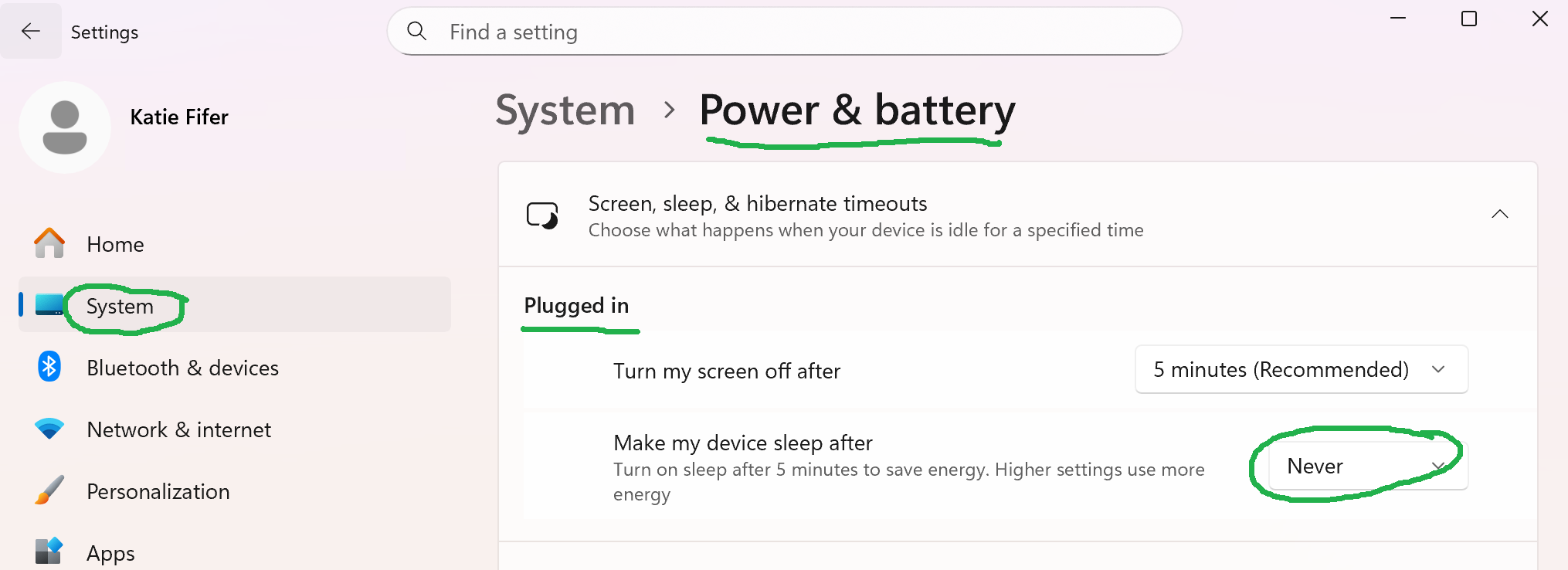
Go to Settings → System → Power & battery (Windows 11) or Power & sleep (Windows 10). Click "Screen, sleep, & hibernate timeouts" to expand it. Set "Make my device sleep after" to Never for "Plugged in." You can make the same selection for On Battery, but we’d recommend against it to preserve the battery.
Alternatively, run these commands in your terminal
# Prevent system sleep on AC power
powercfg /change standby-timeout-ac 0

# Prevent disk sleep
powercfg /change disk-timeout-ac 0

# Let display sleep after 30 min
powercfg /change monitor-timeout-ac 30
By default, the computer will sleep when the lid is closed. If you want to override this, go to Settings > System > Power & battery > Closing the lid will make my PC > select Do Nothing. Or take the simpler approach of leaving the lid open.
Remote Control
Remote control allows you to use your phone to continue a Claude Code session running on your computer. To set it up, we’ll enable remote control in Claude Code on our computer. Then we’ll pick up the conversation on our phone in the mobile app.
Remote control is available on all Claude Code plans, but is off by default in Teams and Enterprise until an admin enables it.
On your computer
You can launch a new Claude Code conversation with remote control enabled. Type:
claude --remote-control Or start remote control from any existing terminal-based conversation with Claude Code. In an active Claude Code session, type:
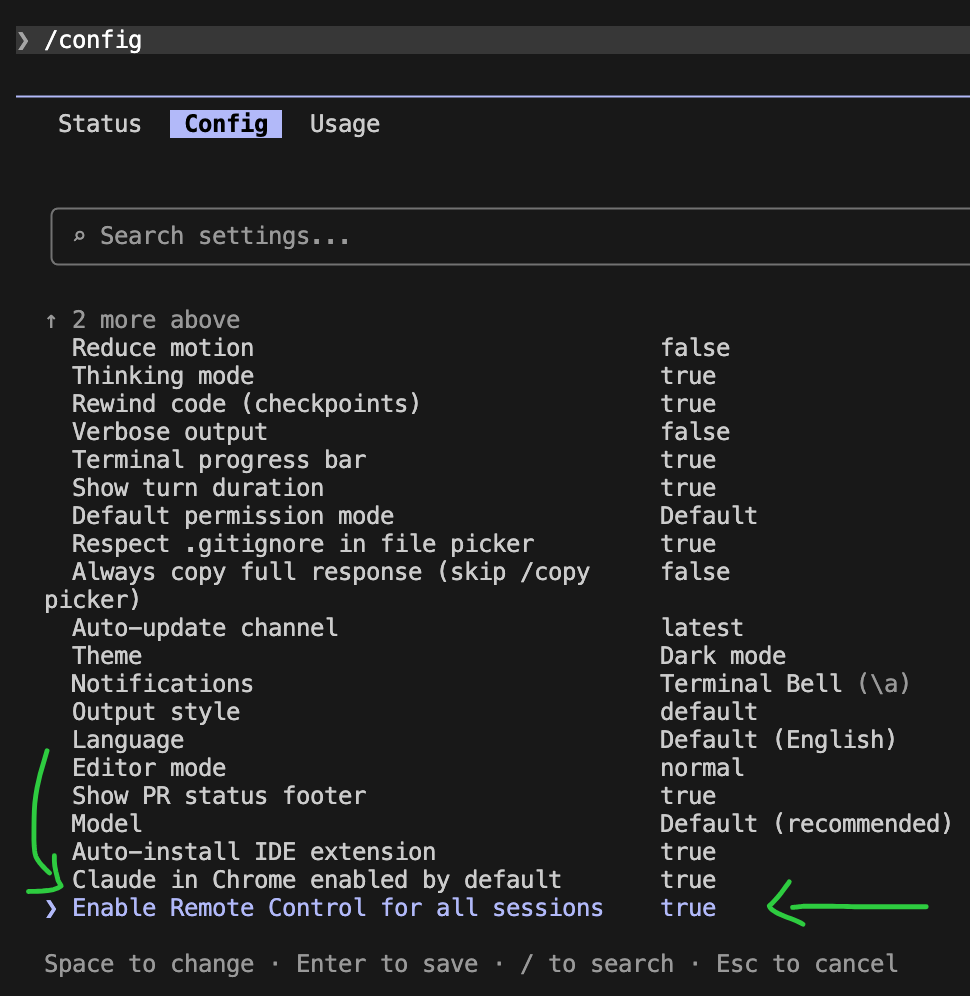
/remote-controlYou can also set remote control to ‘on’ by default. Type /config followed by Enter. Use your down arrow key to navigate to the bottom of the list to Enable Remote Control for all sessions. Use the spacebar to select true. Enter to save.
On your phone
In the mobile app, click “</> Code”. You should see the remote-control conversations. Click into any of them to continue that Claude Code session from your phone.
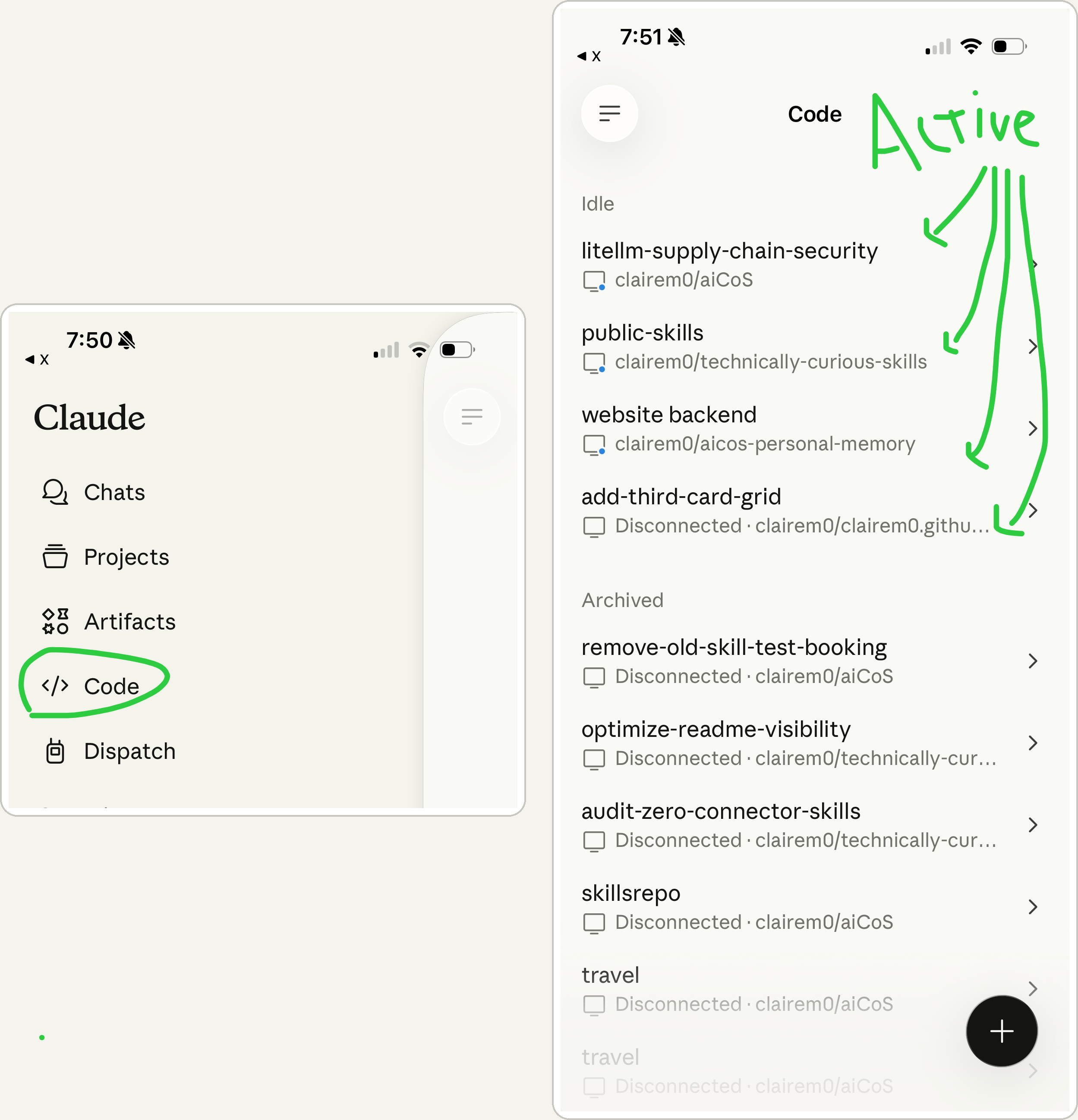
Name the conversation
If you have many Claude Code conversations running, it can help to name the conversation so that you can spot that name in the list on your phone. There are three ways to do this. In each of the examples below, change “name” to whatever you want to call that conversation.
When you start claude with remote-control enabled, add a name.
claude --remote-control nameWhen you enable remote-control in any conversation, specify a name
/remote-control nameYou can more generally name any conversation in Claude Code with /rename. That name now carries over to the remote thread on your phone.
/rename name
Dispatch
Dispatch enables you to kick off Claude Cowork tasks from your phone. Your conversation with Dispatch is one long thread. However, when you ask for something new, Dispatch will typically kick off a new task in Cowork, and you can go to any of those tasks once you’re back at your computer.
Dispatch is available on Pro and Max. It is not available on Teams and Enterprise as of March 28, 2026.
Enable Dispatch on your computer
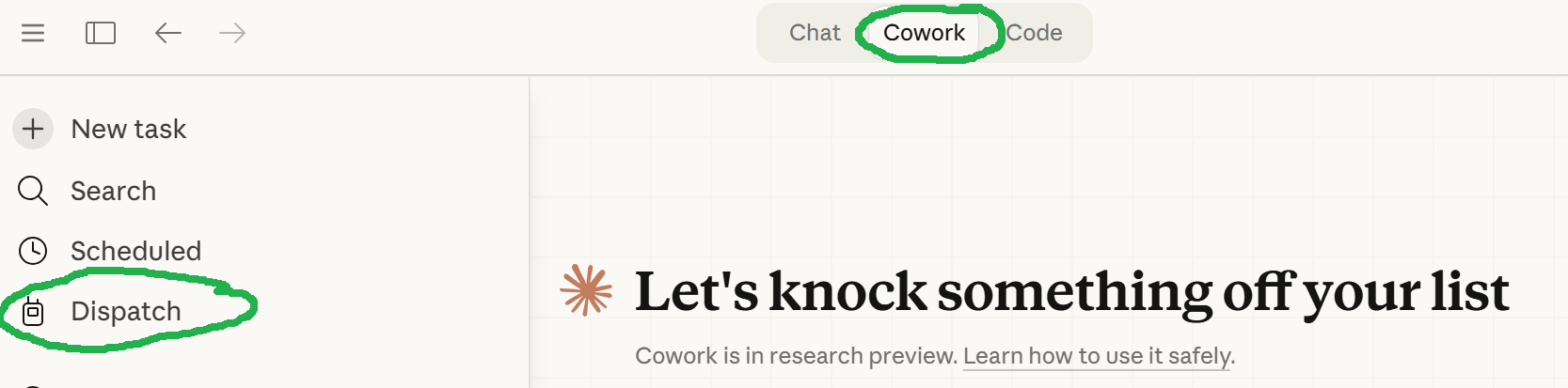
Open Claude desktop. Select the Cowork tab (top middle)
Select Dispatch in the left side menu.
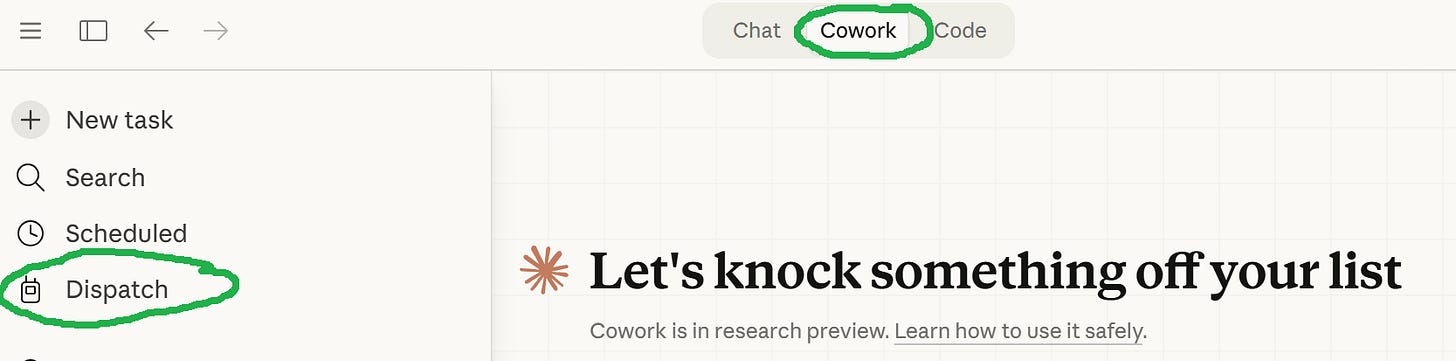
Claude Desktop > Cowork > Dispatch The first time you use Dispatch, you’ll get the below screen telling you more about it. Click “Get Started”
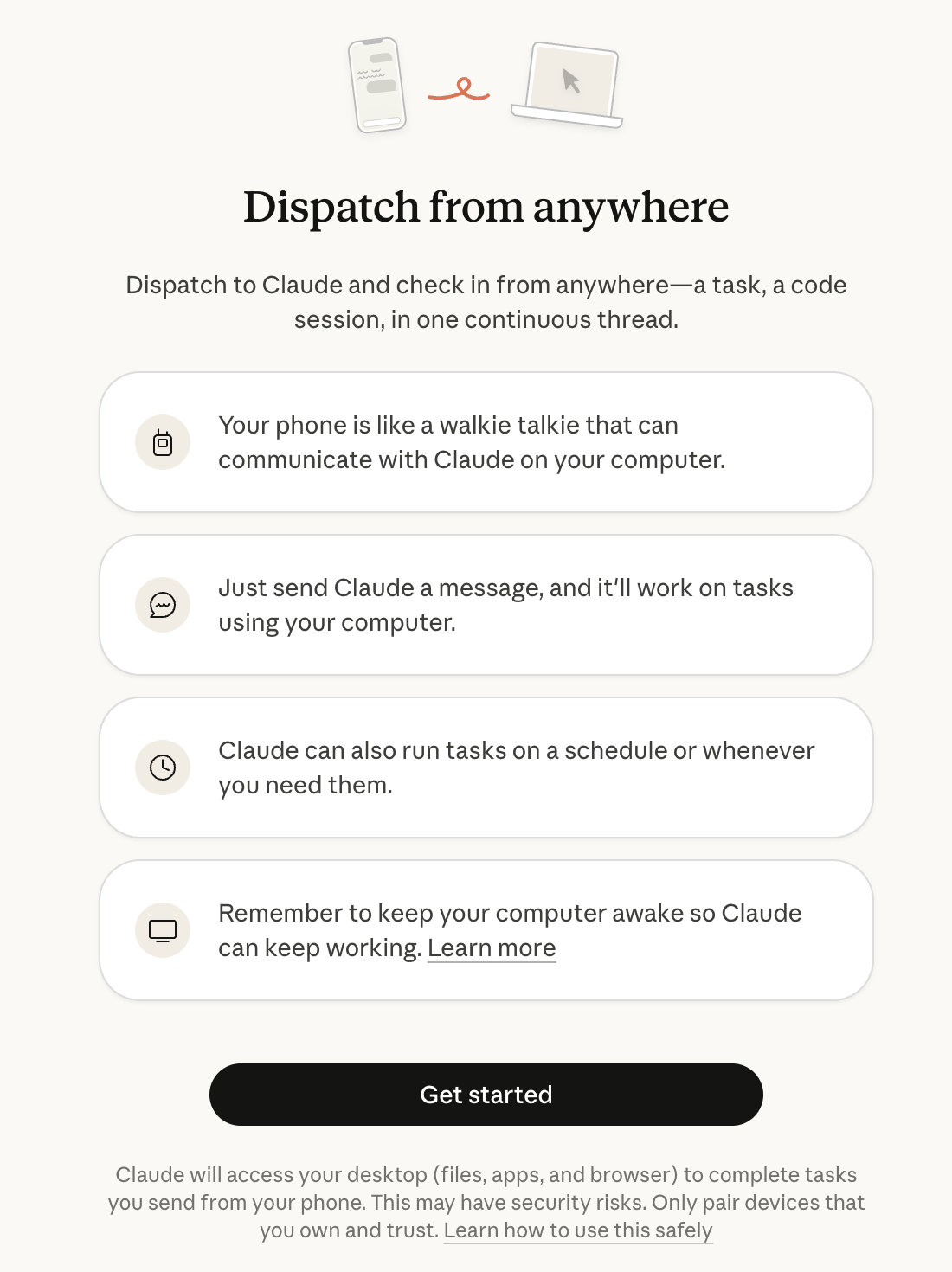
A QR code will pop up. Scan it from your phone to pair your phone with your Claude Desktop app.
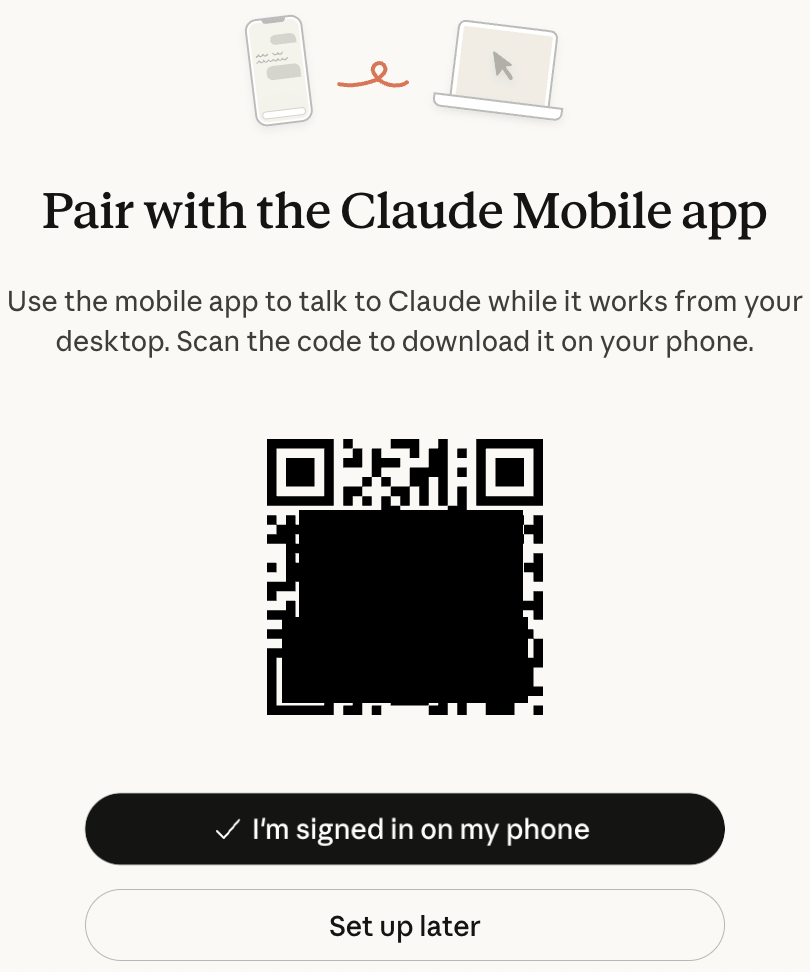
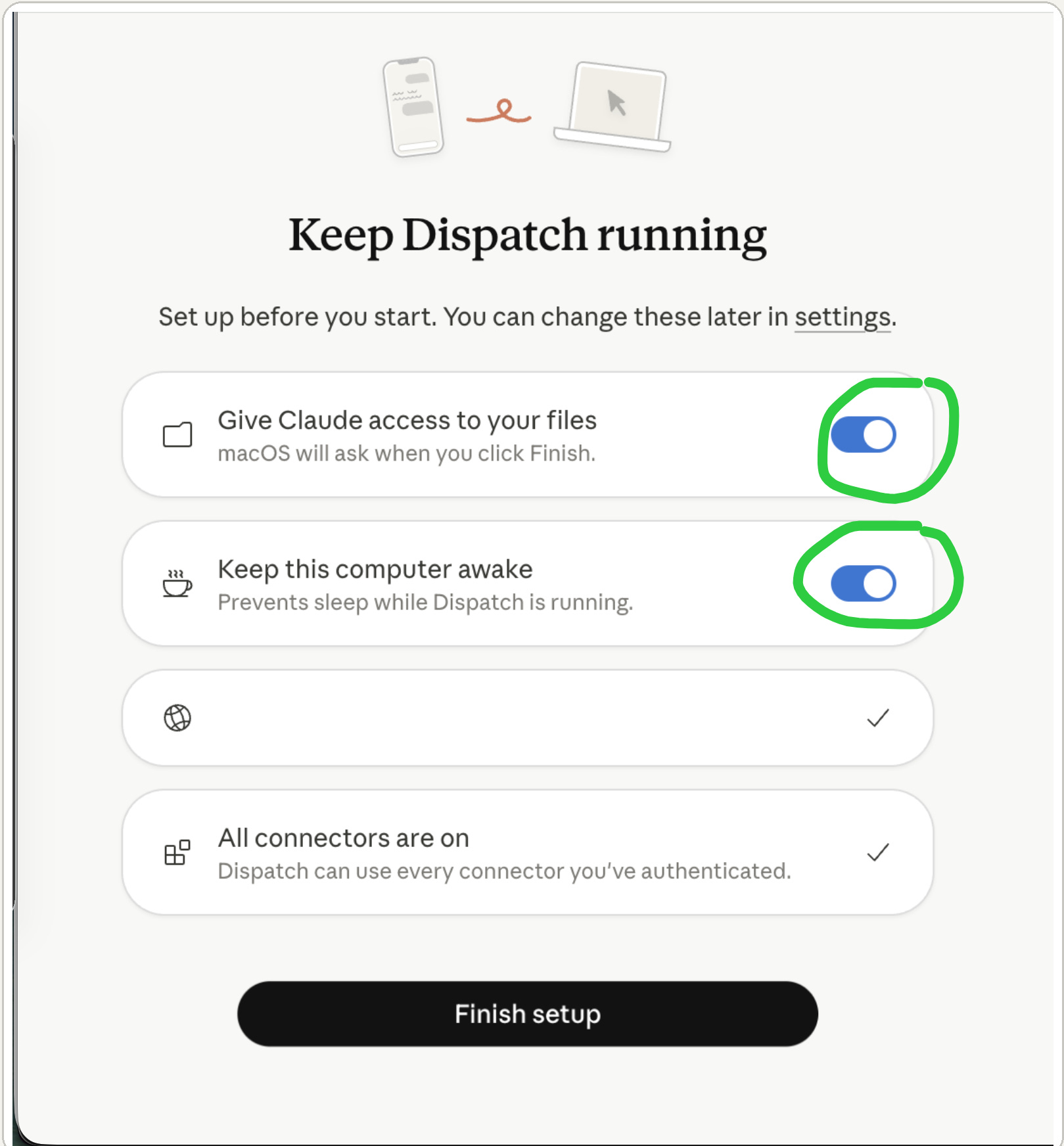
Claude may also prompt you to enable file access on your computer. Approve this. Claude will offer you the option to keep your computer awake. You can toggle ‘keep this computer awake’ on, but the system settings we set earlier are most reliable.
Use Dispatch from your phone
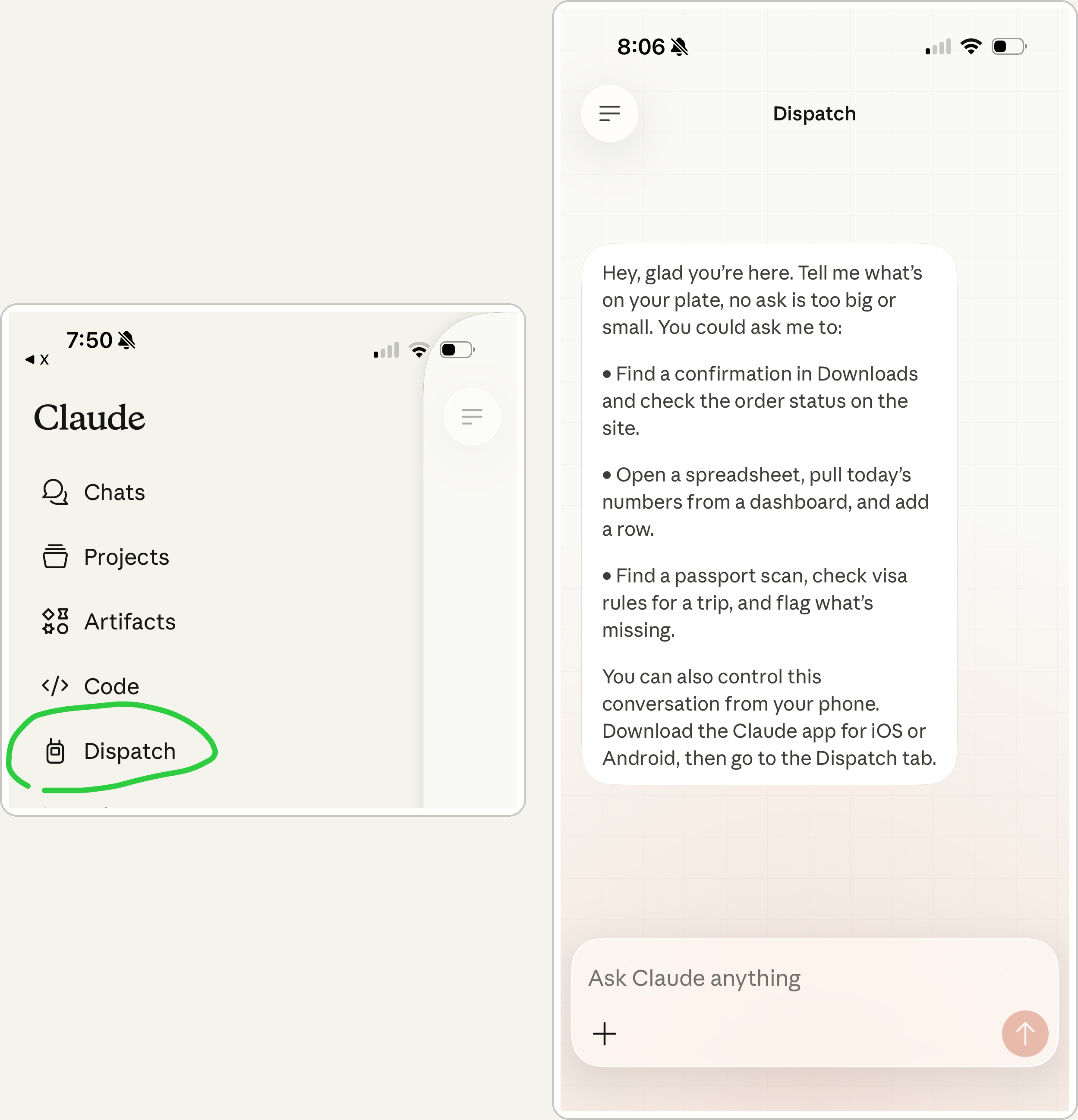
Open the Claude mobile app and click on Dispatch. You can now initiate Claude Cowork and Claude Code tasks from your phone. Just use Dispatch to ask Claude to do the task. It will acknowledge your request with a “Read” checkmark below the message.
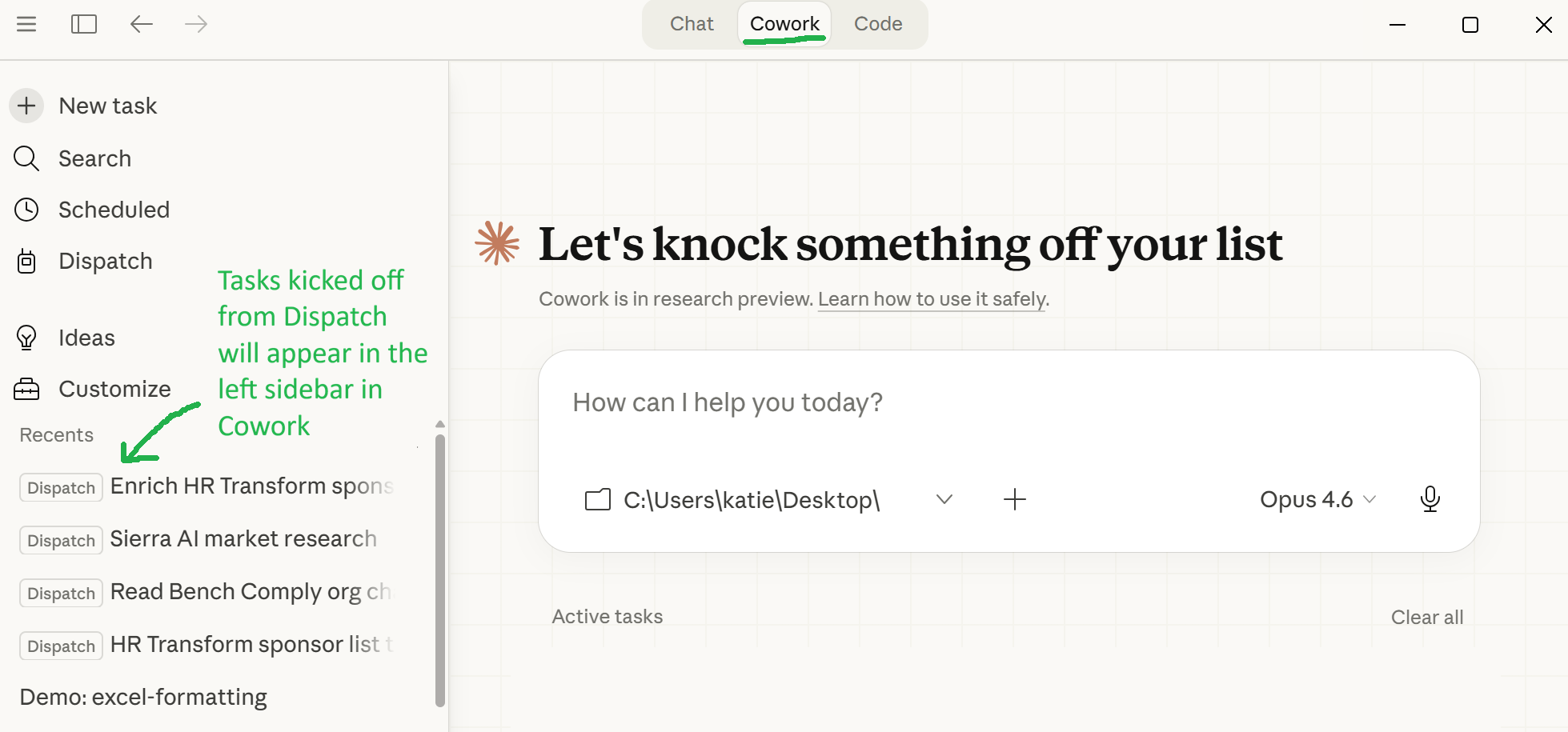
Dispatch generally will not give you visibility to the work it is doing on your tasks. It will usually ask you for permissions when necessary (although sometimes it misses this, meaning your task is not progressing). Regardless, you’ll need to eventually go look at the work it did in the Desktop app. You’ll see tasks kicked off by Dispatch in the left sidebar in Cowork.
Channels
Channels can turn a messaging app like Telegram into another way you chat with Claude Code.
This setup is a bit more involved, so we’d generally recommend using Remote Control instead. The only time you need Channels is if you want to allow multiple users or automated hooks to interact with your agent. But, because it’s fun, we tried it out and wrote about how you can, too.
Claude Code supports Telegram, Discord or iMessage. We recommend Telegram because setup is easy and it doesn’t require full access to your computer disk (iMessage does).
Install Bun
Install Bun on your computer. This will let JavaScript run, which is necessary for our Claude Channels setup.
If you think you might already have bun, ask Claude to “check if I already have bun installed”. Or go to the terminal and make sure Claude is not running (type /exit if you’re in Claude). Then type:
bun --versionIf it says command not found or something similar, you don’t have bun installed yet. If it gives you a version number, you do have bun and you can skip to step 2.
If you do not have bun installed, go to https://bun.sh/ or follow the instructions below to install it.
PC Users
Open Windows Powershell. You can click the Windows button and search for “windows powershell” to find it. Then paste the below text in and hit Enter. Once the install is complete, close the Windows Powershell window.
powershell -c "irm bun.sh/install.ps1 | iex"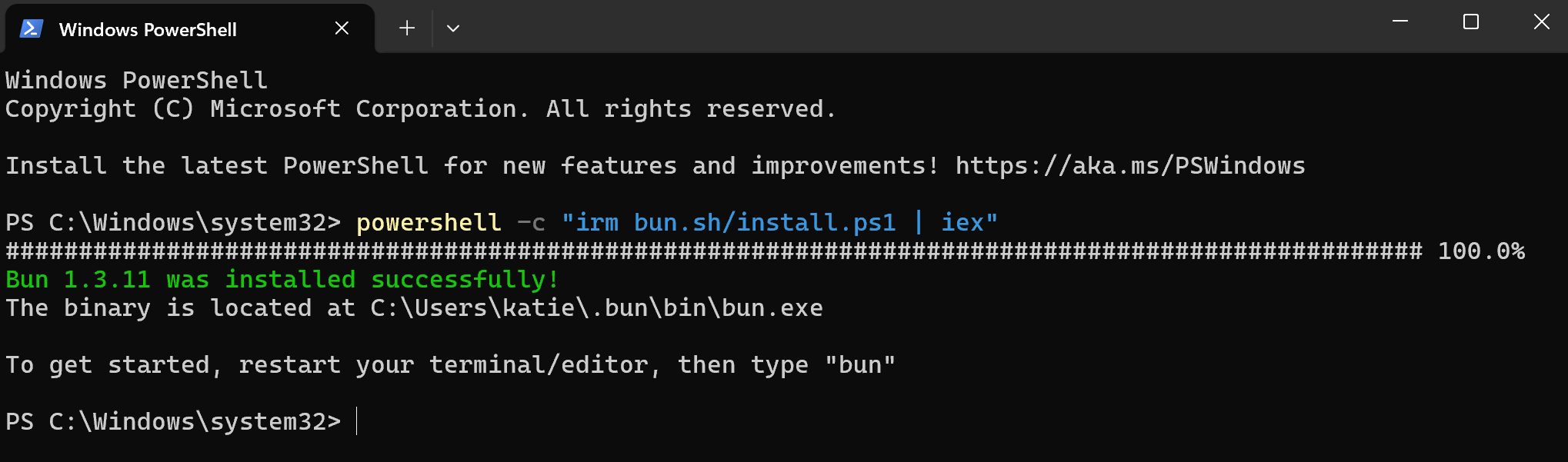
Mac users
Open the Terminal. Search for it by pressing Command + Space, type “Terminal”, and hit Enter. Or go to Finder > Applications > Utilities > Terminal. Paste the below text into the Terminal and hit Enter. Once the install is complete, close the Terminal Window.
curl -fsSL https://bun.com/install | bash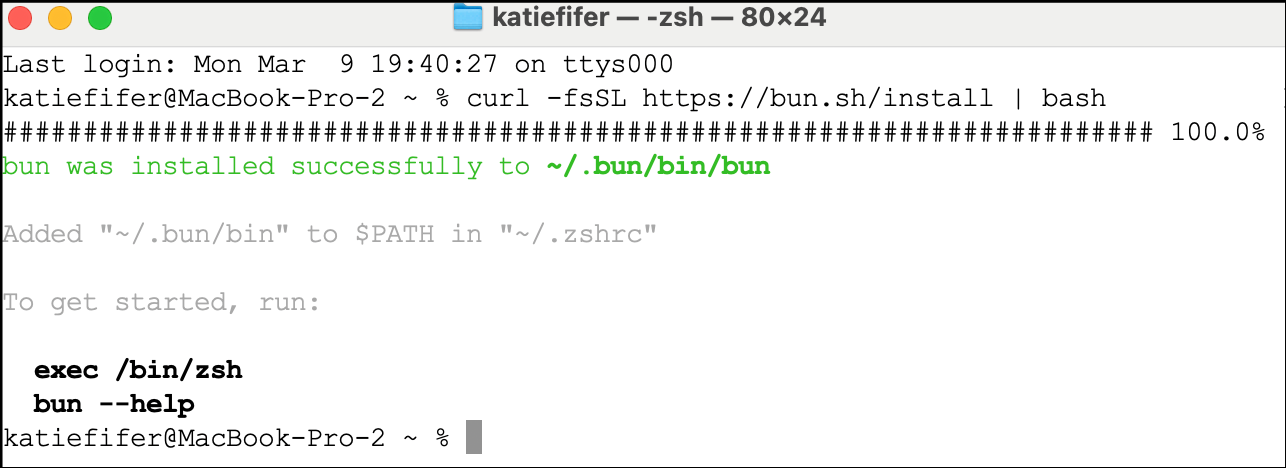
Create a Telegram bot
Telegram is a messaging app - like iMessage or WhatsApp. Normally you message other people. But Telegram also lets you message bots, which are just programs pretending to be a contact in your chat list. You’ll create one by following the steps below. At first it will be an empty shell sitting in Telegram, then we’ll connect it to Claude Code and it will essentially become Claude’s phone number. You message the bot, Claude reads it and replies through the bot.
So the flow will be: You (Telegram on phone) -> your Telegram bot -> Claude Code (on your computer) -> your Telegram bot -> You (Telegram on phone).
Let’s get the phone part set up:
Download the Telegram app on your phone. Get it from the App store.
Open Telegram. Enter your phone number to create an account. You can skip connecting your Contacts (we’ll just be talking to Claude) and skip using Telegram with Siri. You do want to allow Notifications from Telegram.
Go to Settings > Privacy and Security > Phone Number. Set “Who can see my phone number” to Nobody. And “Who can find me by my number” to “My Contacts”.
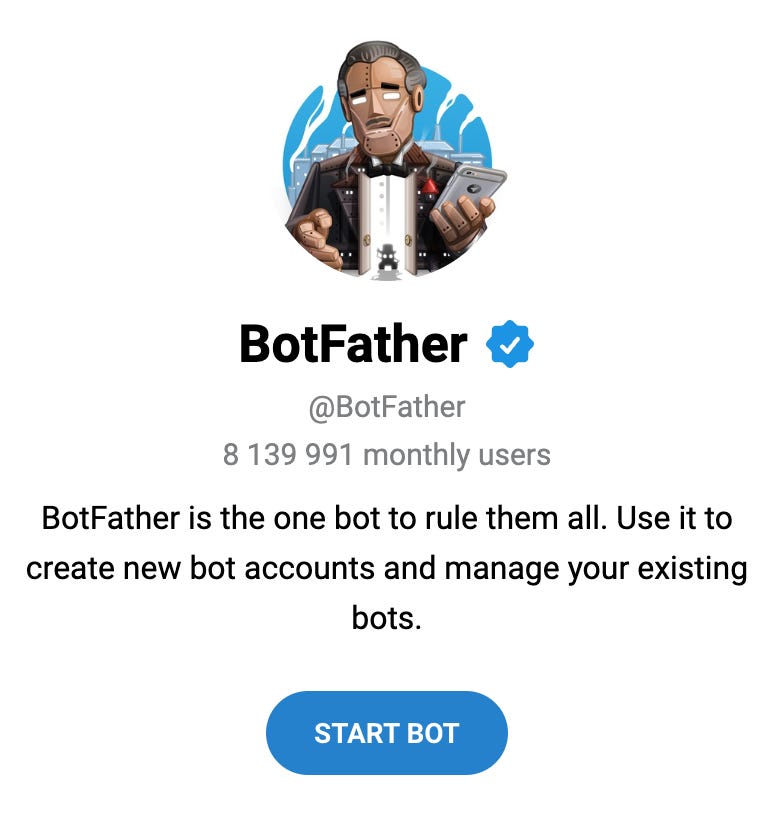
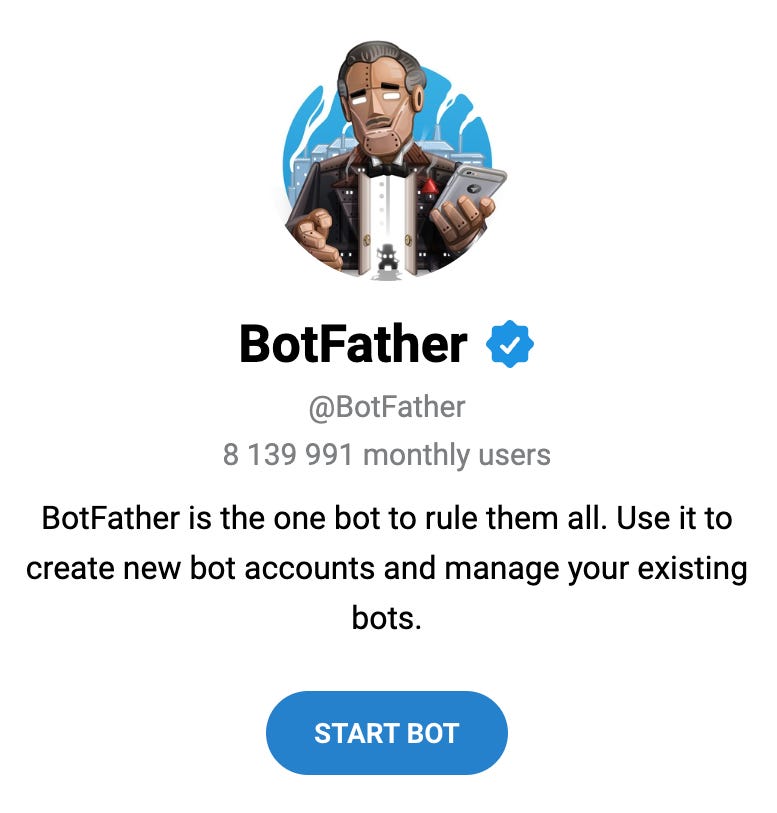
Click “Chats” and search for an account called BotFather. Who is the BotFather? He is a bot that makes more bots. This is what he looks like. Click “Start”.
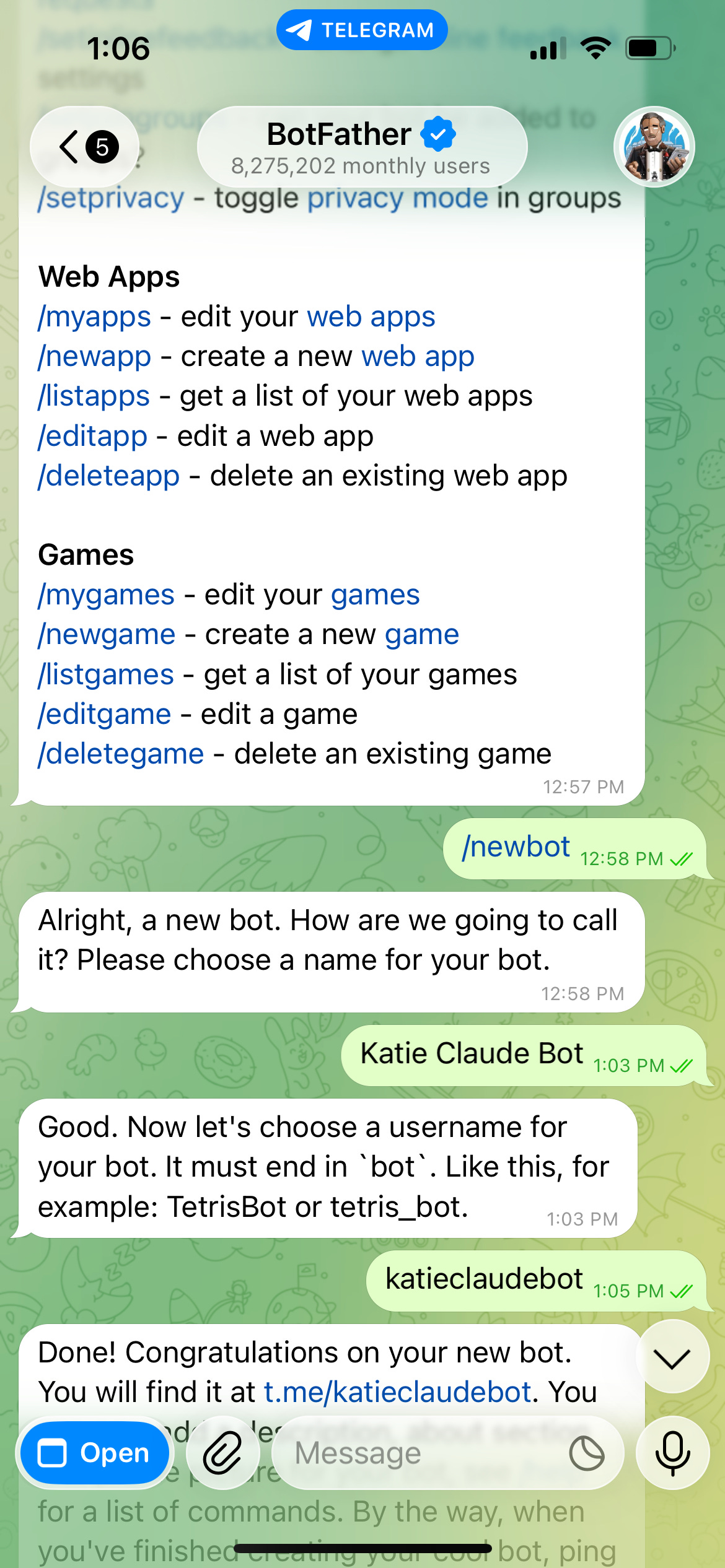
Message the BotFather
/newbotand he will kick off the bot setup process.The BotFather will ask you for a display name - this can be anything you’d like. It will then ask for a username. This must end in “bot” and not have any spaces.
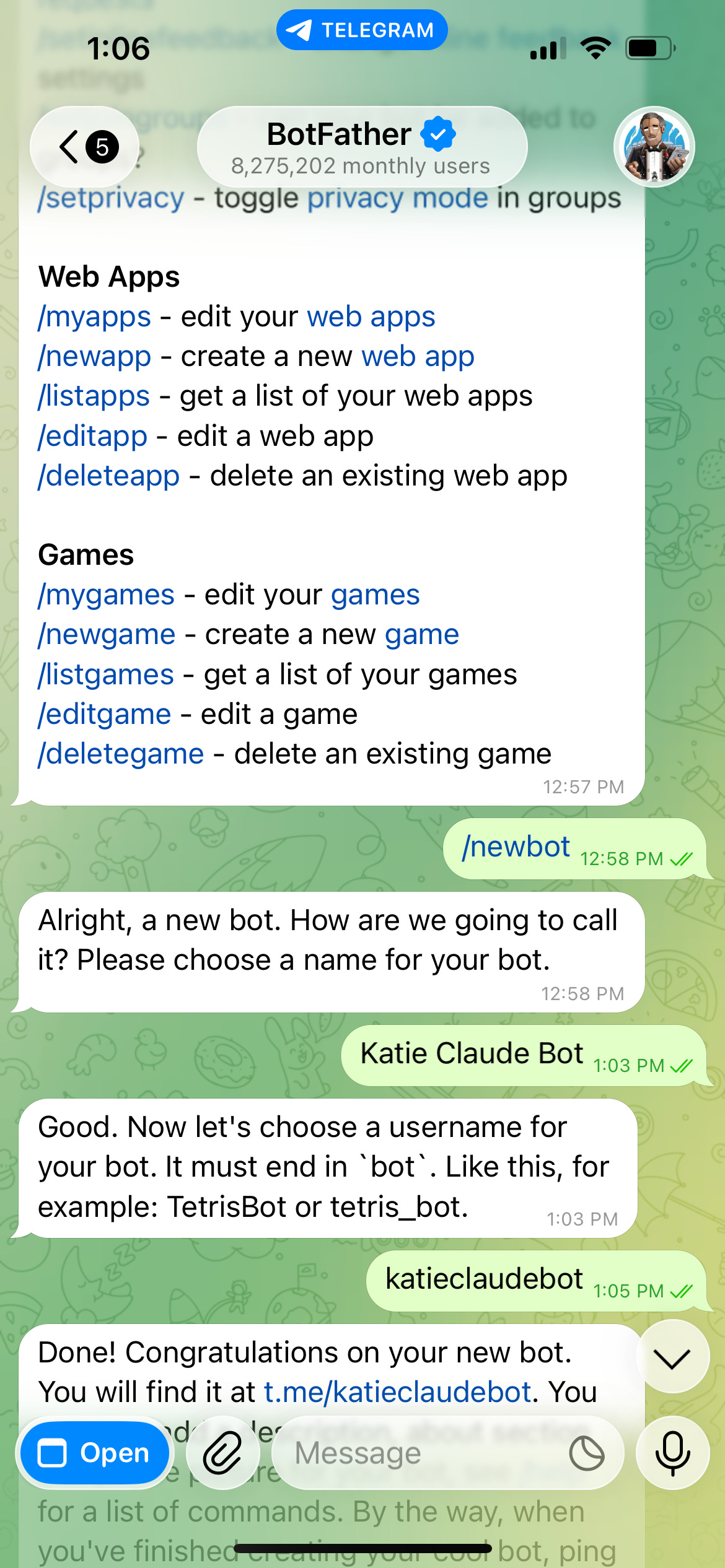
Then the BotFather will message you a “Done!” which will include a token. Treat this like any API key or secret. Do not share it with anyone.
Keep this chat up on your phone.
Now, return to Claude Code.
Start Claude Code in VSCode (open the terminal, type
claude)Paste the text below into Claude Code and press Enter. Then press Enter again to select “Install for you (user scope)” which will install the plugin.
/plugin install telegram@claude-plugins-official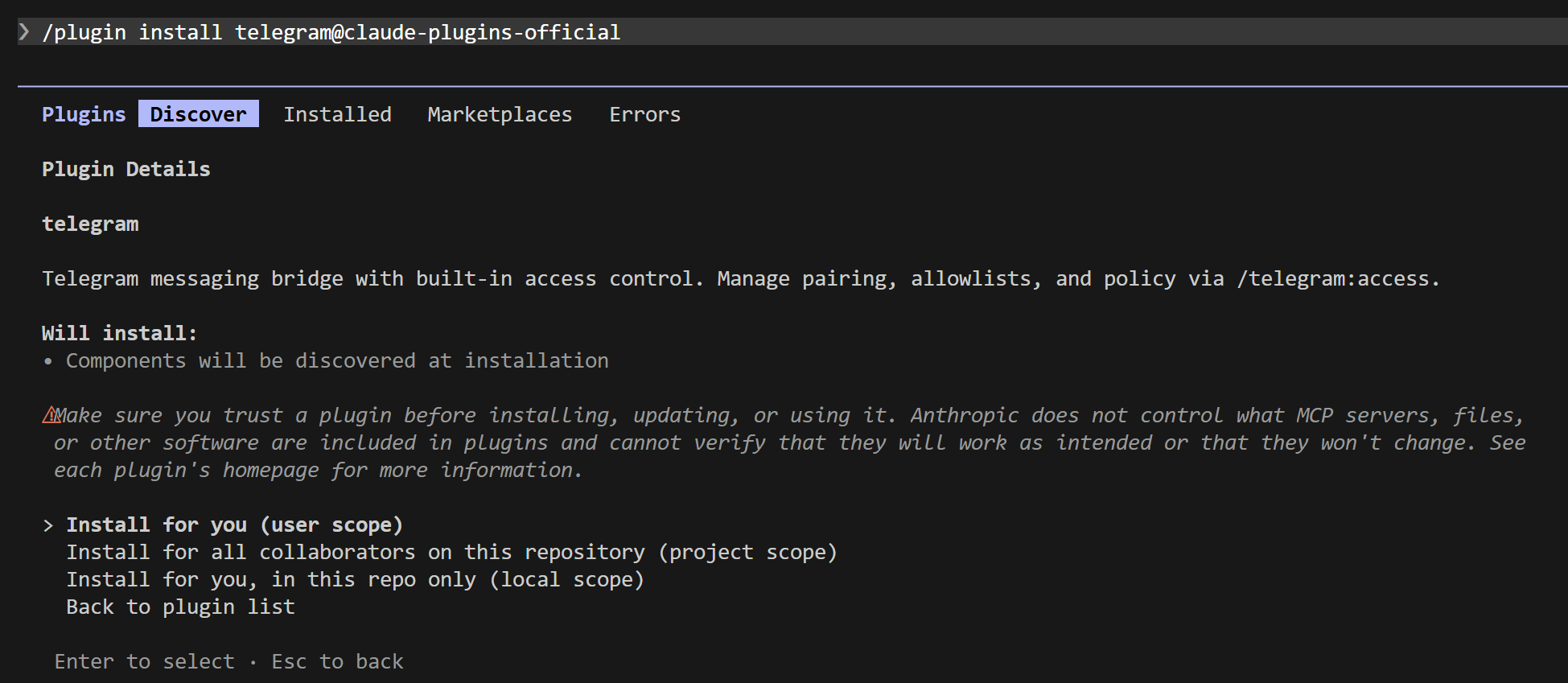
Then paste the text below and press Enter.
/reload-pluginsConfigure your token. Paste the text below into Claude but replace YOUR_TOKEN_HERE with the token from the BotFather message
/telegram:configure YOUR_TOKEN_HEREIt will ask for a few permissions as it updates your channel/telegram settings. Press Enter to select Yes through those screens.
Exit claude by typing
/exitThen paste the text below in your terminal and press Enter. This will restart claude with channels enabled.
claude --channels plugin:telegram@claude-plugins-officialGet a pairing code from Telegram.
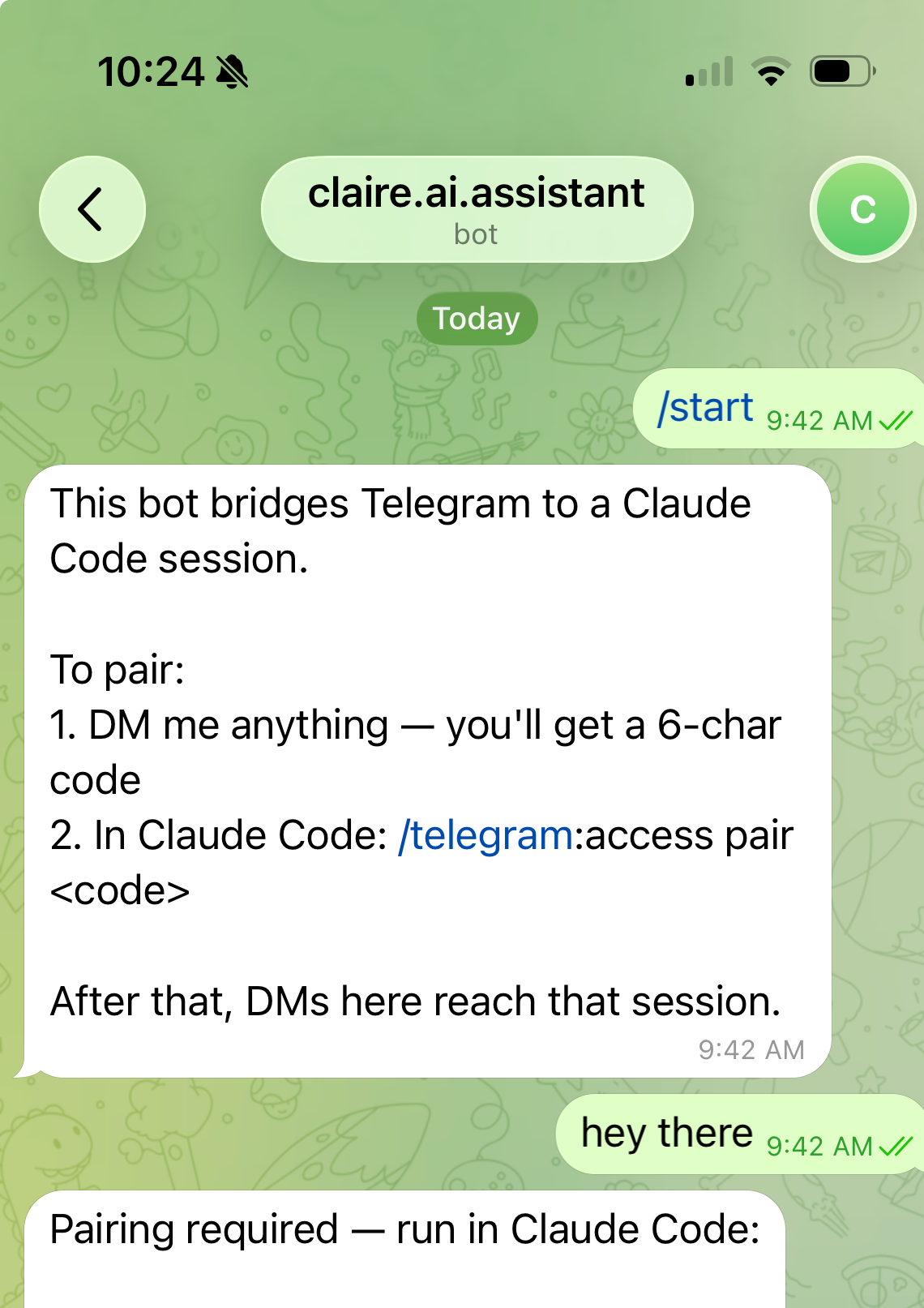
Open Telegram. Select Chats. Search at the top for your bot by username. Click Start to initiate a message to it.
It will give you a pairing code to enter in Claude Code on your computer.
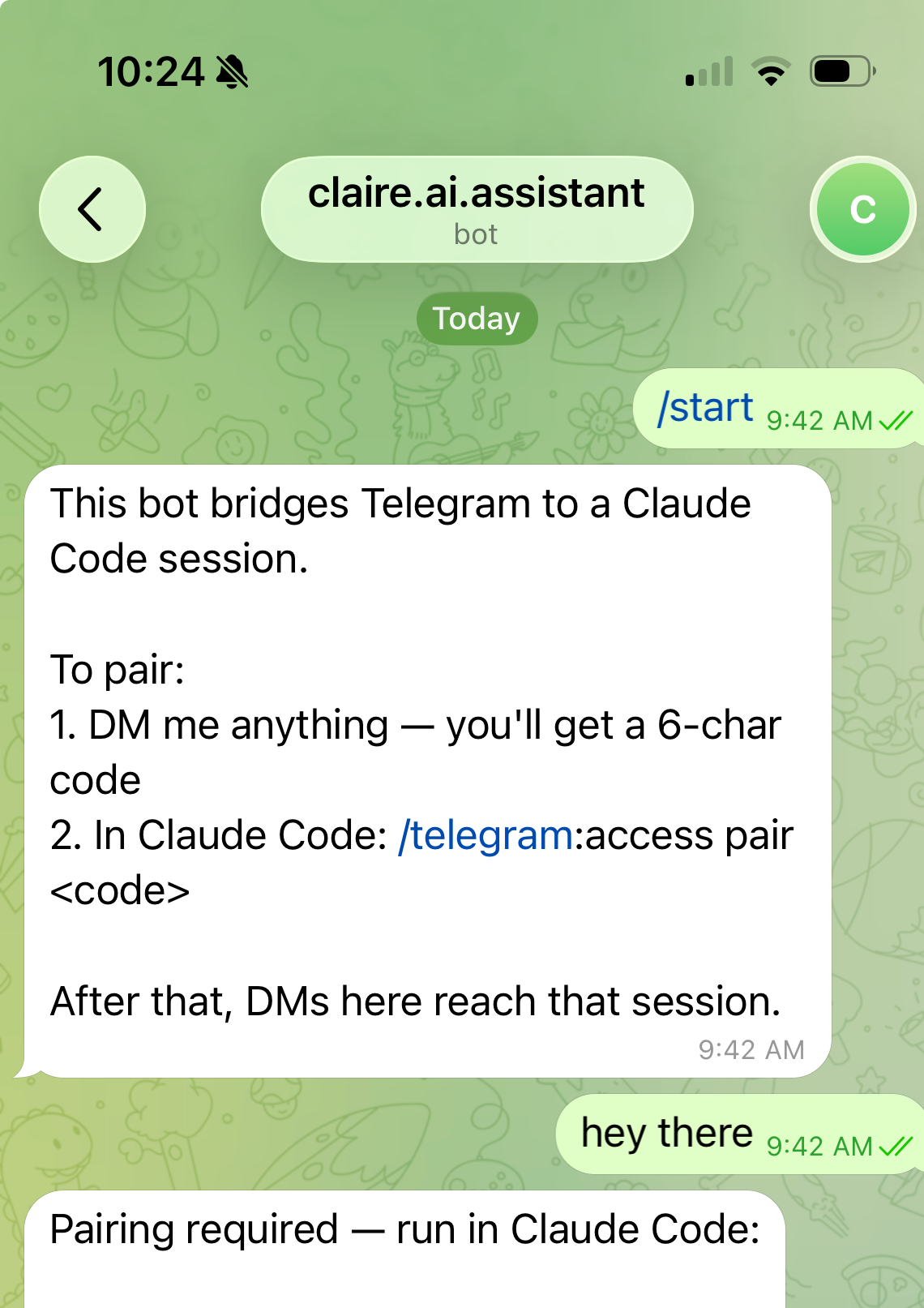
Troubleshooting - if your bot does not give you a pairing code:
Prompt Claude “please confirm my bun PATH is correct”
Fully quit out of all Claude conversations with
/exitor the trash can icon in VSCode. Then fully quit out of VSCode. Restart VSCode. Then restart Claude with:claude --channels plugin:telegram@claude-plugins-officialWhen Katie was getting set up on her PC, she had to do all of these troubleshooting steps to get the pairing code to appear.
Pair your bot’s telegram account to Claude Code. In Claude Code, paste the text below and press Enter. Replace YOUR_CODE with the code from your telegram bot.
/telegram:access pair YOUR_CODEClaude will send through some Permission requests to your bot on Telegram. Click “Allow”.
Lock access down to just your Telegram account. This is a very critical step! If you don’t do this, anyone could message your bot and send instructions to Claude Code on your computer. Paste the text below into Claude Code and press Enter.
/telegram:access policy allowlistClaude will set up an allowlist, and start by allowing just your user. You can add more Telegram accounts later if you want to - but be cautious. Anyone on the allowlist can message Claude Code on your computer
Now you’re all set!
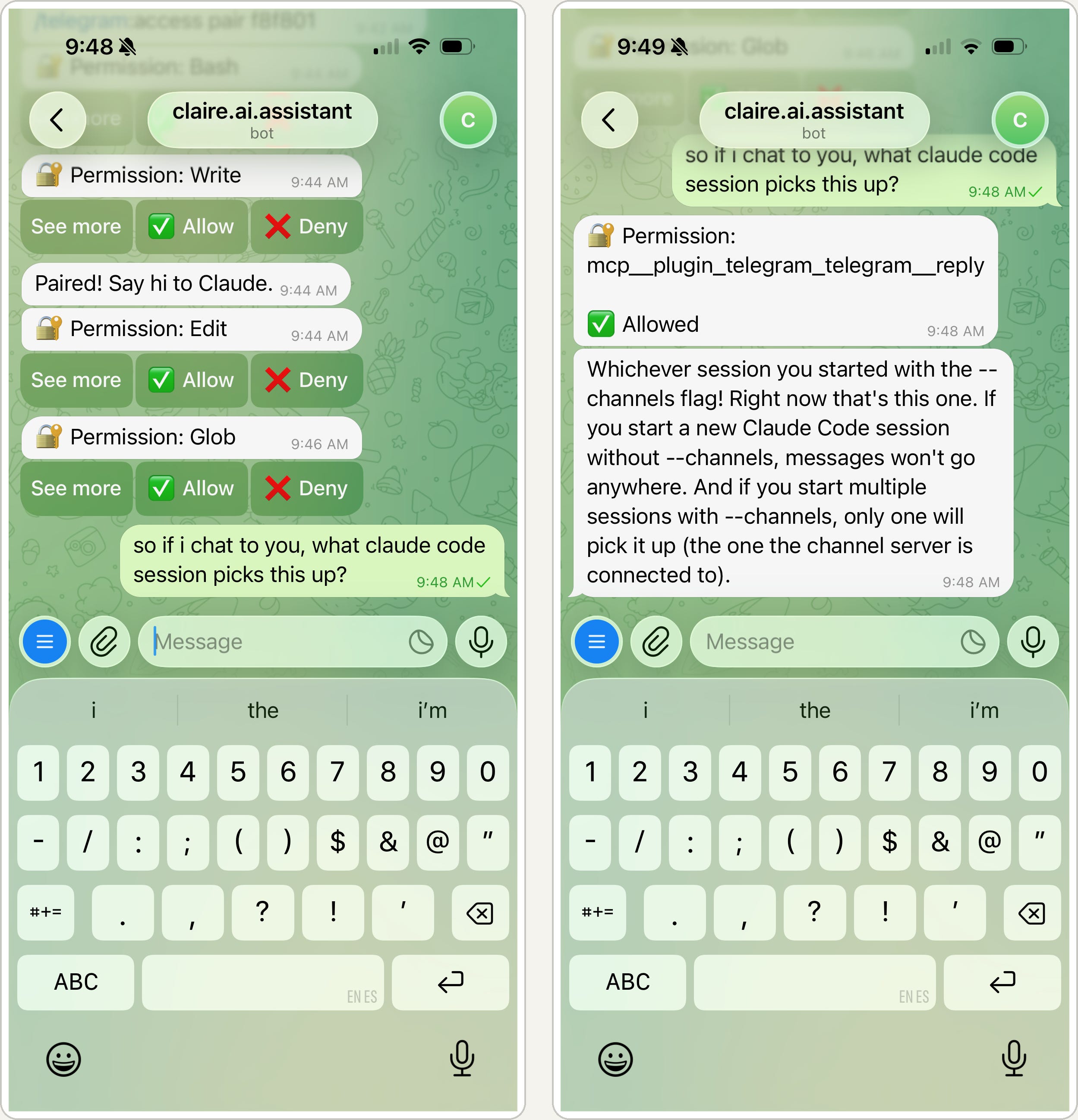
To use this in the future, start Claude with the text below and message your bot in Telegram. That will message Claude Code on your computer.
claude --channels plugin:telegram@claude-plugins-officialIf you don’t want to have to remember this longer start text, you can create a shortcut alias.
On a Mac
In the terminal, paste the text below and press Enter
echo "alias claude-telegram='claude --channels plugin:telegram@claude-plugins-official'" >> ~/.zshrcExit the terminal and VSCode. Restart VSCode, select the terminal. Type
claude-telegramand it will start a Claude Code session that you can message from Telegram.
On a PC
In the terminal, type notepad $PROFILE. If it prompts you to create a new file, click Yes.
Then paste the text below into the file it opened in Notepad and hit Ctrl+S to save.
function claude-telegram { claude --channels plugin:telegram@claude-plugins-official }Exit Notepad and fully exit your terminal/VSCode.
Restart VSCode, start a new terminal.
Now type
claude-telegramand it will start a Claude Code session that you can message from Telegram.
Technically Curious Disclaimer
We’re figuring this out and sharing what we learn as we go. This is intended to be practical advice based on our own experimentation - not professional guidance. We make no representations about accuracy or outcomes and aren’t responsible for how you use this information. Features and interfaces may change. We disclaim all liability, and you are responsible for your own use of AI.
Thank you to our talented co-writer, Claude. And happy Claude-ing from anywhere to all of you!