
AI Finally Makes Great Slides
Gemini and Claude both can make great slides. More people need to know about this!


Google Gemini now makes great Google Slides. In classic Google fashion, they’ve totally hidden this awesome new feature! Weirdly it is not in Google Slides itself - the built in Gemini in Slides is useless.
This post is mostly about using Gemini to create slides because it’s the best overall. We also show how to use Claude to make Powerpoints. Claude tends to be better at following pre-existing templates.
Both Gemini and Claude are way ahead of ChatGPT and Copilot:
“Read this website: https://recalcacademy.com/ and create an overview presentation on Recalc Academy. Match the styling to the Recalc branding on the website”
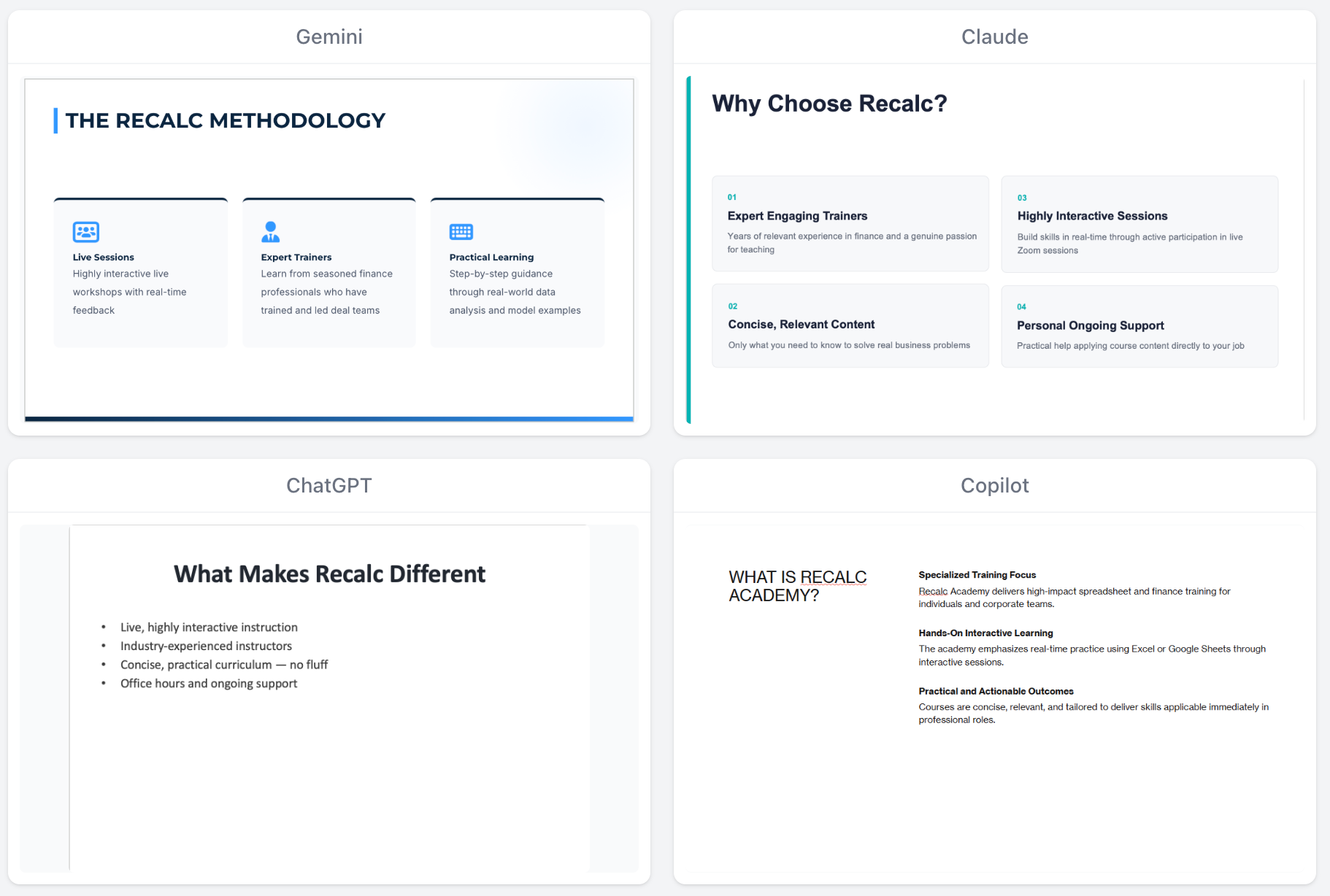
TLDR: go to Gemini > Tools > Canvas and ask it to “create a presentation”. Iterate. Click Export in Slides. You have fully editable Google Slides.
Prompting
Good prompts make an enormous difference to the quality of the slides. We will share both specific prompts that can serve as a starting point and our workflow for iterating with Gemini and Claude. Ultimately we’d recommend building one or more Gems in Gemini (saved prompts) and Skills in Claude (saved prompts + templates) to maximize success with these tools.
First, we’ll show you how to find the feature.
Gemini with Canvas
Steps to have Gemini create Google Slides:
Go to gemini.google.com
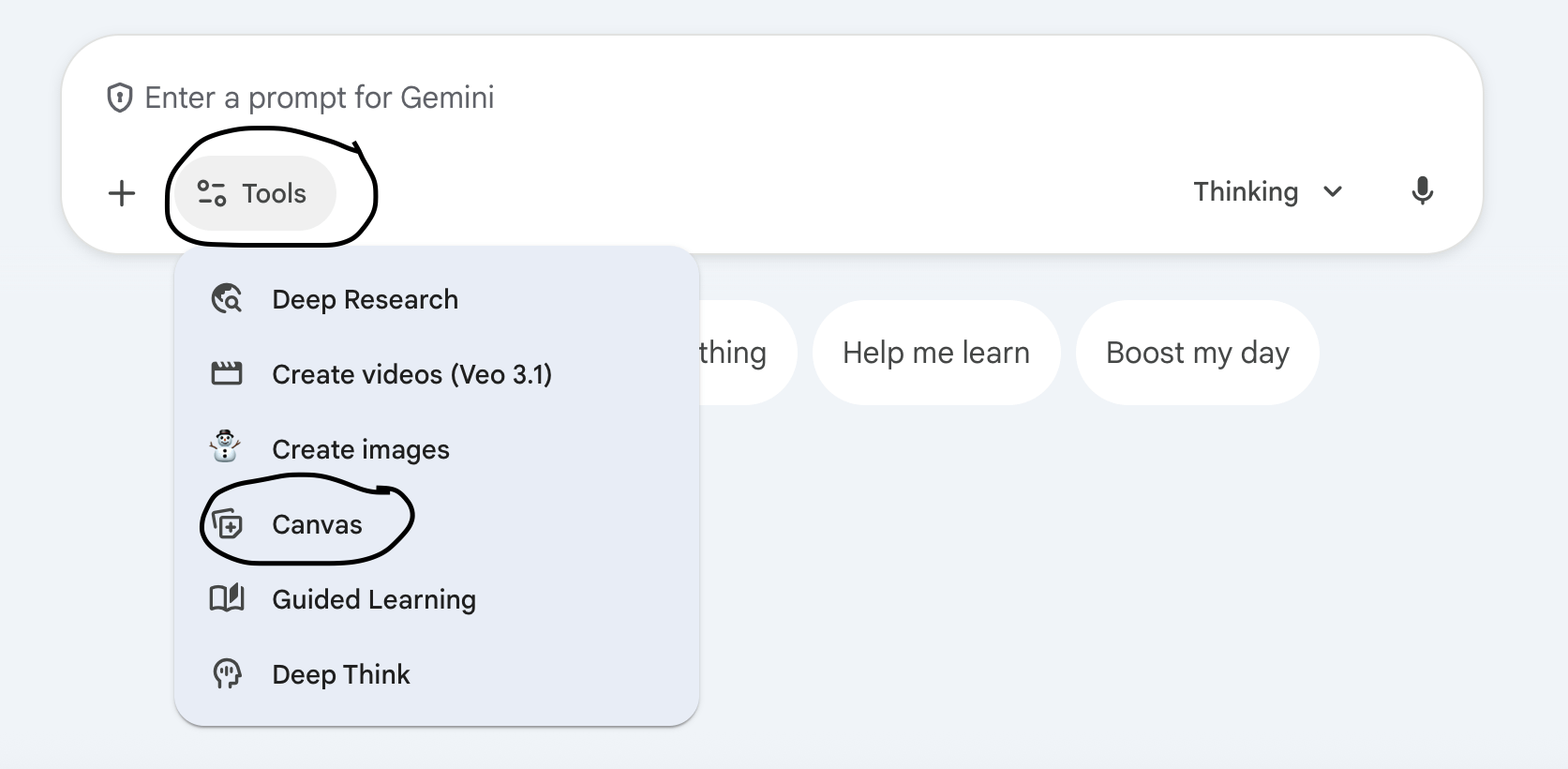
Click Tools > Canvas
Model selection: we’d recommend using the “Thinking” model for the best results (requires a paid plan). “Fast” is not as good at design and “Pro” is slower without being meaningfully better.
Ask Gemini to “Create a Presentation” with whatever information you want in the Slides.
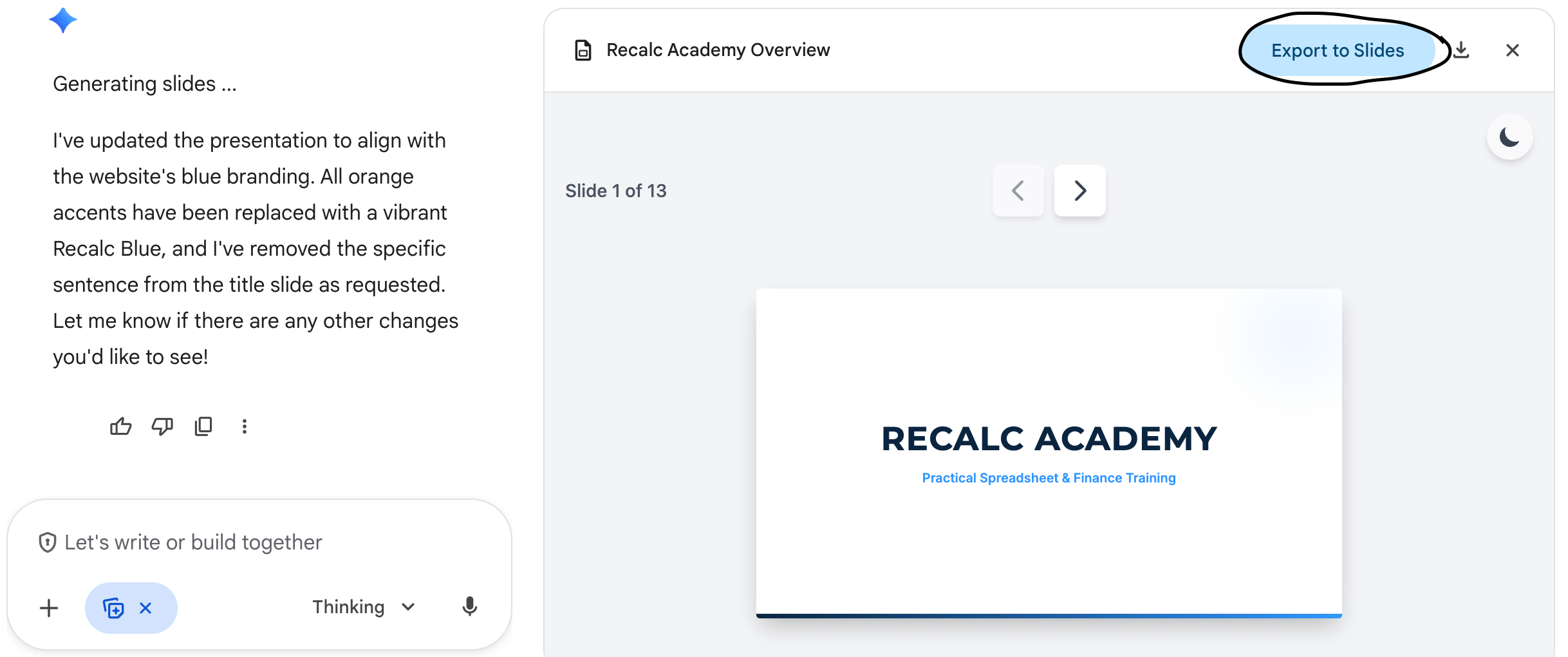
Gemini will then create a Canvas. These look like slides but are not yet editable.
Ask for any edits you’d like.
Click Export to Slides at the top of the Canvas that opens up on the righthand side of the screen. You now have editable Slides! They will be saved to your Drive in the “My Drive” folder


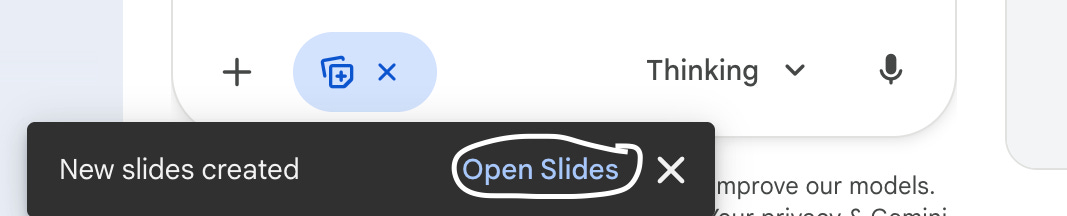
Refining the slides: Gemini can’t edit the deck itself after you Export to Slides. We’d recommend iterating with Gemini on any design changes in Canvas before Exporting to Slides. We’ve found it’s easier to make simple wording changes by hand once you’ve Exported. You can, however, go back and forth between different generations in Canvas - scroll in the chat to find any prior Canvas and click “Open” to jump to that version.
Build Great Slides with AI
Unfortunately, AI is not going to read your mind and make the perfect presentation on the first try. However, you can collaborate with AI throughout the process, making it much more feasible to get to a great end product.
What should that process look like?
Outline the slides
Better decks come from better outlines. This is still the hardest part. But you don’t need to outline alone. Ask AI (any regular chat) to help you create the outline.
We’d recommend starting higher level by sharing the context of what you’re trying to communicate. Who is the audience? What are you trying to convey? Once you share this context, ask AI to create an outline of your slides. Iterate. Then ask it to specify every word that will go on each page (including Title, Topic Sentence, Body). You could take it one step further to brainstorm the format (two column, three column, text + image, etc) for each although that’s not strictly necessary at this stage.
Tell AI what you like and don’t like and iterate until you get to a great outline. This is hard work and often it’s tempting to skip this step. But the more time you invest here, the better the result.
Start with asking AI something like:
“I want to work with you to outline a slide presentation. Our goal right now is to get a strong story with enough detail to build specific slides from later. I will share some initial context and then I want to go back and forth with you until you have enough context to write a great outline. Please make sure to ask me questions on anything that’s not incredibly clear because I want you to have enough context to write a really good outline. Once we align on a slide-by-slide outline, I’d like you to document every word we’re going to put on the page (including Title, Topic Sentence, Body)”
Context > Prompting
You can take pressure off great prompting if AI has comprehensive context. Some tips for sharing more context with AI quickly:
Give AI your company website and any prior presentations that would be helpful context on the business, audience, message, etc. Ask it to review in detail and summarize for itself.
Ask AI to do some research on the relevant topic
Ask AI to interview you. Have it ask you questions to clarify understanding. If you use Claude Code, you could use the AskUserQuestion tool, but just prompting any AI to ask you questions works well too.
Use multiple AIs. You’ll often get different ideas from asking similar things of Gemini, Claude, ChatGPT. You could also have one AI critique the other’s outline.
Use transcribe to talk to AI. We find ourselves sharing far more context when we talk through it outloud than when we have to type it out. Transcribe looks like a microphone at the bottom right of any of the AI chat input boxes.
Define Format & Style
Work with AI (regular chat) to define the format and style guide for it to use when creating presentations.
Start with a few examples
Give the AI prior presentations that you like (from your company or other sources) and ask it to describe the formatting and style rules to follow.
“Here are presentations that I like. Review the formatting in detail. Document the formatting and styles used throughout the presentation in detail. I plan to use this documentation with AI to create presentations in the same style in the future. If there are key elements that you’re not clear on from the presentation, ask questions here and we will define them.”
If you’re looking for more inspiration, you can also ask it to do some research on best practices for similar types of presentations. Example websites can also be relevant.
Review what it writes and iterate as necessary. A good format prompt coming out of this process should include a lot of detail. For example:
Design philosophy: “clean and modern. generous whitespace”
Colors: what colors to use where. Specific hex/rgb values. What should be used for background, headers, accents, text. Should fades be permitted. No shadows.
Font size and style: what fonts are permitted. What sizes are preferred for headers, body text, captions
Layout patterns: common patterns you like to use (e.g. 3-column grid, types of charts, title boxes)
Bullet formatting: no bullets (paragraph only), stylized (with icons), regular bullets
Text density: how many words per page, could be specified by type of slide
Images: suggest having it use placeholder images because it otherwise pulls corny stock images. Or you could request no images (icons only)
If elements are missing, ask the AI to add them.
Iterate on specific slides
Rather than having AI regenerate the entire slide deck, you’ll often get further working with it on multiple options for one slide.
“Create 3 versions of slide 4 (Three Pillars slide). Follow the style guide. Show different ways of laying out the points visually.”

Once you get to a slide you like, add it yourself to a master deck that contains all the best slides.
Make it easier for the next time
Once you get to a style guide or templated set of slides that you like, we’d recommend creating a Gem (in Gemini) or Skill (in Claude). This will let you save that information and easily access it for your next set of slides. You may even want to create different Gems or Skills for different types of presentations that you make (e.g. one for board decks and a different one for sales decks).
Gemini: Create a Gem
Gems allow you to save a prompt and context (documents). You can also set default tool use (Canvas in this case). They are similar to GPTs in ChatGPT.
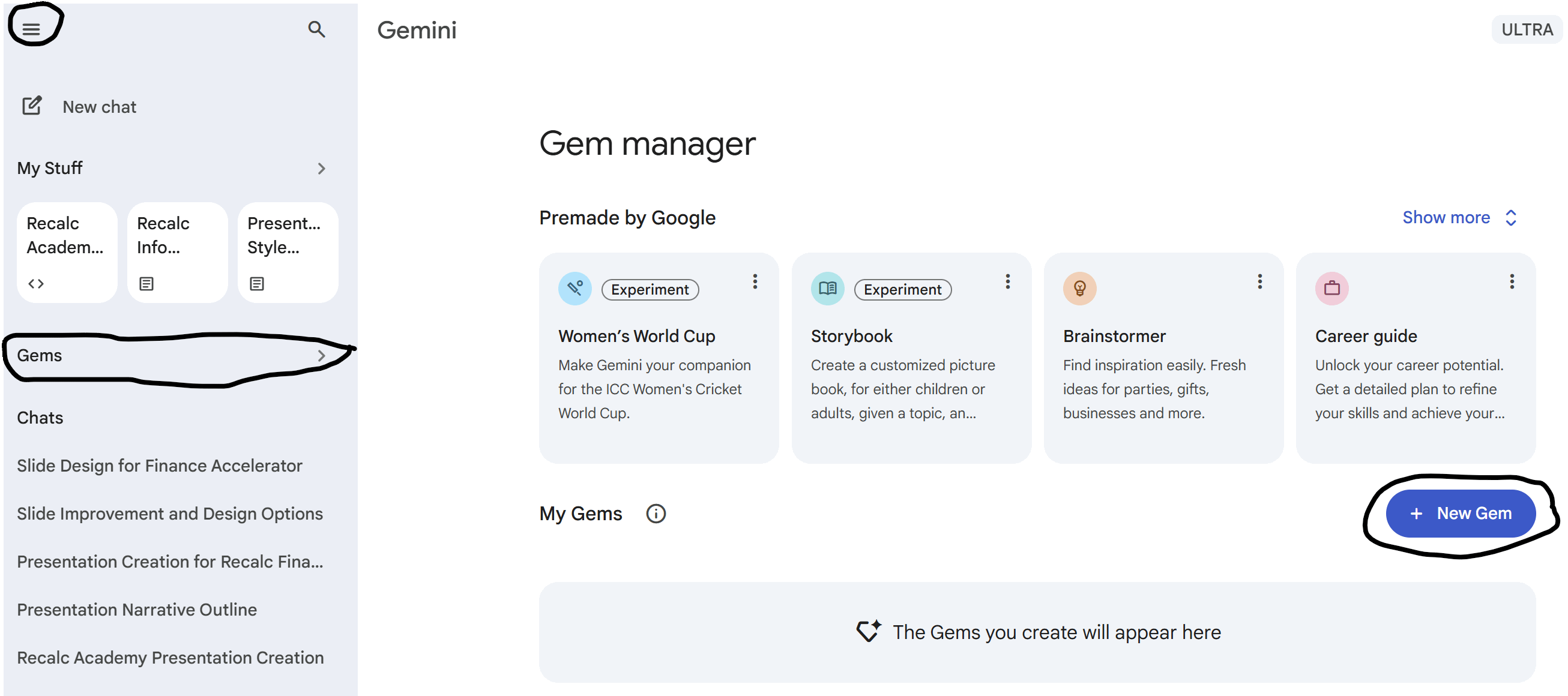
Expand the hamburger menu on the upper left. Click Gems. Click the “+ New Gem” button.
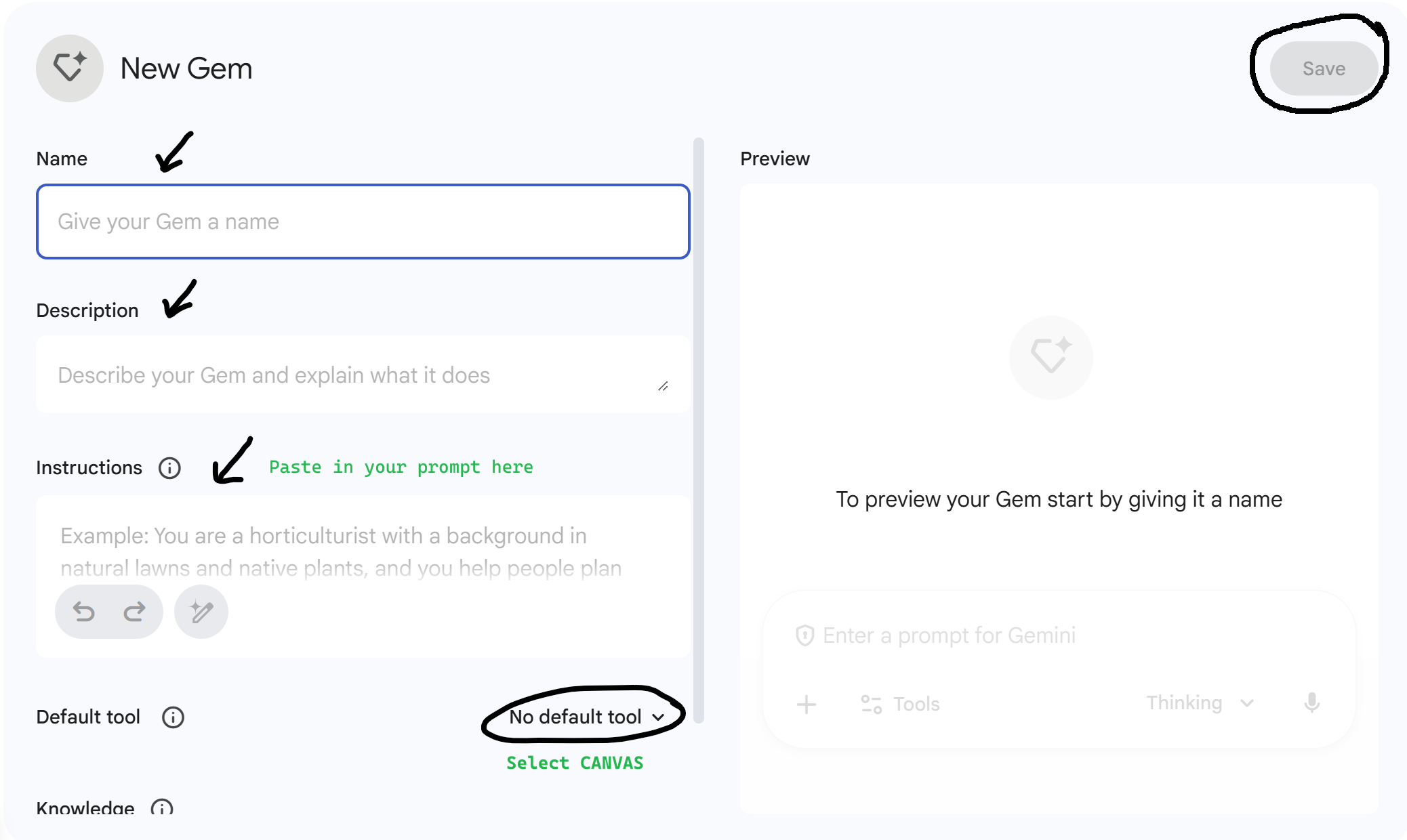
Name the Gem, add a description, paste your prompt into Instructions
Set the Default tool to Canvas. Save the Gem
Use the Gem anytime you want to create a presentation
Here is an example Gem Instructions prompt. Note, it was written with AI (Claude) through a back-and-forth discussion about slides we liked and how we wanted the Gem to behave.
Claude: Create a Skill
Claude will create PowerPoint presentations rather than Google Slides. It’s slower than Gemini but follows templates more strictly, which is helpful if you have specific brand guidelines or existing slide formats you want to match.
We recommend creating a Skill in Claude to make slides. Skills are saved prompts + code templates + documents that Claude reads before generating your slides. Unlike Gems, Skills can include detailed code patterns. This matters for PowerPoint generation because Claude needs specific python-pptx code to create consistent, well-formatted slides.
More general background on Skills in our post here. Below we walk you through how to create a presentation Skill. Or alternatively you can download our example presentation Skill here, upload to Claude and ask it to modify it to your preferred styling.
Have Claude Build the Skill for You
You don’t need to write the skill yourself. Claude is quite good at creating its own skills - you just need to ask.
Without an existing slide master:
Start a conversation with Claude and share examples of presentations you like (upload PDFs or screenshots). Then prompt:
“I want to create a Claude Skill for generating PowerPoint presentations. Here are examples of slides I like the style of. Please:
Analyze these slides and document the design patterns you see (colors, fonts, spacing, layout types)
Create a SKILL.md file with a clear workflow, design system, and ‘never do this’ list
Create a format-guide.md file with python-pptx code patterns for each slide type
The skill should enforce a multi-step process: first create a high-level outline, wait for my approval, then specify the text on each slide, wait for my approval, then build the slides. Include specific hex codes for colors, exact font sizes, and spacing rules.”
With a templated slide master:
If your company has a .pptx template with slide masters and layouts already set up, upload it and prompt:
“I want to create a Claude Skill for generating presentations using this template. Please:
Analyze all the slide layouts in this template and create an inventory of what’s available
Create a SKILL.md that maps content types to specific layouts (e.g., ‘use Layout 3 for comparison slides’)
Include instructions for replacing placeholder content while preserving the template formatting
The skill should work by duplicating and populating existing layouts, not by creating new shapes or text boxes outside the template system. The skill should enforce a multi-step process: first create a high-level outline, wait for my approval, then specify the text on each slide, wait for my approval, then build the slides. ”
What Makes a Good Presentation Skill
A good skill includes:
A staged workflow — Outline first, then detailed content, then build. With explicit “wait for approval” checkpoints so Claude doesn’t race ahead.
Exact specifications — Hex codes for colors, specific font names and sizes, spacing in inches.
Named layout patterns — “Bento Cards,” “Metrics Callout,” “Two-Column Bullets.” These become a shared vocabulary you can reference in future prompts.
A “Never Do This” list — No shadows, no clip art, no stock images, no text smaller than 12pt.
Working code patterns — For non-template skills, include python-pptx functions for each element type. Claude will follow these patterns consistently. Note: Claude can write this, you don’t need to understand any of the code.
Iterate on the Skill
Your first version won’t be perfect. Use it to generate a few test presentations, then come back to Claude with feedback:
“I used the skill and here’s what I’m seeing: the body text is too small, the title slide has overlapping text, and I want the cards to have more rounded corners. Update the skill to fix these issues.”
A good skill takes a few rounds to dial in, but once it’s working, you’ll get consistent, on-brand slides every time.
Nerd Bonus
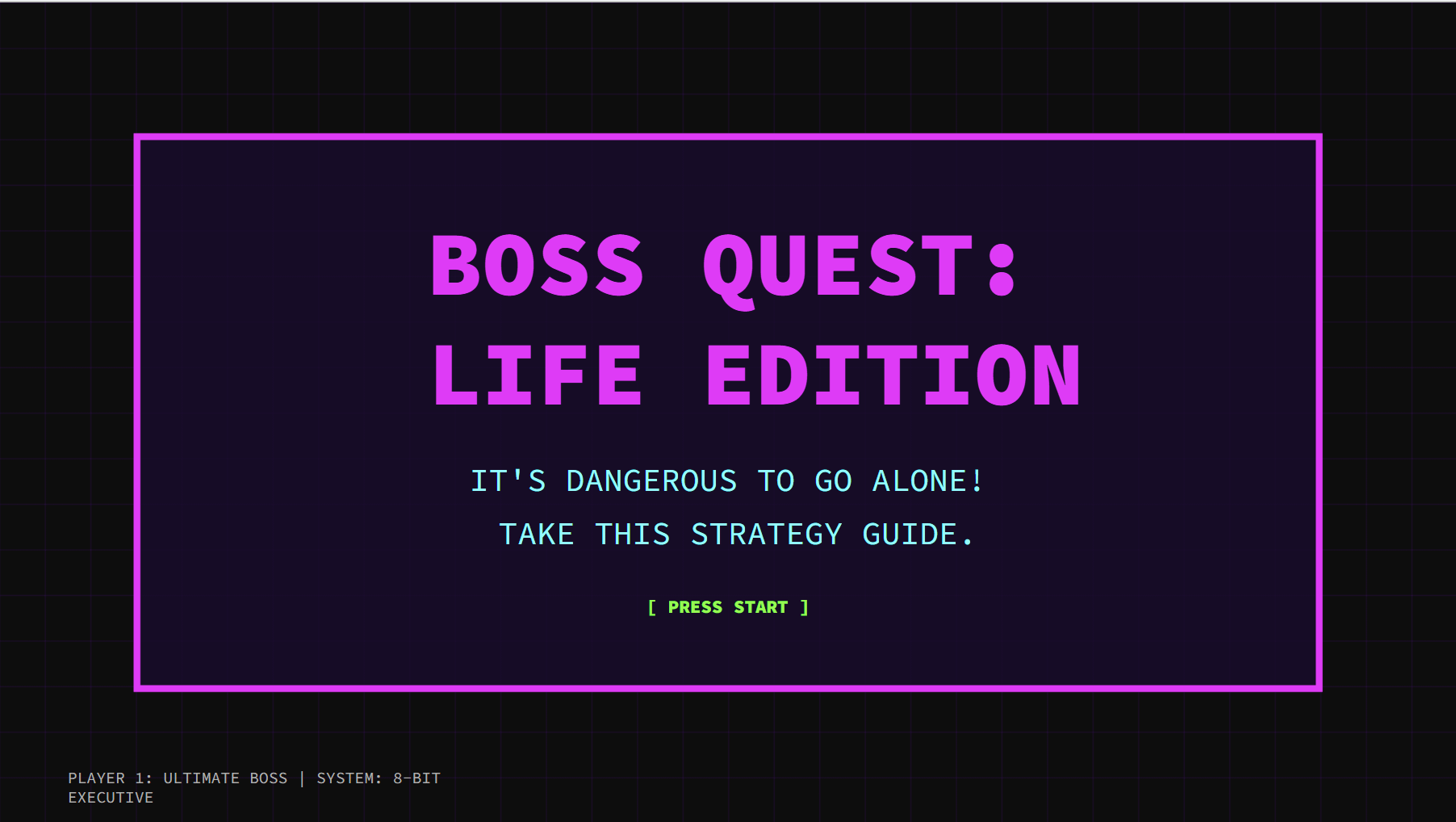
We tested asking AI to update our Gem and Skill to a different style. Inspiration struck and Claire decided to see if Gemini could create slides in 80’s 8-bit video game style. Great news, it can :) Full deck here.
In conclusion, we’d recommend most people start with Gemini - it's faster and produces good designs out of the box. If you need strict brand compliance or direct PowerPoint output, Claude with a well-tuned Skill is worth the extra setup.
Ultimate slides UNLOCKED. Have fun!
Technically Curious Substack Disclaimer
We’re figuring this out and sharing what we learn as we go. This is intended to be practical advice based on our own experimentation - not professional guidance. We make no representations about accuracy or outcomes and aren’t responsible for how you use this information. Features and interfaces may change. You are responsible for your own use of AI.
Thank you to NotebookLM (for helping us research) and Claude (for co-writing & editorial).
couldn't you have shared this before my year end wrap presentations were due?!