
Codex Is Excellent
GPT-5.5 is very smart and the Codex app is easy to use. We recommend you try it out.


“Wowowow!” - Claire, excitedly talking about how smart OpenAI’s GPT-5.5 is after it built something awesome on the first try. (Approximately every day).
We’ve both been big fans of Claude Code since late last year. But in the last month, we’ve come to love OpenAI’s latest model (GPT-5.5) and agentic app (Codex), both for business work and coding projects.
Why do we like it?
The biggest reason is simple: GPT-5.5 is very smart.
It does detailed work. It needs less instruction. It catches more edge cases on the first pass. As a result, it feels easier to trust its results than Claude’s.
Claire uses Codex on her personal projects and appreciates how much it can accomplish with relatively little guidance. On a recent walk, she decided to have Codex build a custom vacation planning website for an upcoming trip. Codex researched hotel availability, mapped options onto Google maps, and deployed to the web, all prompted using remote control on Claire’s phone. She’s also used it to rebuild her AI podcast, make her Peloton dashboard, and work on a rebuild of the Recalc website (coming soon).
Katie uses Codex primarily for business work and has found it returns more thorough results. She had both Claude and Codex do deep dives on what emails she’d missed responding to over the past month. Codex returned a complete list and helpfully classified the emails. Claude missed many threads it should have surfaced and needed meaningful additional prompting.
We also really like the Codex app. It makes it easy to see everything (conversations, files, rendered markdown and HTML) in one place, which means less flipping between different windows. And because the app works well, business users don’t need to invest in learning the terminal - you can get the best product experience right from the app.
So should you try Codex?
We think so! If you’re already a Claude Code or Cowork user, it’s a good opportunity to improve your setup to make it seamless to switch back-and-forth between products as needed. If you’re just getting started with agentic AI, Codex makes it incredibly easy.
Of course, like all AI, it still has its frustrating moments. And we still gravitate to Claude for design and writing work.
But we’ve both had enough “wow, that just worked!” moments with Codex that we think you’ll like it.
Get The Codex App
Download and install the app at https://chatgpt.com/codex/
Log in with your ChatGPT account. On an individual account, you can start for free, although you’ll likely want to upgrade for more usage.
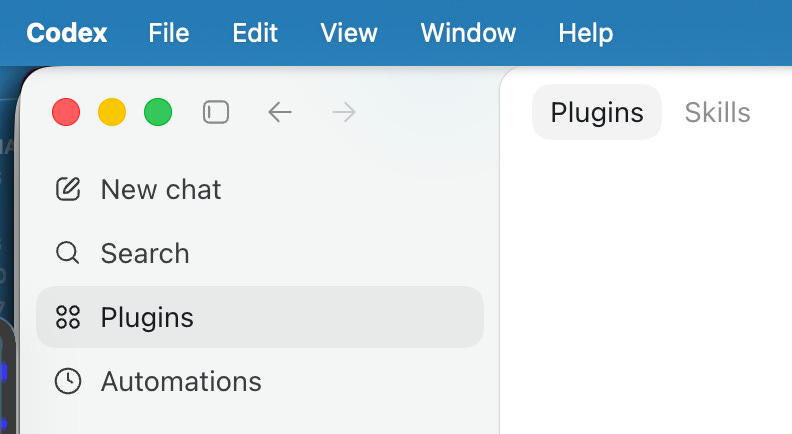
Connect Codex to your other systems. Navigate to “Plugins” in the left panel.
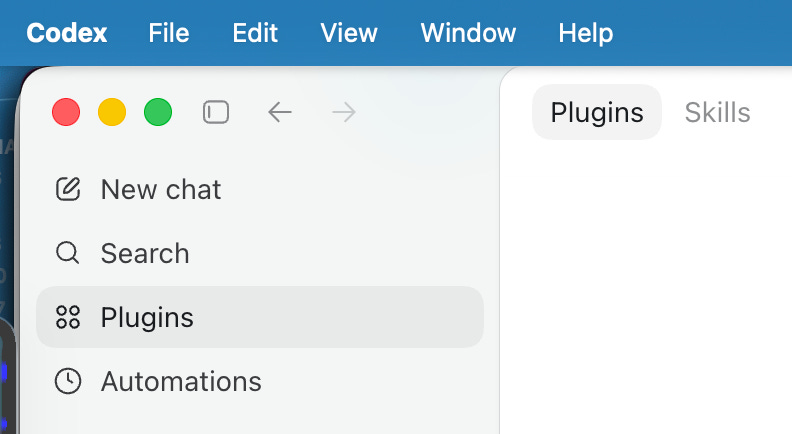
Then click the “+” on any system you want to connect to Codex. Click through to authenticate. We primarily use the Gmail, Google Calendar, Google Drive and Slack plugins. There are fewer connectors available natively than in Claude, although we expect more to be added soon. If you have any trouble with authenticating, visit chatgpt.com > Apps > authenticate to the same apps there.
Begin chatting with Codex!
Not sure where to start? Have it help you clear your inbox, analyze data, research a decision, or build a dashboard for your team.
If you’re a Claude Code or Cowork user, you’ll want to port your Claude.md and Skills over to Codex. Codex may ask you if it should migrate these. You can click “Yes” (it won’t affect your Claude setup), but you’ll likely need to have Codex do a bit more work to get everything set up well. More on that towards the end of this post.
Our Favorite Features
The most compelling aspect of Codex is GPT 5.5’s impressive intelligence. However, there are also many things to like about the app itself.
App UI
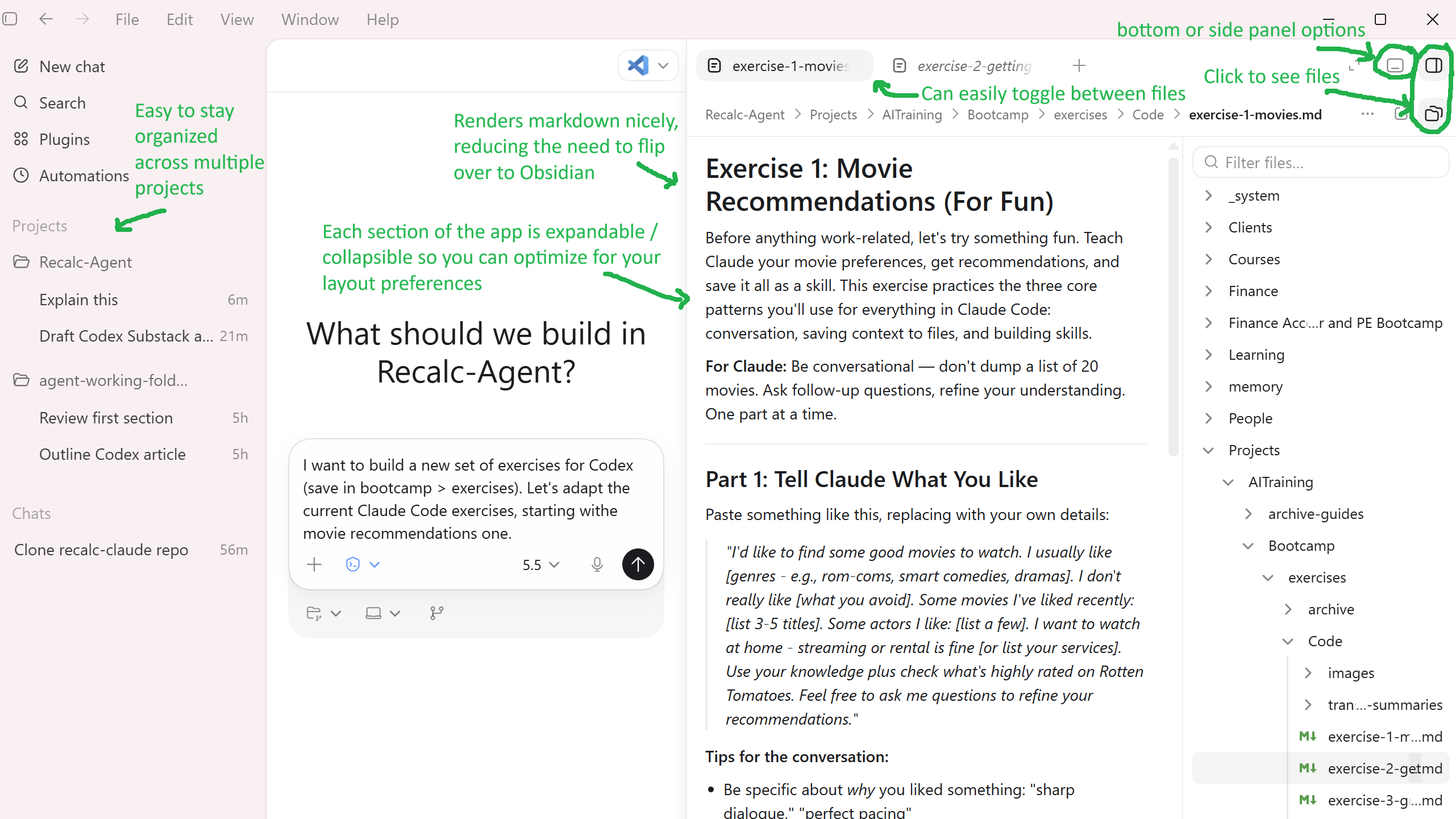
The app makes it easy to see your conversations, files, rendered markdown, and browser previews all in one place. We find we no longer need a separate program like VSCode or Obsidian.
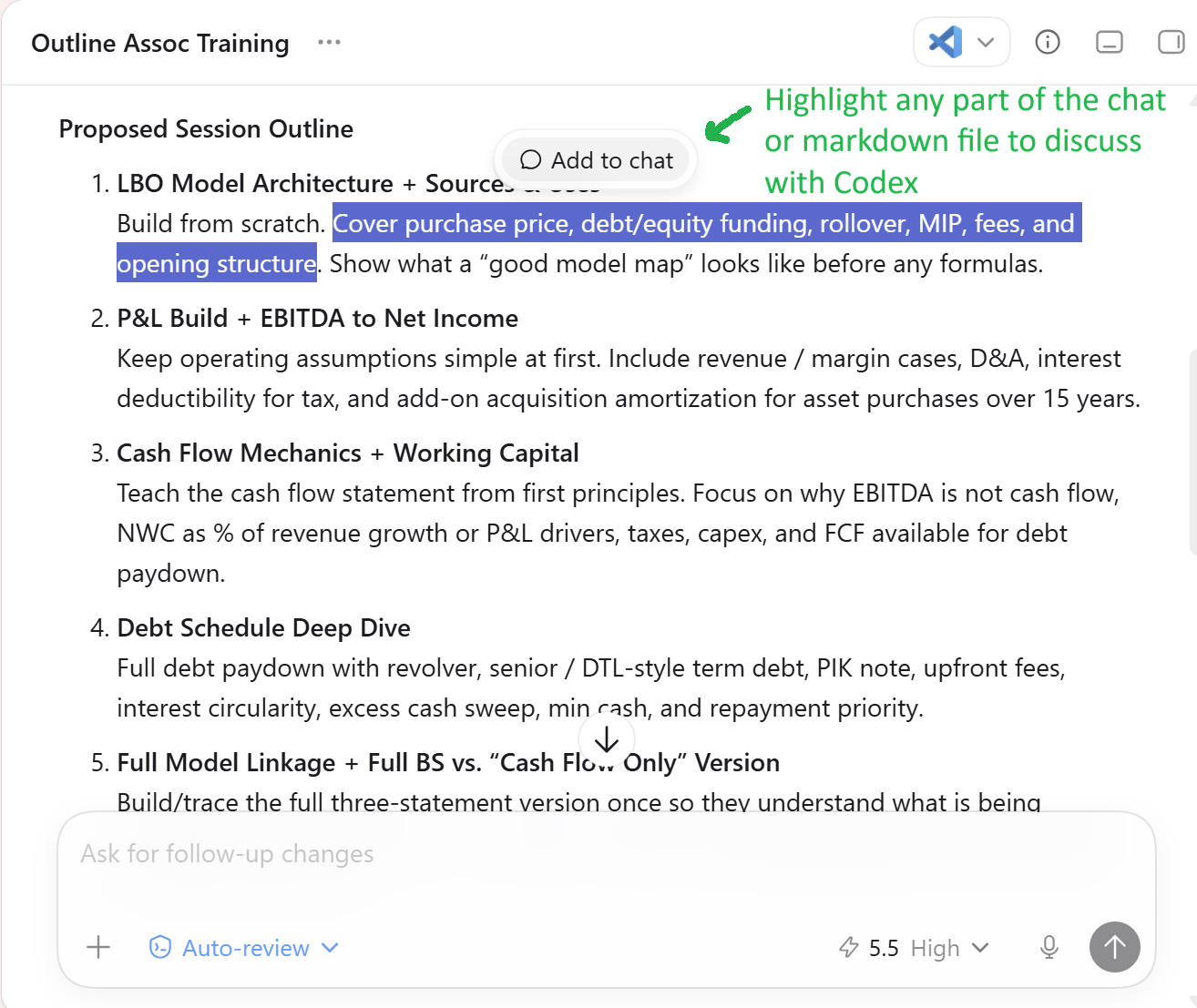
It’s pretty intuitive to use, but we highlighted some of the key features below. You can view files in a side or bottom panel, or expand full-screen with a chat overlay at the bottom. You can also highlight any section of markdown and click “Add to chat” to discuss that specific section.
Built-In Browser
The Codex app has a great built-in browser. Codex can use it to look at what it builds (dashboards, HTML docs) or to browse the web for you directly. We asked Codex to find dishwashers in stock for delivery in Austin. It researched and navigated through to checkout - all we did was enter payment information.
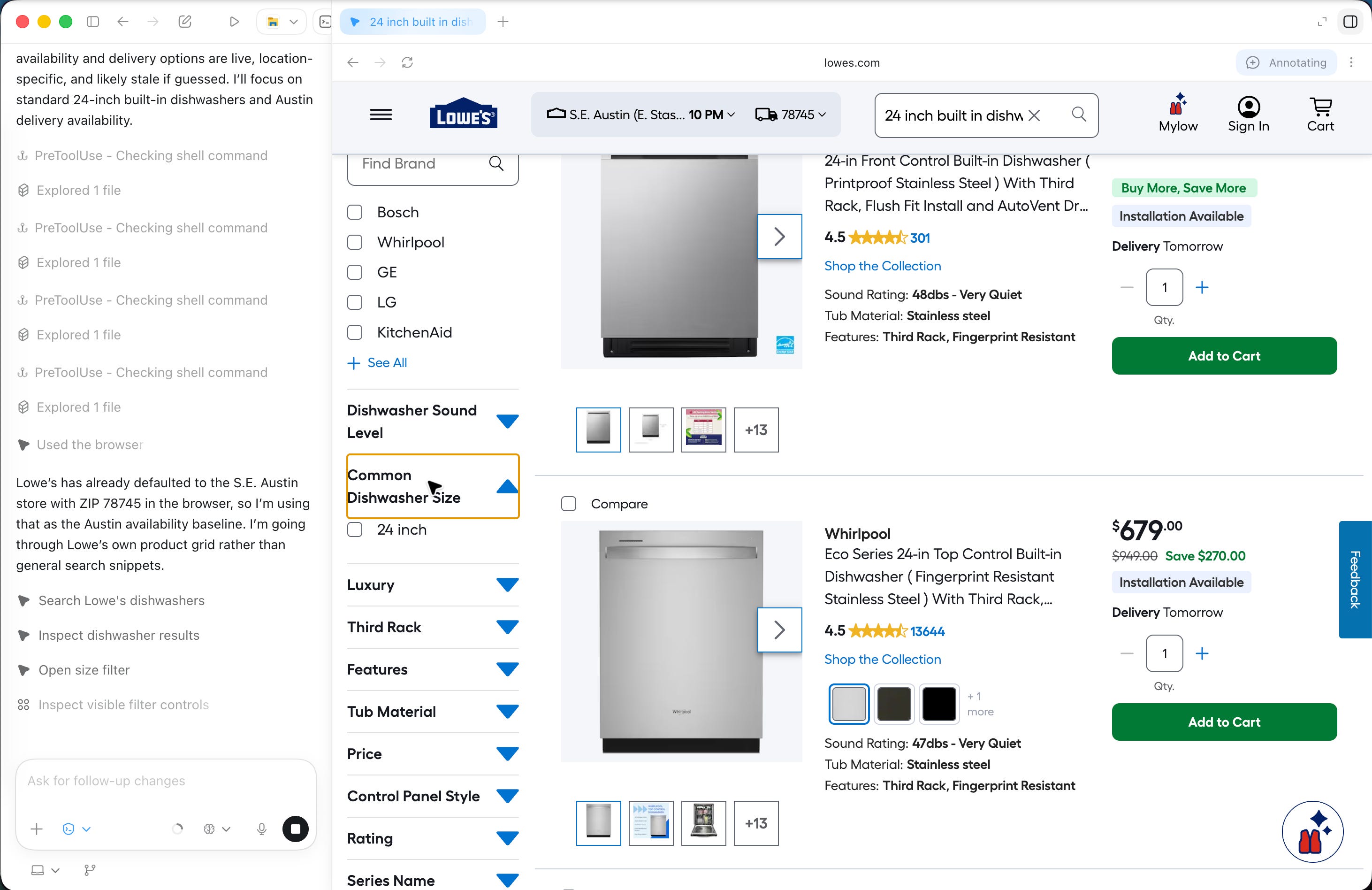
To use the built-in browser, confirm it is enabled: go to Settings > Browser > toggle on. Then open the browser in the side or bottom panel using the panel icons at the upper right. Paste any URL or file path in the embedded browser or ask Codex to open it for you.
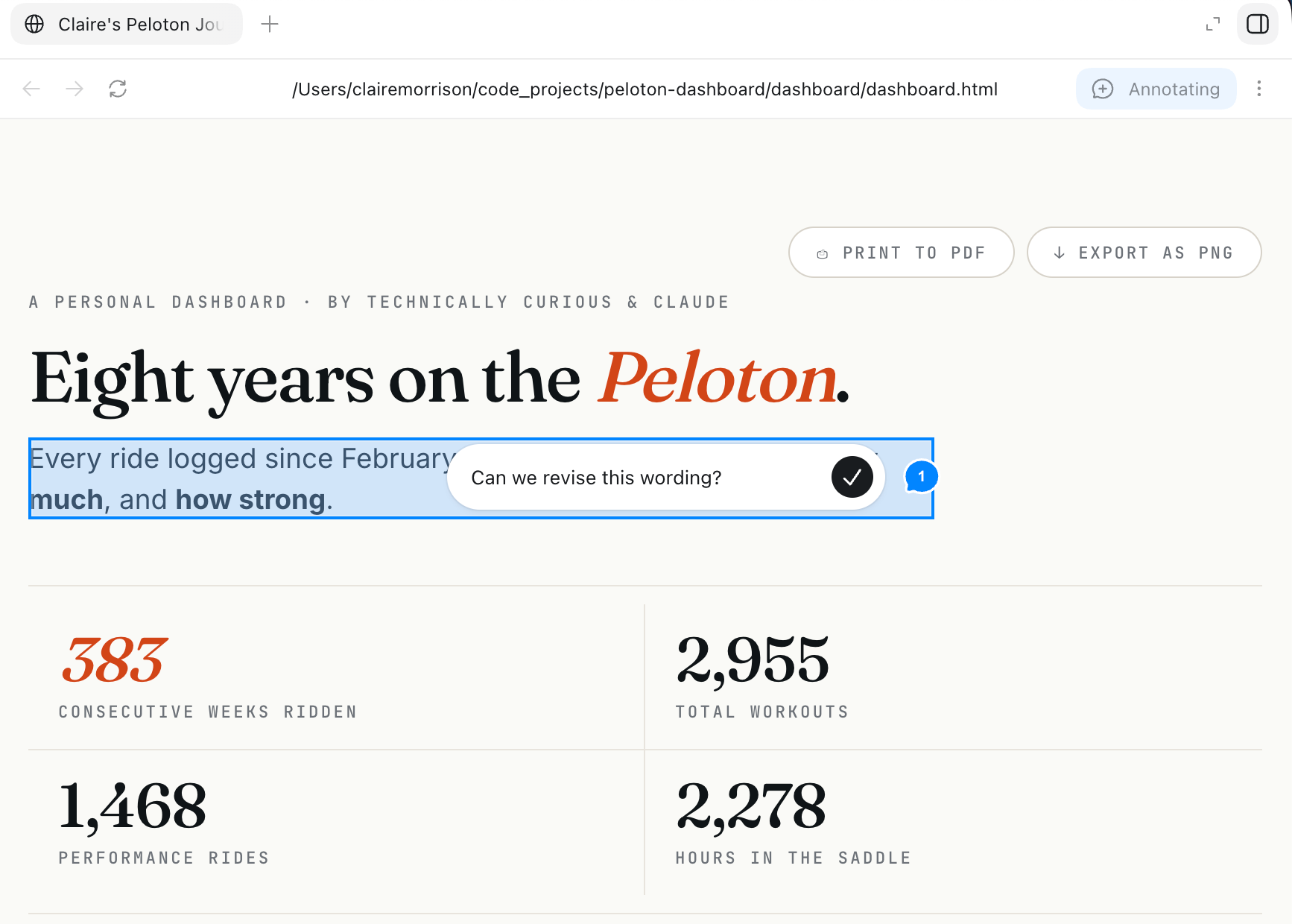
You can also highlight and comment directly on mockups Codex opens in its browser. We love this feature for collaborating on slides and docs in HTML.
Auto-review Permissions Mode
Auto-review mode lets Codex run without frequently asking you for permissions. Permissions are the approvals Codex asks for before it runs commands, edits files, or takes higher-risk actions. In the Default permission mode it asks for permission seemingly all the time.
However, with auto-review, it uses another model in the background to review the primary chat’s permission requests. This means far fewer permission requests while taking what seems to be a reasonable approach on safety.
Keep in mind, it could still make a mistake; it’s worth paying attention to what Codex is working on. There are also times where it can be overly restrictive - you’ll need to expressly grant permission in the chat or temporarily go back to Default Permissions and allow the action if it gets stuck.
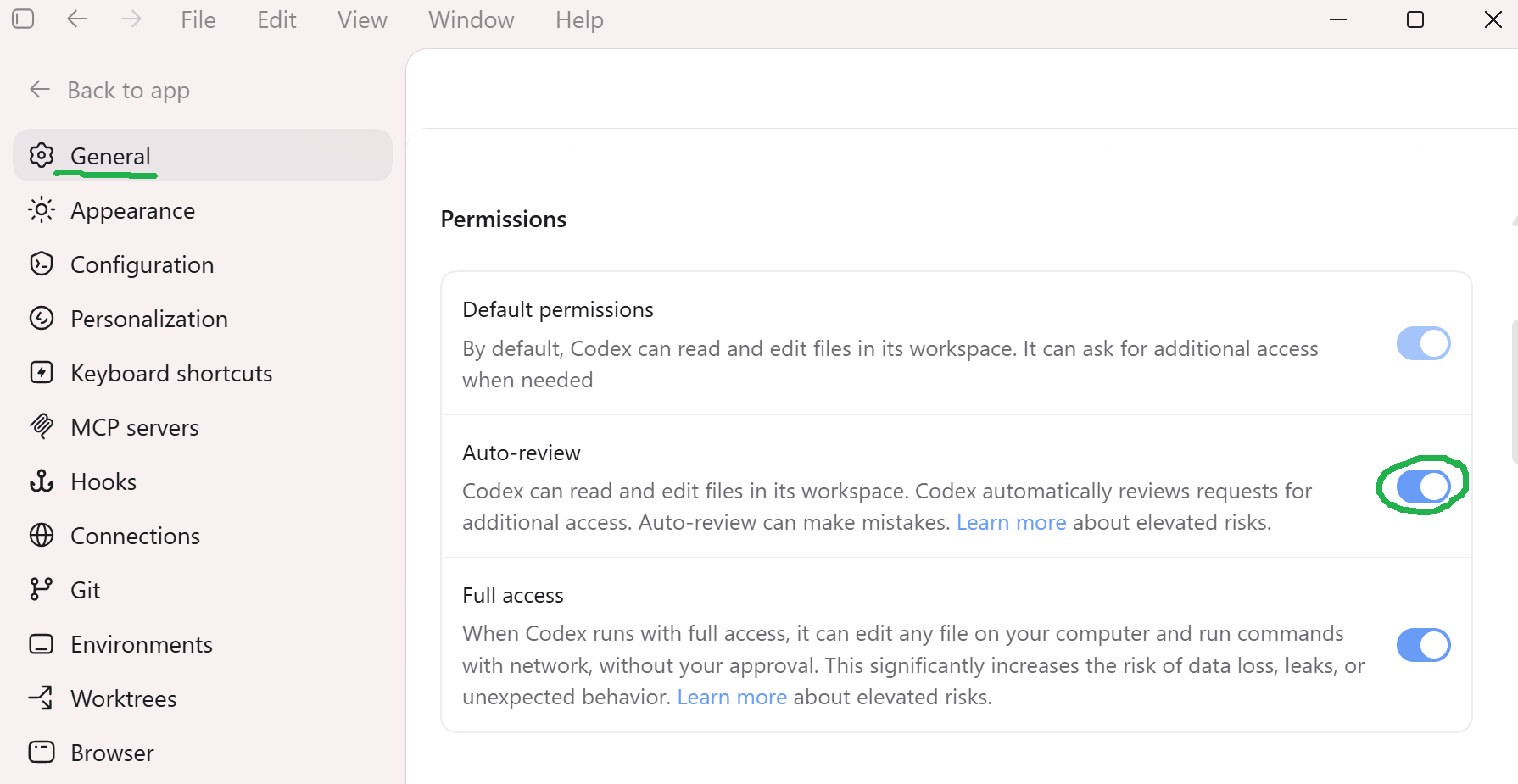
To use auto-review, toggle it on in Settings > General > Permissions.
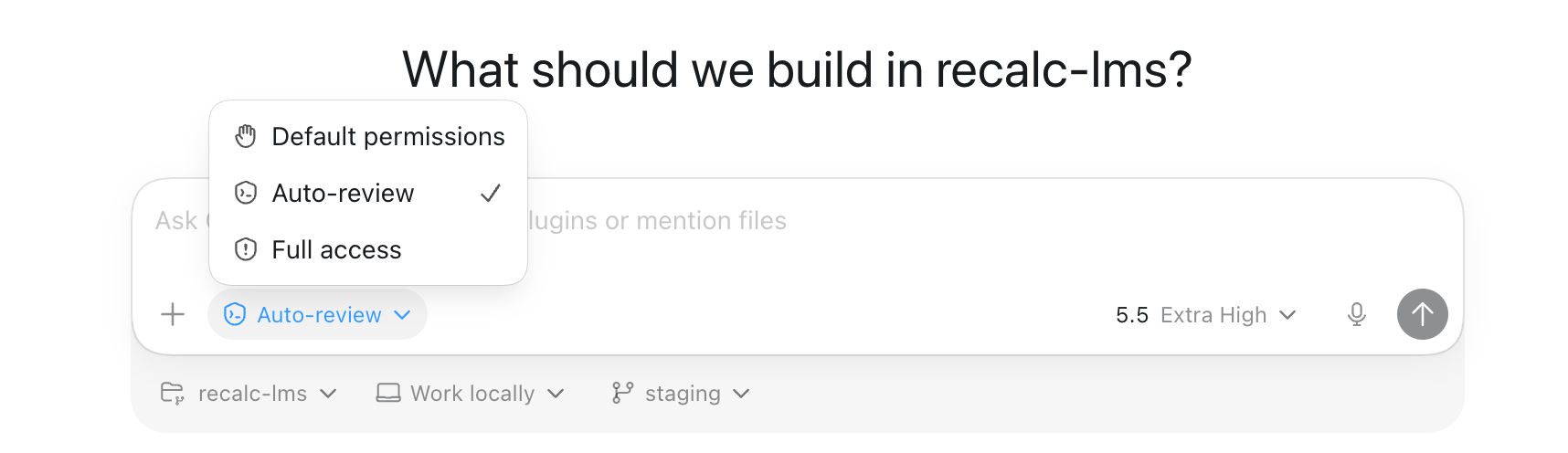
Then you’ll see the option to set the permission mode in the bottom left of the chat.
Automations
Automations allow Codex to complete work on a schedule (“summarize emails I need to respond to each morning”) or to come back to a conversation after a certain amount of time (“remind me tomorrow”).
To set one up, simply ask Codex: “set up an automation to do [x] on [y] frequency.” You can review the automation that Codex sets up under “Automations” in the left panel. You can modify the prompt, model selection, and schedule. You can also run it or pause it at any time (upper right). Previous runs are visible in your chats and in the automation itself in the right panel.
Compacting Long Conversations
AI has a limited “context window” or amount of tokens it can process at one time. You can think of it like the short term memory of the conversation. When the conversation approaches the context window limit, the model will “compact” or summarize the conversation to make space to continue.
With Claude, this process can seem fairly lossy, and important details get lost. Usually as we get further into the conversation (~150k tokens), we like to be in the habit of creating an explicit summary document with Claude before clearing context and continuing with a fresh context window.
However, our experience with Codex is that it does a better job compacting without losing important information. As a result, we tend to have long-running conversations without worrying about documenting interim progress and clearing context.
Remote Control (Mac Only)
You can use your phone to remotely control Codex on your computer. This is currently available for Mac only, although expected for PC soon. To set it up, click “Codex mobile” in the left panel. Note, if you’re on a Business or Enterprise plan, your admin needs to enable remote control for this option to be visible.
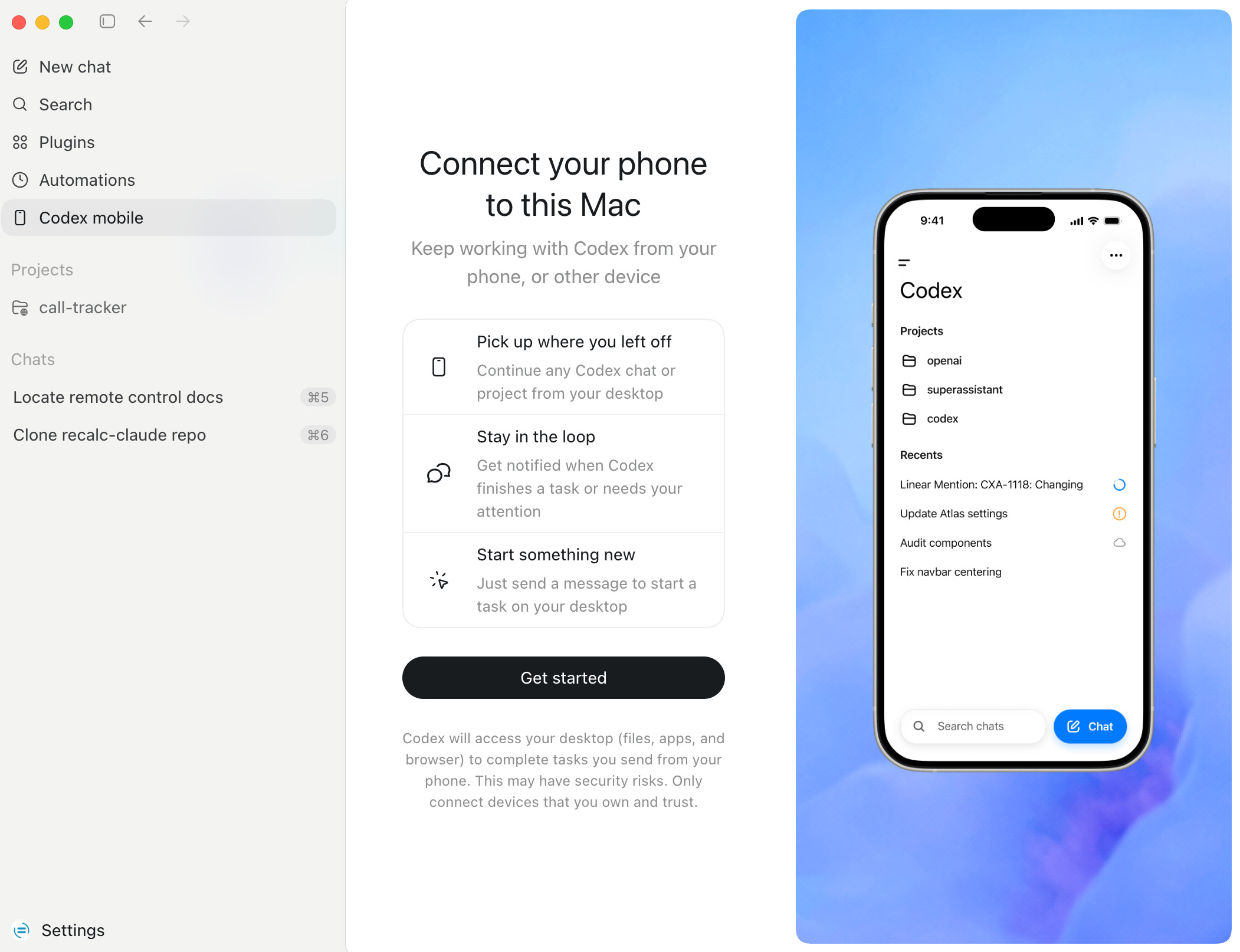
Click through “Get started” to pair your phone with your computer (you’ll scan a QR Code). To change permissions in the future, click Settings > Connections or click the mobile phone icon next to Settings (will appear after initial setup).
Then from your mobile app, click “Codex” to continue any of your current Codex conversations or start a new one. Your computer will need to be awake with your Codex app open for this to work.
Image Generation
The Codex app has a fantastic built-in image model. It made the delightful cover art for this article :) We like not having to go to a separate place for images, and think the image model is on par or better than Google’s Nano Banana.
Pets (for fun)
Codex has a fun feature called Pets! Your pet is a persistent icon on your screen that notifies you when your Codex chats need attention. It’s good for multi-tasking and generally fun.
This is Claire’s pet. You might want one too.

To make one:
Have Codex run this command to install the pet building skill:
$skill-installer hatch-petIn Codex, run /hatch-pet. Describe the kind of pet you want (e.g. “a dog”)
Codex will build you a pet! Go to Settings > Appearance > Pets and select yours as the Default.
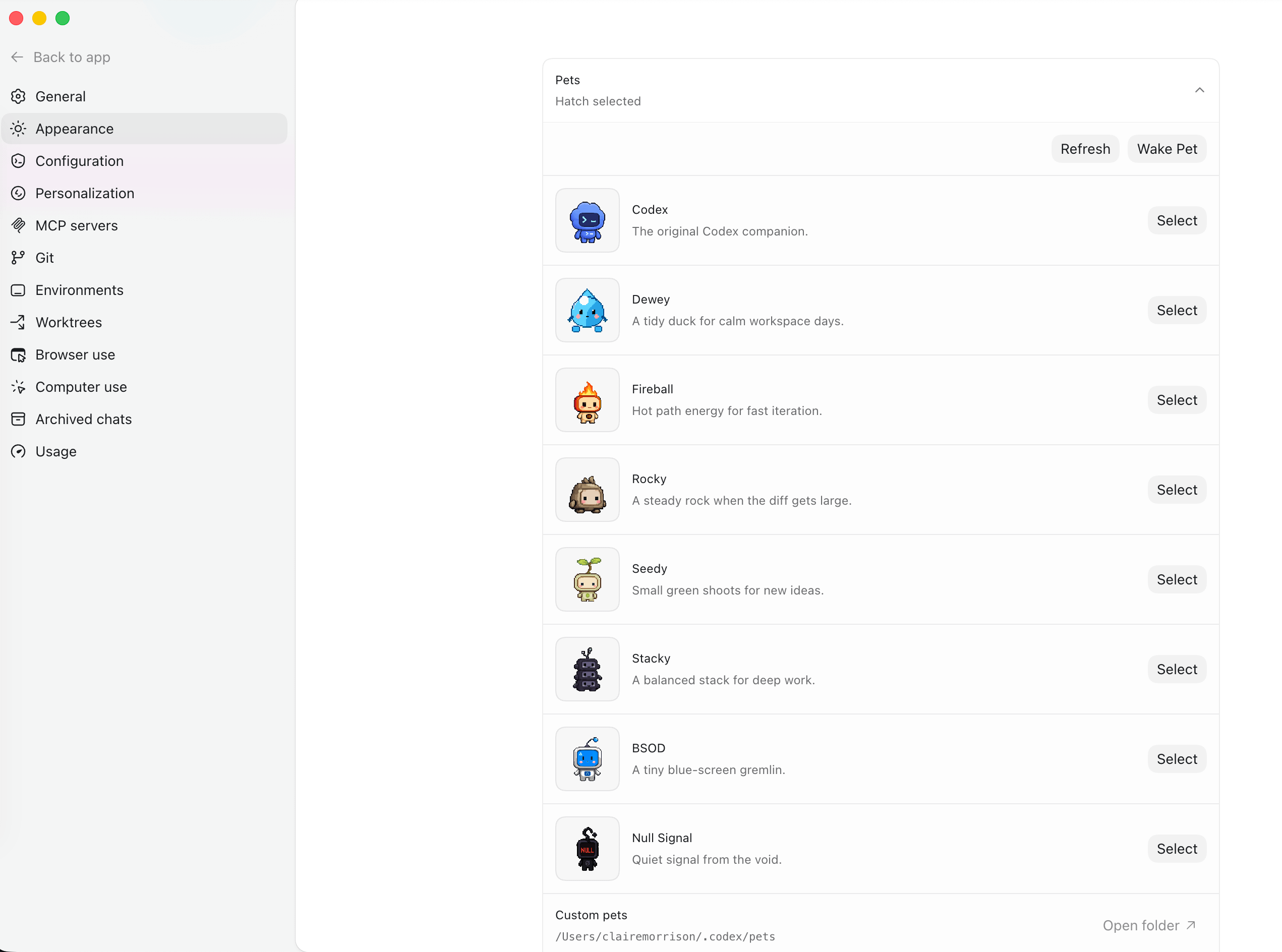
You can toggle this on and off with /pet in the chat.
Shortcomings
While GPT 5.5 is clearly very intelligent, it does have a few relative weak areas:
Design: Codex does not do original design as well as Claude. If you have a design system and templates, Codex is good at adhering to those. We would still recommend you do original design work with Claude Code (use the frontend-design plugin) or Claude Design.
Writing: Codex tends to be a dramatic writer and terse editor. If you spend a lot of time training Codex on writing you like, it does improve. But we’ve found it’s generally easier to prompt Claude to write in our style.
Re-authenticating to connected apps: this user experience is rocky! The most reliable way to re-authenticate (i.e. to Gmail if your sign-in expires) is to navigate to ChatGPT.com > apps > select Gmail > select the gear icon > look for ‘reconnect’.
Even as models improve, we expect each model to have different strengths. We expect people to learn to select the right model for the task based on capabilities and cost. And we also expect to see more teams of complementary agents that work together to achieve better results.
Getting the Most out of Codex: Projects
A Project is simply a folder on your computer. We’d recommend working with Codex in one so that it can easily read and write to that folder. You can accumulate files (notes and documents) in that folder which Codex can reference as helpful context. That in turn results in better work.
If you’re new to working with agents, we’d recommend reading our longer article on this idea: Let Claude Keep Track of Everything.
Select a Project
If you already work with Claude out of a folder, select the same folder. In fact, this makes switching back-and-forth between Claude and Codex fairly straightforward - they can work from the same context.
If you don’t have a folder yet, create one - you can call it “agent-working-folder”. You can work out of this folder with any agent (Codex, Claude, etc).
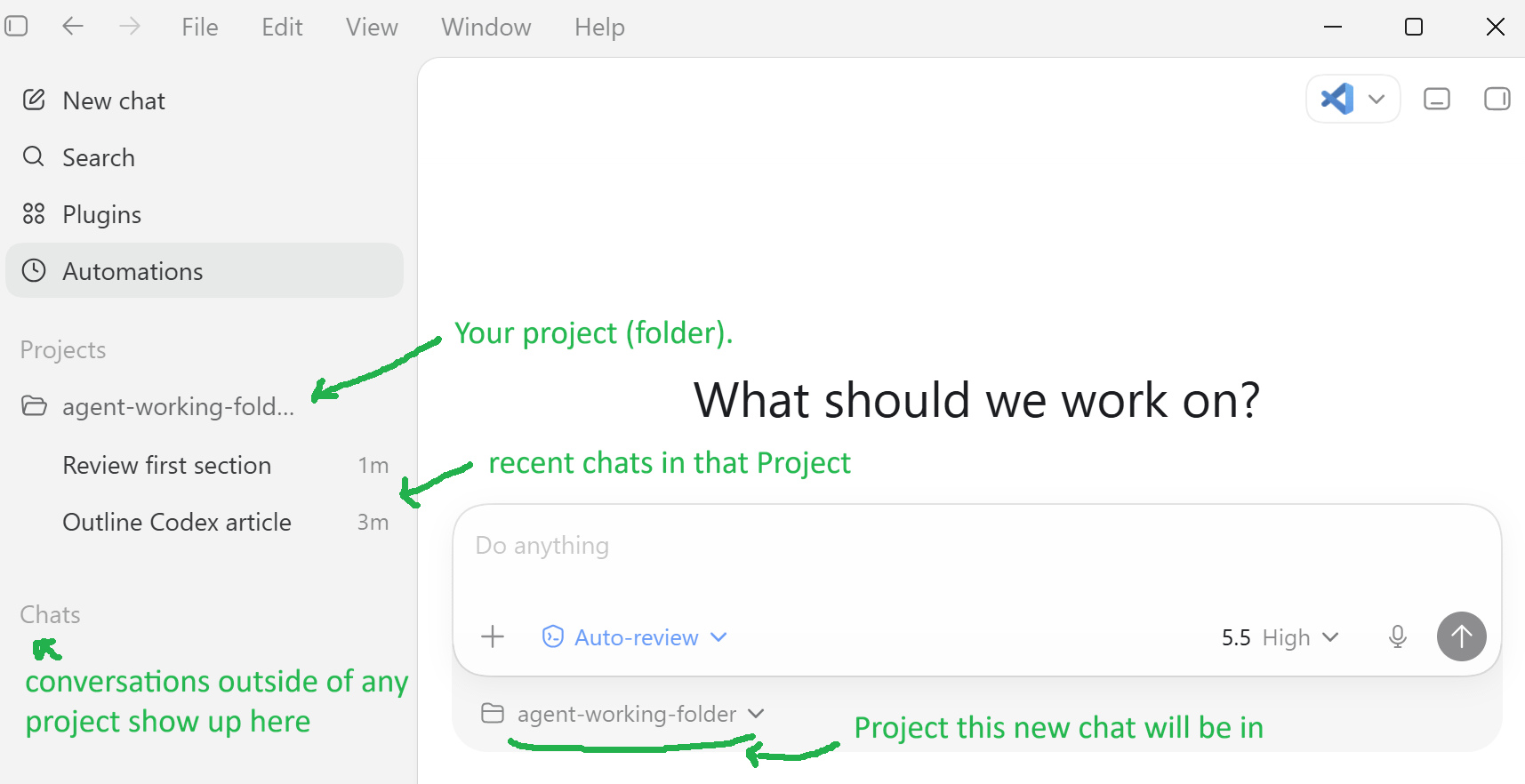
Because compaction works so well in Codex, we have extremely long-running threads for ongoing topics in our projects. This saves us re-typing in context and makes working with Codex feel much more natural. For example, Claire has one long thread on travel planning that now knows her hotel preferences and another on her daily work prep that builds up context on her priorities.
Claude Users: Migrating Your Setup
If you’ve been working with Claude Code or Cowork, it’s likely you’ve developed a CLAUDE.md file, Skills, and possibly memory files with Claude. You’ll want to work with Codex to create a copy of these for Codex to use. Then you’ll want Codex to update your CLAUDE.md and AGENTS.md with instructions to keep all further changes in sync.
Initial Setup
Create a Project in Codex (left sidebar) and select the folder where you normally work with Claude.
CLAUDE.md migration. Prompt Codex:
“Find all the CLAUDE.md files on this computer, including in my global .claude configuration. Read and recommend what to bring over to your AGENTS.md in this project folder and our global .codex config.
I also want to make sure you know where all our memories are saved, so make sure you identify that folder and remember where to find it.”
Claude Code Skills migration. Prompt Codex:
“Read through all of skills in this local .claude/skills folder and in my global .claude/skills folder. Create copies for you to use (in the appropriate .agent/skills folders).”
Claude Cowork Skills migration
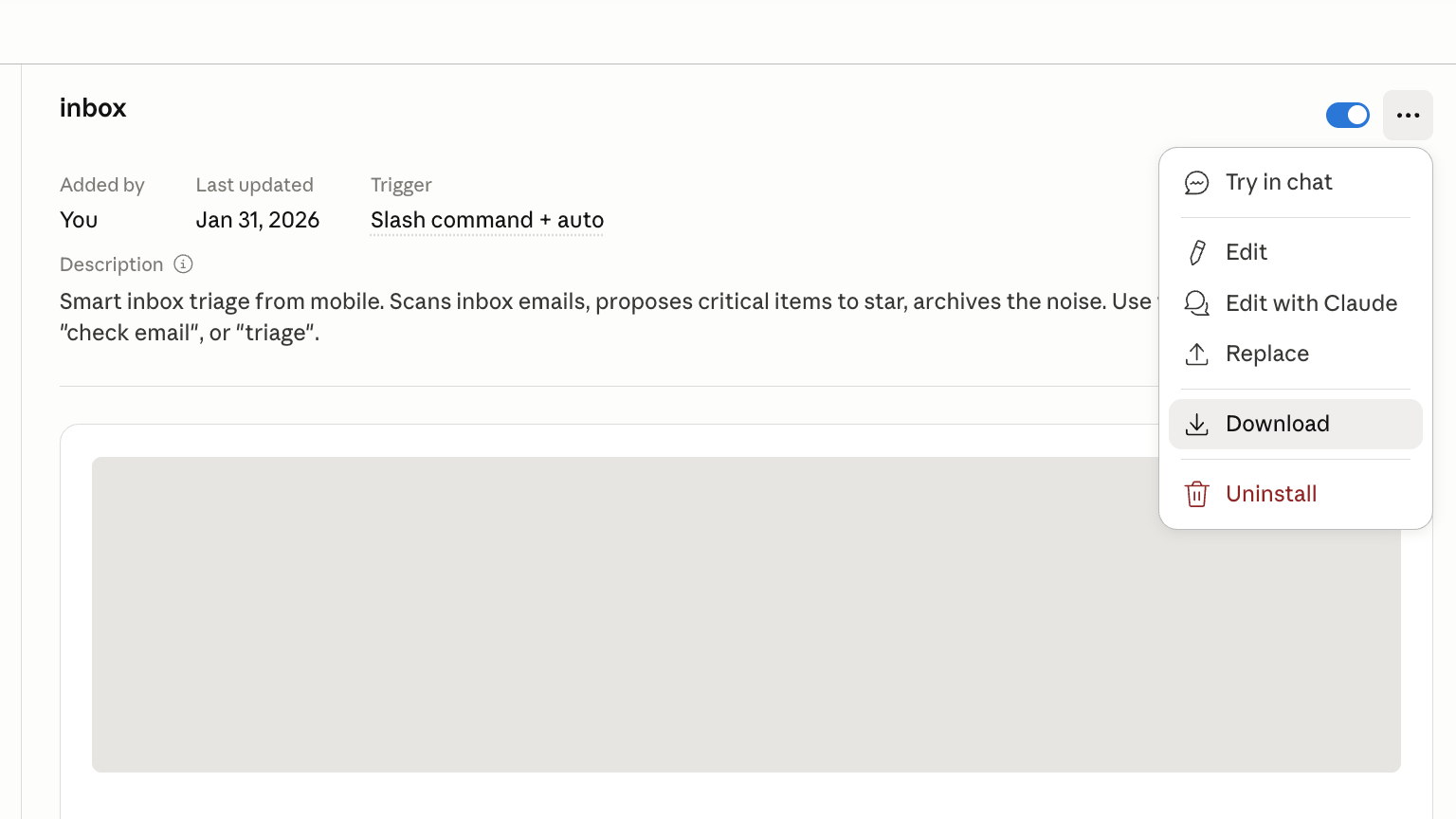
If you use Cowork, you’ll need to download a copy of each of your Skills. Open the Claude Desktop app. Navigate to “Customize” > “Skills” to see your list of Skills. Click the three dots at the upper right of each skill, then Download. Save them in a folder which will be easy to reference in the future.
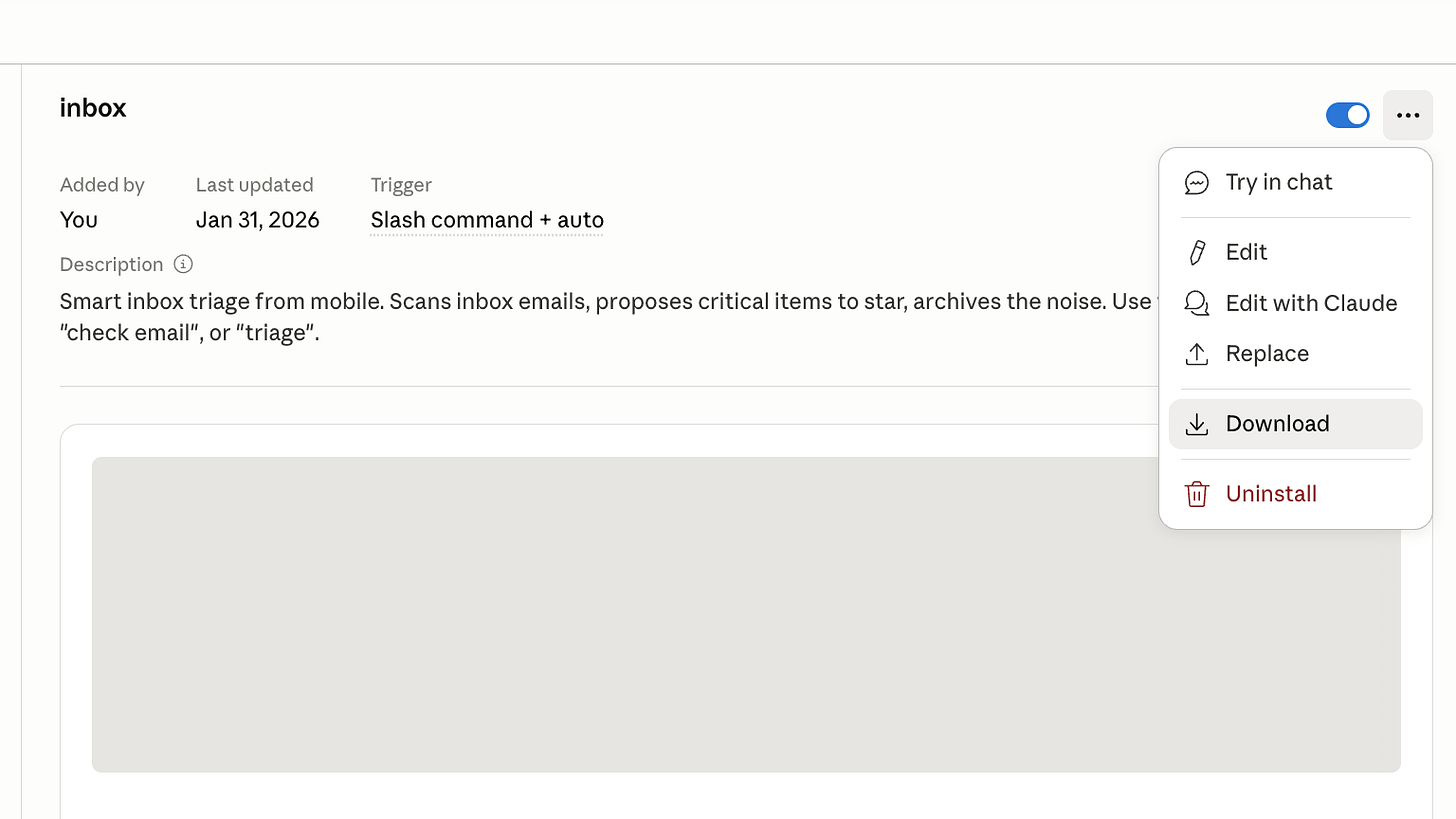
Then prompt Codex:
“Look at the downloaded skills in [x] folder. Create a copy of the skills you can use in our project folder in .agents/skills”
Keeping Things In Sync
Tell Codex you want to be able to easily work with Claude or Codex at any time, and that it needs to keep things in sync.
“I will be working with both Codex and Claude. I want our CLAUDE.md and AGENTS.md to stay in sync. Same thing for our Skills and memories. Plan an approach with me to do this, and make a note in CLAUDE.md and AGENTS.md so that every agent knows our syncing rule and method.”
Advanced Option: Plugins
Longer term, we recommend keeping your skills outside of any specific tool, as files you can reference from any agent harness. To do that, as an alternative to the steps above, you can have Claude package your Skills together as one or more plugins (bundle of Skills). Then ask both Claude and Codex to register those plugins so they each know where to find them. From then on, you can just maintain the one copy.
Prompt Claude:
“Please package our Skills as one or more plugins (grouped by work theme). Work with me on the right design first before making changes. Read your official documentation to make sure to format these correctly.”
Then prompt both Claude and Codex individually:
“Register our plugins in your global config so you can find them and we can use them together. Read your official documentation to make sure to format everything correctly.”
Restart Claude and Codex to make sure they pick up the new plugins and ask your AI for help troubleshooting if you run into issues. If you already duplicated your Skills into Codex and have multiple copies, ask Codex to use the plugins going forward and clean up the unnecessary duplicate Skills.
You might find some Skills contain product-specific instructions. To fix this, prompt Codex:
“Read the file for our “skill-name” skill. Identify anything that’s Claude-specific like hard-coded tool names, references to Claude-only features or outdated file paths. Rewrite it to be harness-neutral: describe tools by capability, not by name. Don’t change the behavior or examples.”
Connectors
Codex can help you install any connectors beyond the native connectors you already set up.
For example, have Codex install the Chrome MCP. Prompt:
“I want to install the Chrome MCP from Google documented here. Read the setup guide and install in your global config.”
Or have Codex look at all the MCP servers you already have in your Claude Code config and migrate them.
“Look at all the MCP servers in my Claude Code configuration. Make a plan to migrate these to your own config here in Codex. I prefer using native connectors if they exist, so please first outline a) what is an existing Codex plugin we can use and b) what additional custom MCPs you recommend we add to your setup.”
Try It Out
While you can spend time optimizing your setup, getting going with Codex takes less than 5 minutes. Simply download the app, login, and start talking with Codex.
Have Codex help you triage your email, prepare for your week, or help you with whatever you’d prefer not to do on your to-do list today. Or try tackling a side project you’ve been wanting to get to.
Let us know what you think!
Technically Curious Disclaimer
We’re figuring this out and sharing what we learn as we go. This is intended to be practical advice based on our own experimentation - not professional guidance. We make no representations about accuracy or outcomes and aren’t responsible for how you use this information. Features and interfaces may change. We disclaim all liability, and you are responsible for your own use of AI.
Thank you to our talented co-builders and co-writers, Codex & Claude.
Happy building!