
Let Claude Keep Track of Everything
Build a memory system that gets smarter as you use it.


Every time you start a new chat with AI, it starts over - it doesn’t have any sense of what you’ve been doing together or how you like to work.
But what if Claude remembered everything? Not just basic information - all the details. Your clients, your projects, your to-do list, your preferences. What if every single task you did with Claude made the next one faster and more informed?
That’s what happens when you have Claude keep notes. It’s incredibly simple: just ask Claude to take them. It saves simple text files to your computer that it can reference in any future conversation.
What should go in notes?
Two kinds of things: what you’re working on, and how Claude should work with you.
1. Context knowledge. Notes on your work - your clients, your projects, your people, anything you’re working on.
2. How to work. Any time it does something - drafts an email, sends a Slack, pulls data from your CRM - you can ask it to update its notes on how to do the work, making it faster the next time.
For this to work, you need to use Claude Cowork or Claude Code. If you haven’t set that up yet, read our Claude Code Setup Guide or download Claude Cowork here. We recommend using Claude Code - it’s more capable, and despite the name, you just talk to it in English. For the rest of this article, when we refer to “Claude” we mean Claude Code or Cowork.
Notes In Practice
The more Claude knows about your work, the more useful it becomes, and the less you have to keep in your head. Fewer things slip through the cracks because Claude is tracking them. And every task Claude works on benefits from your accumulated context.
A few examples:
To-dos & team management - Claude keeps track of Katie’s to-do list and team workstreams, minimizing what can fall through the cracks with back-to-back meetings.
Prep for client call - ask Claude for a refresher (history, most recent conversations, where action items stand) ahead of a call. Later, Katie can ask “did Suzanne send that follow-up?” and Claude checks for the email and updates the notes. Questions get permanently answered and Katie doesn’t have to interrupt the team. (Note: for connecting Claude to email and other systems, read our post on connectors here).
Prep for trips - ask Claude to remind us of who we wanted to meet on our trip to Boston, and ask it to check if there’s anyone else we should consider based on a scan of our notes.
Performance reviews - looks across Claire’s notes, Slack messages, and emails to synthesize strengths and coaching opportunities for her team members.
Marketing outreach - bucketed Recalc’s customer list, determined whether all the corporate customers received the latest email marketing for a relevant course
Writing guide - analyzed our prior Substack posts and saved a writing guide that captures our style and tone for drafting new posts.
What makes this work: you don't have to organize anything. Claude figures out where information belongs and can update multiple files at once - a client record, your to-do list, a project tracker - in a way that would take a human an unreasonable amount of time.
So where do our notes come from?
Human notetaking - if Katie’s on a call, she writes notes into Claude (instead of on paper) and asks it to save them. The notes can be very rough since Claude cleans them up and updates any other relevant files.
Other systems (email, CRM, ERP) - whenever Katie has Claude look something up from another system, she asks Claude to update the notes. That way, the notes pull in context from everywhere - not just what she remembers to write down.
Reflecting with Claude - whenever Claude helps with a task, especially a new one, we ask it to write down what it learned so it can do it faster next time.
AI Notetakers - You can share any notes from Granola, Zoom transcripts, or other notetakers. You can either copy-paste or use a connector to one of those systems. Katie doesn’t use an AI notetaker but Claire loves Granola.
Set Up Your Notes System
Create a folder where Claude can save and organize notes.
Have Claude set up the initial notes structure.
Keep it going - ask Claude to take or update notes as you work together.
1. Work from a folder
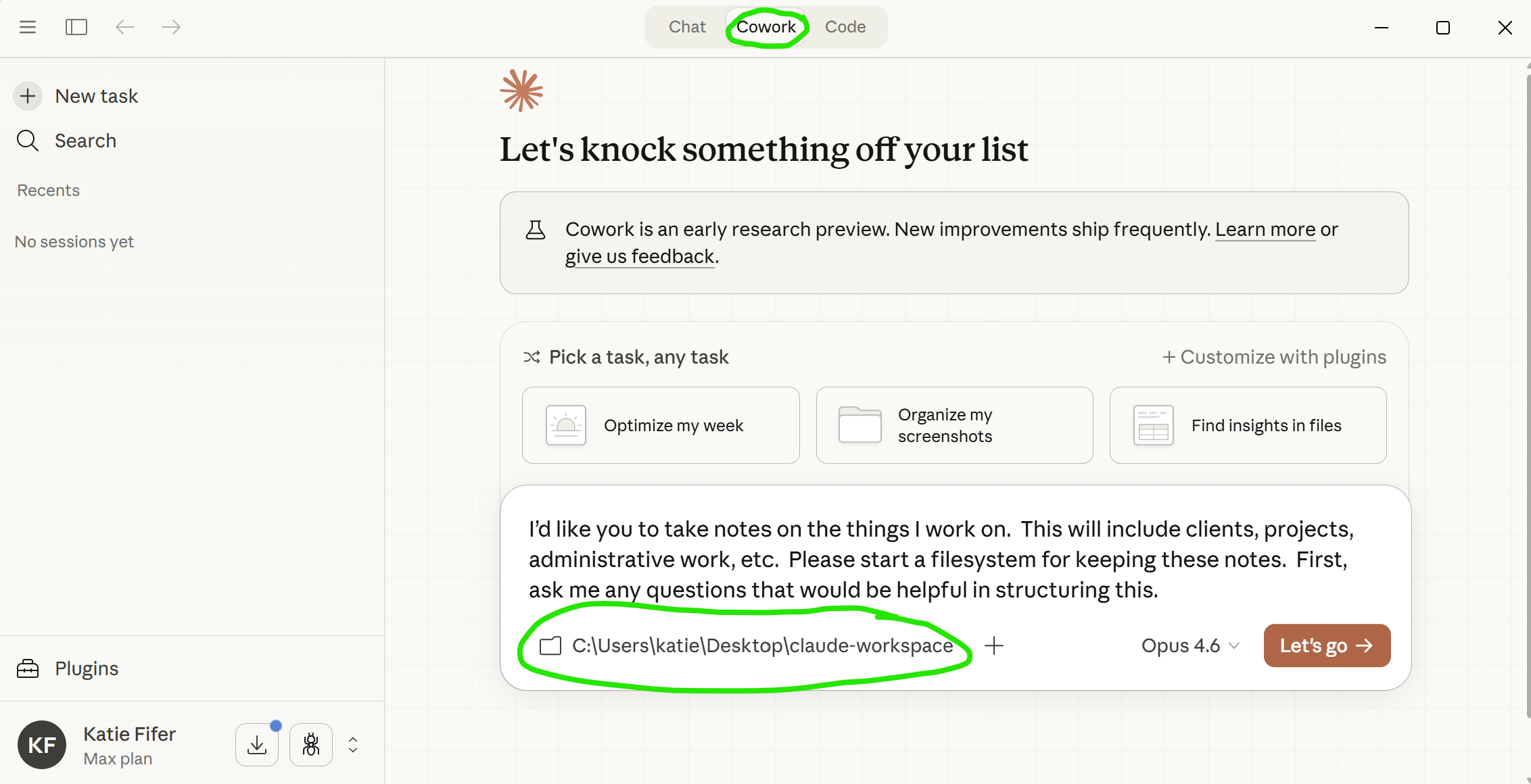
Create a folder on your computer (e.g. “claude-workspace”). Open it from Claude Code or Claude Cowork.
Cowork users:
Click “Work in a folder” and then select the folder
Claude Code users:
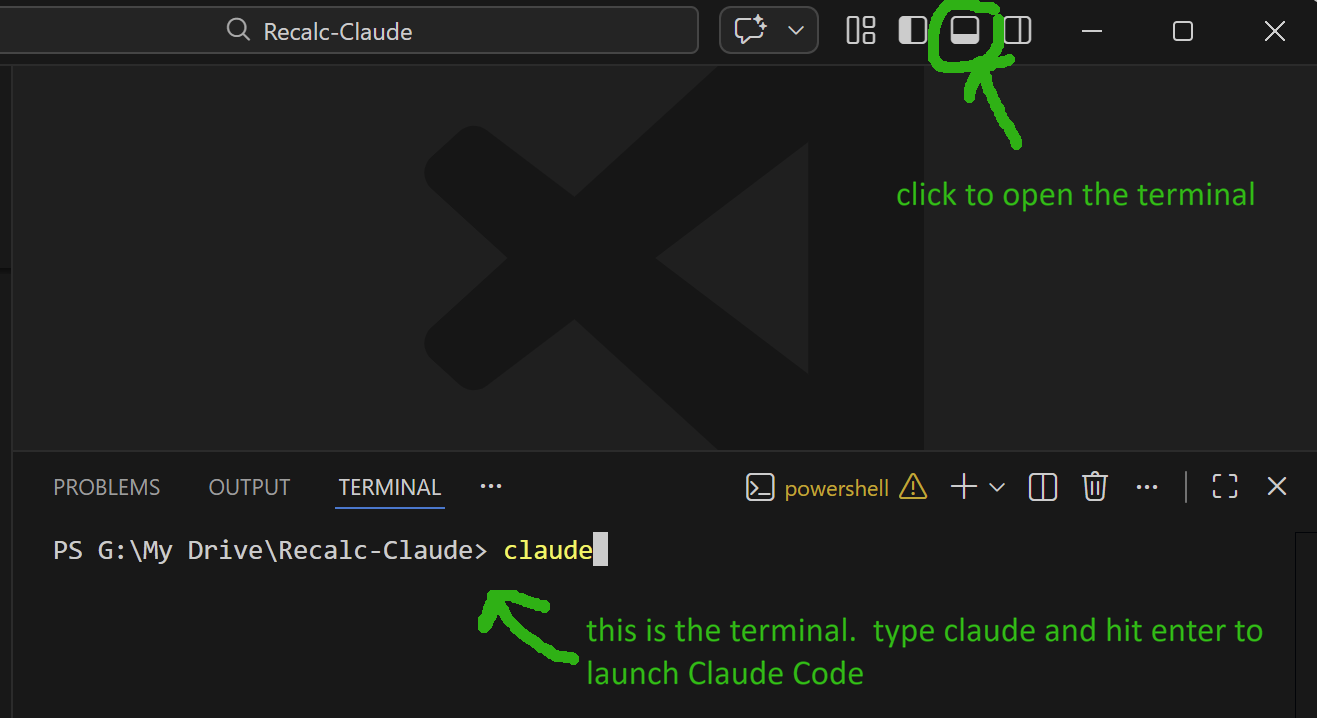
We’d recommend using Visual Studio Code (VSCode) to make it easy to open the right folder and see what you’re working on. You can download it here.
Open VSCode, click File > Open Folder > select the folder where you want to work with Claude.
Open the Terminal in VSCode by clicking the toggle icon in the upper right. The Terminal will automatically open in the folder you selected.
Type “claude” followed by Enter to launch Claude Code.
2. Have Claude set up the initial notes structure
Prompt Claude:
“I’d like you to take notes on the things I work on. This will include clients, projects, administrative work, etc. Please start a filesystem for keeping these notes. First, ask me any questions that would be helpful in structuring this.”
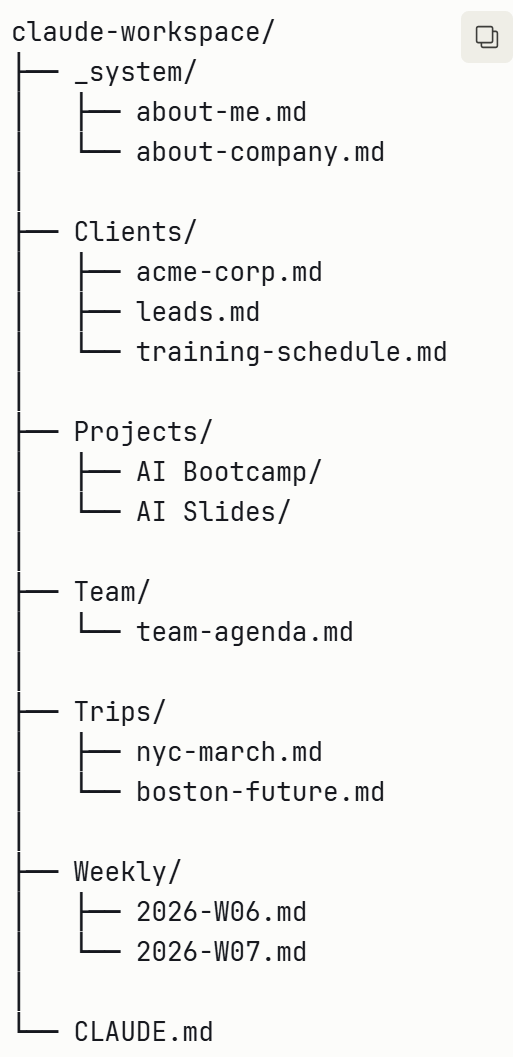
Claude will create some folders and simple text files (ending in .md - these are called “markdown” files, but they're just plain text). Don’t worry too much about the structure since Claude can easily reorganize everything later.
3. Keep it going: ask Claude to take/update notes
The key is building the habit. If you’re on a call, type your notes into Claude. Any time Claude helps you with something, end with: “update your notes with what we just did.” Over time, your notes become a rich, living record of your work.
You can also periodically ask Claude to review its notes and reorganize them as your work evolves.
Teach Claude How To Work With You
There are two things that make a big difference in how well Claude works with you over time:
CLAUDE.md file - a file in your working folder which Claude will automatically read at the start of every conversation. Anything you always want Claude to know goes here.
Skills - more detailed instructions for how to accomplish certain tasks (draft an email in your voice, Slack your team, pull data from your CRM)
Create your CLAUDE.md
Prompt Claude (in Cowork or Code):
“Please create a CLAUDE.md file for this folder. This is where you'll keep track of how to work with me - my preferences, any rules, and how things are organized. Before you create it, ask me some questions so you can make it useful from the start.”
Don't worry about making it perfect - you can ask it to make updates at any time.
What kinds of things should end up in CLAUDE.md over time?
A map of your folder structure so Claude always knows where things are
How you like to communicate (be concise, don’t hedge, ask before guessing)
Rules and guardrails (drafts only for email, read-only for financial data)
Which tools and accounts are connected and any quirks about how they work
Naming conventions for files
Anything you got tired of repeating
For example, ask Claude to map your folder structure in CLAUDE.md so it always knows where to find things. It will write something like this:
# Where To Find Things
claude-workspace/
├── People/         ← Contact records
├── Social-Media/   ← Social media content
└── Writing/        ← Email and document drafts
When you need context about a person, check People/ first.

# Keeping This Updated
If we change the folder structure, update this file to match. This is our map — keep it current.
Have Claude Build Skills
Not everything about working with you belongs in CLAUDE.md. More detailed instructions (like exactly how to draft an email in your voice) belong in a Skill. Think of CLAUDE.md as Claude's cheat sheet that it reads every time. Skills are more like playbooks it pulls out only when needed. This keeps Claude focused instead of overwhelmed.
How do you get Claude to create a Skill?
If you’re in Cowork, follow the step-by-step guide here. In brief, you’ll go to Settings > Capabilities > Code execution > toggle it on (this is a one-time step and simply lets Claude create Skill files - it’s safe to enable). Then at any point in your conversation with Claude Cowork you can ask it to create a Skill using its built-in skillcreator tool. Describe what you want or ask it to figure out what should go in the Skill based on the conversation you’ve been having.
For example, if you just had it pull data from your CRM for the first time, tell it
“Create a Skill for pulling data from the CRM based on what we just went through. Use your skillcreator tool.”
This will make it much faster to pull similar data the next time.
Claude Code Users:
In Claude code, you’ll prompt Claude to create a Skill in the correct folder. After you’ve created one Skill, it usually will know to put any others in the same place.
Prompt Claude:
When we create a skill, it must go in .claude/skills/[name]/SKILL.md. Include when to trigger the skill, step-by-step instructions, and any specific details you’ve learned through our work. I want to create a skill for [xyz topic]. Please ask me questions that will help you determine how the skill should work.
Claude will create the Skill and then call upon it as necessary. You can also explicitly invoke the Skill by asking Claude to use it or by typing “/” and then the Skill name. Note: you will need to close (/exit) and restart Claude for that slash command shortcut to show up.
Our Favorite Skills
We both have built up a long list of Skills with Claude covering everything from meeting prep to email drafting to pulling data from other systems. But our favorite Skills relate to helping Claude get better at working with us:
Memorialize - Katie had Claude write a Skill to look at the conversation and determine if any updates should be made to Claude.md or new/existing Skills. She invokes “/memorialize” often. (Note, Claude Code has a few more memory concepts under the hood but you don’t need to worry about them - Claude sorts it out).
Diary & Reflect - Claire had Claude build a “/diary” Skill which documents whatever they’ve been working on together into a memory file with a timestamp and brief summary at the top of the file. She also built a “/reflect” Skill to review past diary entries, spot patterns, and propose updates to CLAUDE.md.
These Skills create a feedback loop. Your agent gets better by learning from real collaboration with you.
What this positive feedback loop looks like
A diary entry after updating your task management system:
---
date: 2026-01-26
tags: [workflow, simplification]
---
## Workboard Migration
**Decisions:**
- Moved tasks from markdown to Google Tasks for simpler, portable management
- Consolidated cluttered items into single tasks with notes
**Learned:**
- Google Tasks works well for active work; markdown better for reference
- Simpler is better — one less file to sync manually
An update to CLAUDE.md:
# Working With Me
- Build incrementally and test as you go — don’t perfect upfront
- Use existing systems (contacts, calendars) over separate config files
Now every future session starts with these learnings as part of our memory.
Memory Tips
Agent memory is still evolving, and there are some rough edges. Here are two things we’ve found make working with our memory system easier.
Keep your agent memory locally on your computer
One practical consideration: where does your memory system live? We recommend starting with a local folder. You can also choose a folder that naturally syncs to the cloud (e.g. Google Drive or OneDrive). You’ll then have a copy in the cloud (good for redundancy) while enabling Claude to read/write locally (much better for speed). Be aware that this folder will end up having a lot of sensitive information, so if it is syncing to the cloud, double check your sharing settings.
Use Obsidian To View Markdown Files
Obsidian is a free tool that runs locally on your machine and makes it easier to read markdown files - it renders them with better formatting. You can download it here: https://obsidian.md/
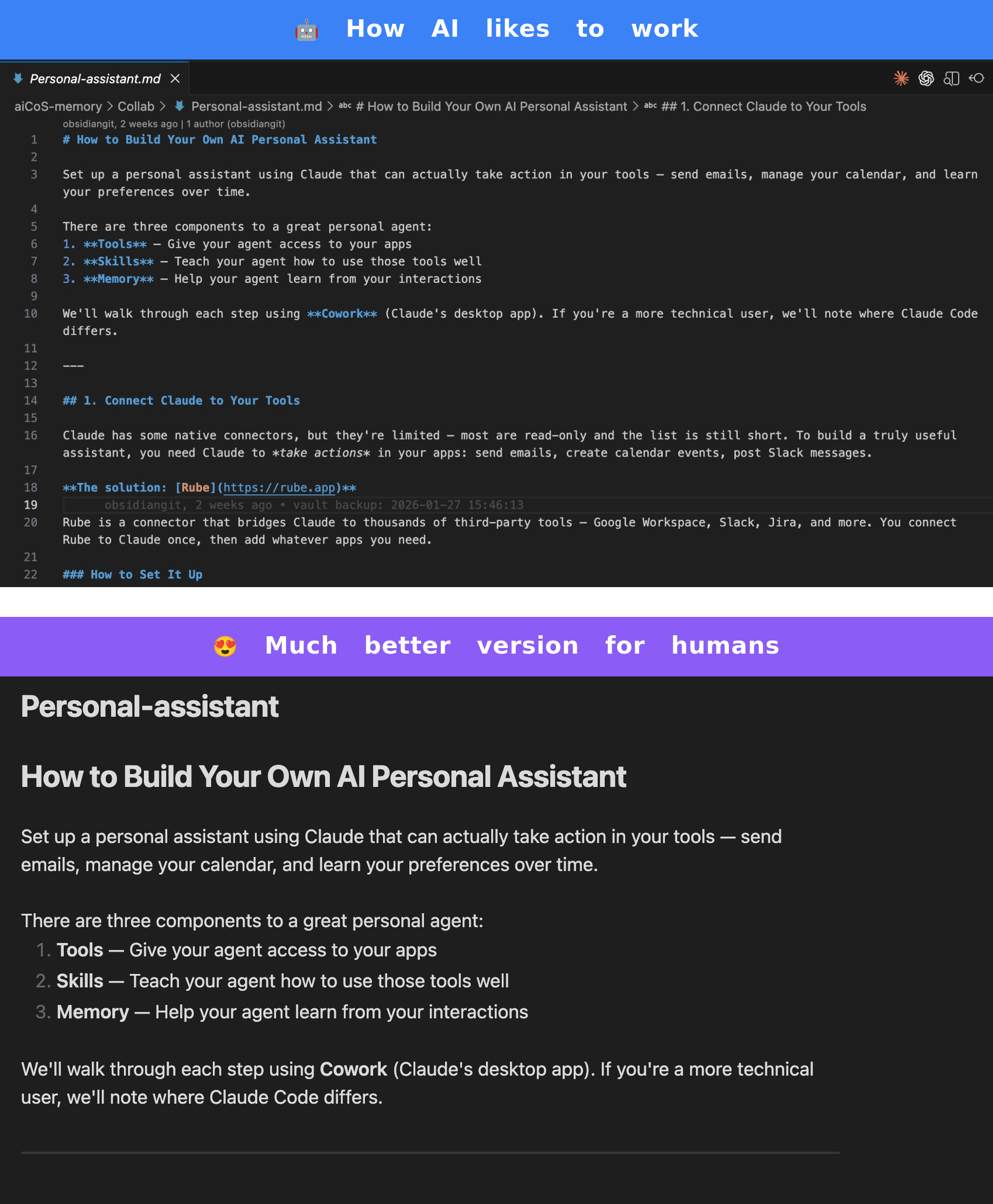
From Obsidian, you can open any existing folder on your computer as a ‘vault’, or create a new folder to work from. Vaults are just folders.
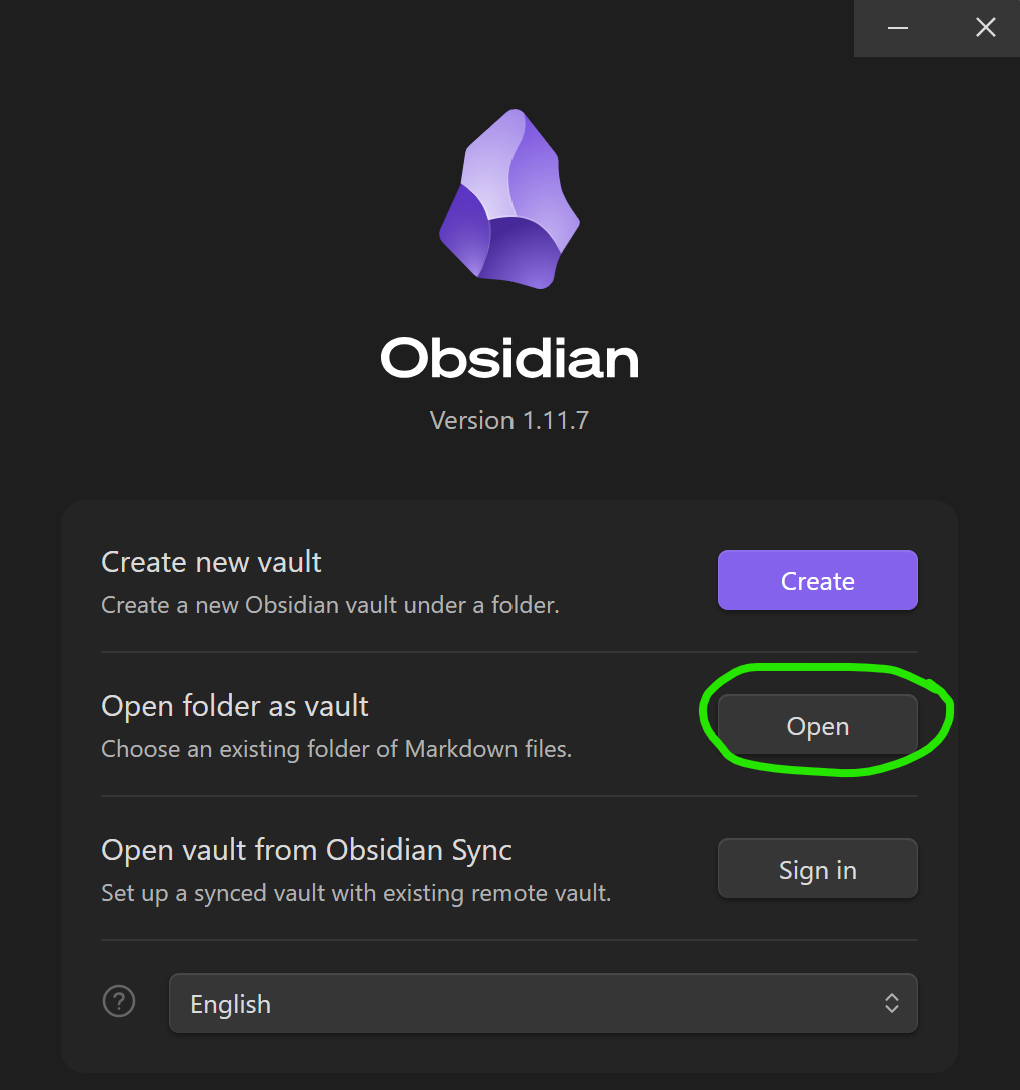
Now any markdown file in your agent memory is easily readable. And if you hate dark mode like Katie, you can toggle to light mode in Settings > Appearance > Base color scheme > Light :)
In Conclusion
The more Claude knows, the less you need to keep in your head. Just think, talk, and let Claude keep track of everything. Start with your next meeting - type your notes into Claude and ask it to save them.
Technically Curious Substack Disclaimer
We’re figuring this out and sharing what we learn as we go. This is intended to be practical advice based on our own experimentation - not professional guidance. We make no representations about accuracy or outcomes and aren’t responsible for how you use this information. Features and interfaces may change. You are responsible for your own use of AI.
Thank you to our talented co-writer Claude, who not only wrote our writing style guide but also iterated through many drafts of this post.
Great piece! A lot of people don't realize how multi-faceted Claude is!
Thank you. Great work Claude—and mentors