
Create your personal agent with Claude
Teach Claude to assist you in everything you do (without any technical knowledge).


There’s a major paradigm shift underway: until now, AI only lived in a chat window you’d visit. That’s changed. Now AI can actually do things on your behalf.
Triage your inbox. Schedule meetings. Pull CRM data. Prep you for your day.
You can build your own personal agent. And the more you teach it, the more it can do.
And yes, you can really make an agent!
No technical knowledge or coding required.
Connecting to your apps takes less than 5 minutes.
You can teach Claude just like you onboard a new employee - in English.
We’re excited to share exactly how to set up your agent. We’ll walk through everything, including the three main ideas that make this possible:
Tools - connect Claude to your other systems (email, calendar, Drive, Slack, Airtable, CRM, ERP, etc). We’ll use Rube, a connector service that makes this surprisingly easy.
Skills - teach Claude how you want things done - in plain English.
Memory - have Claude keep notes about you and your work as you go.
Before we dive into the setup, what can an agent actually do for you?
What Does Our Agent Do?
Every day we discover and try new use cases. A few of our favorites so far:
Daily Workflows
Get To-Do’s: look across Slack, email, and notes to find any action items to add to our to-do list. Similarly, have it remind us of to-do’s, highlighting what’s most urgent/important.
Scheduling: look across relevant teammates’ calendars for available time (including what might be easy for them to move), suggest times, send the calendar invite.
Inbox triage: scan recent emails for anything that needs a response. Claire even trained it on what to automatically move to archive based on reviewing a number of emails together.
Book flight: Click through a travel booking tool to book Claire’s work flights and hotels. Add flights to her calendar with buffer for travel time.
Take notes (second brain): Claude takes impressively good notes, especially considering my typical rambling. And by saving these notes it builds context that makes it feel like a second brain.
Data & Research
Pull data: quickly get candidate data from Airtable.
Research on X: synthesize what people are saying about a topic on X without doomscrolling ourselves. As a bonus, Claude even translated some posts in Chinese when responding to a recent request.
Pulling lists from websites: compile lists of conference exhibitors or PE portfolio companies using web scraping tools like Firecrawl.
Claude Setup
To make all of this work, you’ll need a paid Claude plan (Pro at $20/mo works fine to start). And you’ll want to work in one of Claude’s more powerful tools - Cowork or Claude Code. These tools stay on task, can navigate large volumes of information, and can save notes to build context across conversations.
Claude Code was built for developers but turns out to be very useful for business users as well. So useful that Anthropic recently released Cowork, designed to be a similar, but less intimidating tool for non-technical users.
Claude Code was originally designed to run in the Terminal (non-graphical interface) but now is also available in the Claude Desktop app (graphical interface).
Cowork is accessible via the Desktop app. It is currently only available for Mac users, but will likely become available for PC users soon. Until then, PC users can use Claude Code.
So what should you use?
Mac user just getting started: Claude Cowork
More advanced Mac user (comfortable with command line or IDE): Claude Code
PC users: Claude Code. You can use Claude Cowork once it is released for PCs
Setup is ~5 minutes. Once you have Cowork or Claude Code open, the rest of the steps will be very similar.
Cowork Setup (currently for Mac)
Download (or update) the Claude Desktop app here: https://claude.com/download
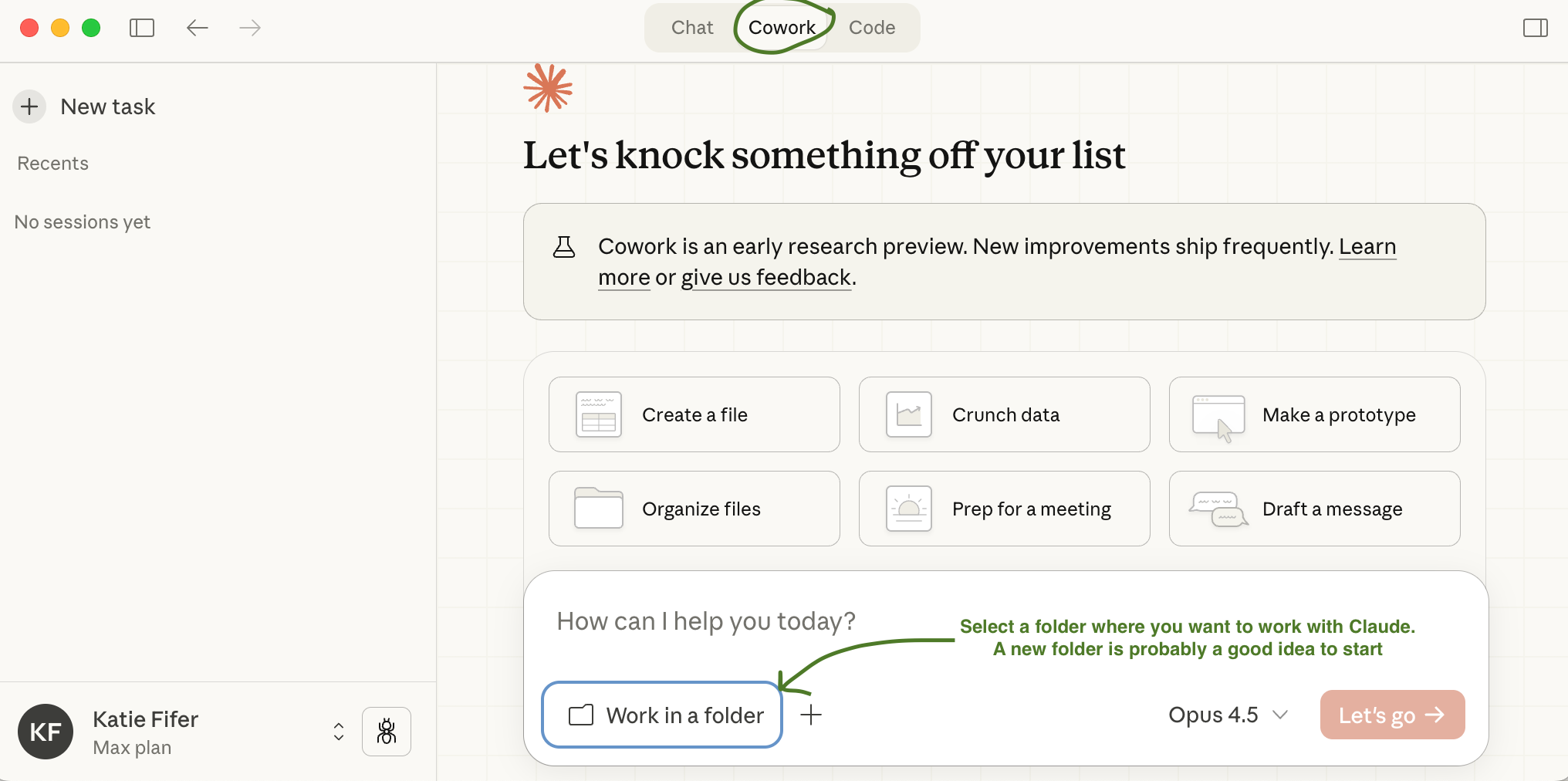
Select “Cowork” at the top.
Click on “Work in a folder”. We recommend starting with a new folder - it will open Finder and you can click “New folder” on the lower left.
Claude Code Setup
We recommend reading our step-by-step installation here Claude Code for Business Users: Getting Started. This will walk you through installing via Terminal which is the most reliable. You can then use the Desktop app for an easy graphical interface.
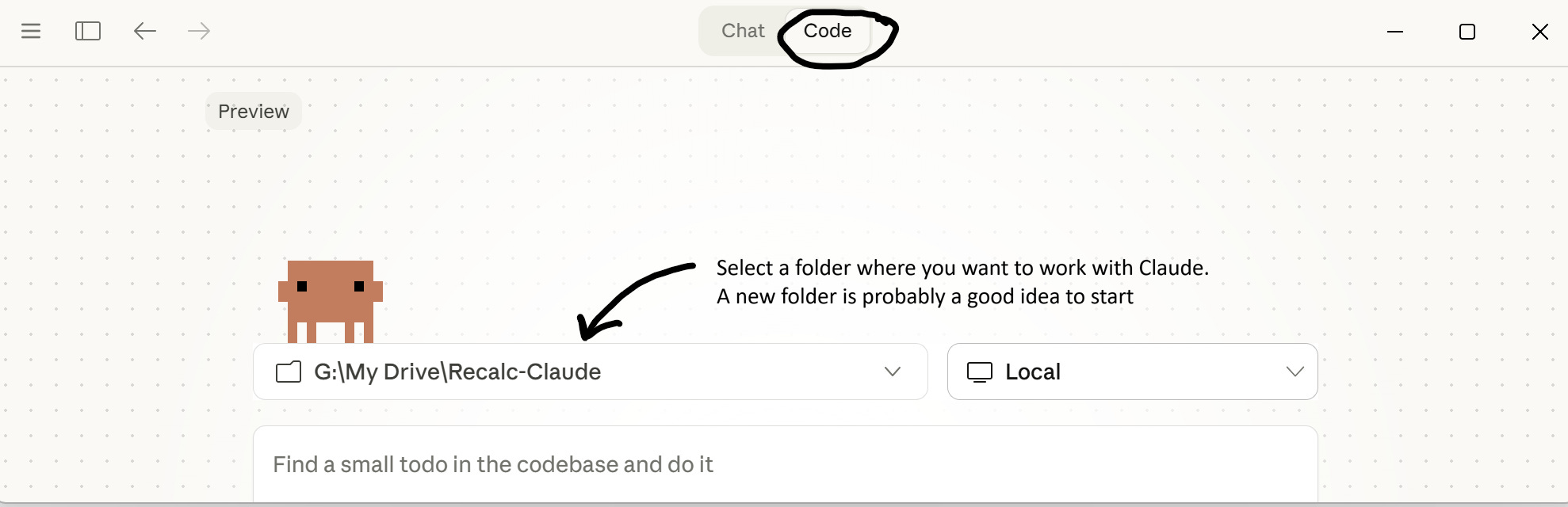
That said, Anthropic recently updated their Desktop app to enable users to start using Claude Code with no additional terminal setup. You can download the Desktop app here: https://claude.com/download and then click “Code” at the top middle to open Claude Code. Just note, this approach can still be a little buggy.
Tools: Connect Claude to your Apps
It is powerful (and fun!) to connect Claude to your other systems. It’s also incredibly easy with the help of a tool called Rube. But before jumping in, it’s important to understand the risks and make smart decisions for managing those risks
Most importantly, AI can make mistakes or do things differently than you would have. There is also prompt injection risk (a bad actor tricks your AI through hidden instructions in content it reads).
How should you manage this risk?
Monitor what Claude is doing closely. It will explicitly ask for permissions from you. And if you see it doing something you don’t like, hit “stop” or escape.
Make more conservative choices to start (e.g. “put this in drafts” rather than directly sending an email without your review).
Consider modeling after a real executive assistant in order to sandbox access. Katie created a new email for her AI assistant with access to a limited set of folders, its own inbox, and delegate calendar access. Much like you’d set up with a human EA.
Consider having it add “sent with Claude” to the bottom of messages.
Set Up Rube To Connect Claude and Your Apps
Claude has some native connectors built in but they are limited (often read-only, still a short list). To build a truly useful assistant - one that can actually do things in your apps - you need a better way to connect to those tools.
Rube is a service that makes connecting Claude to apps easy. It’s a free product from Composio, a well-known AI developer tools company. Think of Rube as a bucket of connectors. Once you connect Claude to Rube, you then select the specific apps you want Claude to access (e.g. Gmail, Outlook, Calendar, Drive, Hubspot, X, etc). You individually authenticate into each one with whichever account is most appropriate.
To set up Rube:
Go to rube.app. Click “Get Started” at the top right and create an account (note: we did this with our main email, not our AI assistant email).
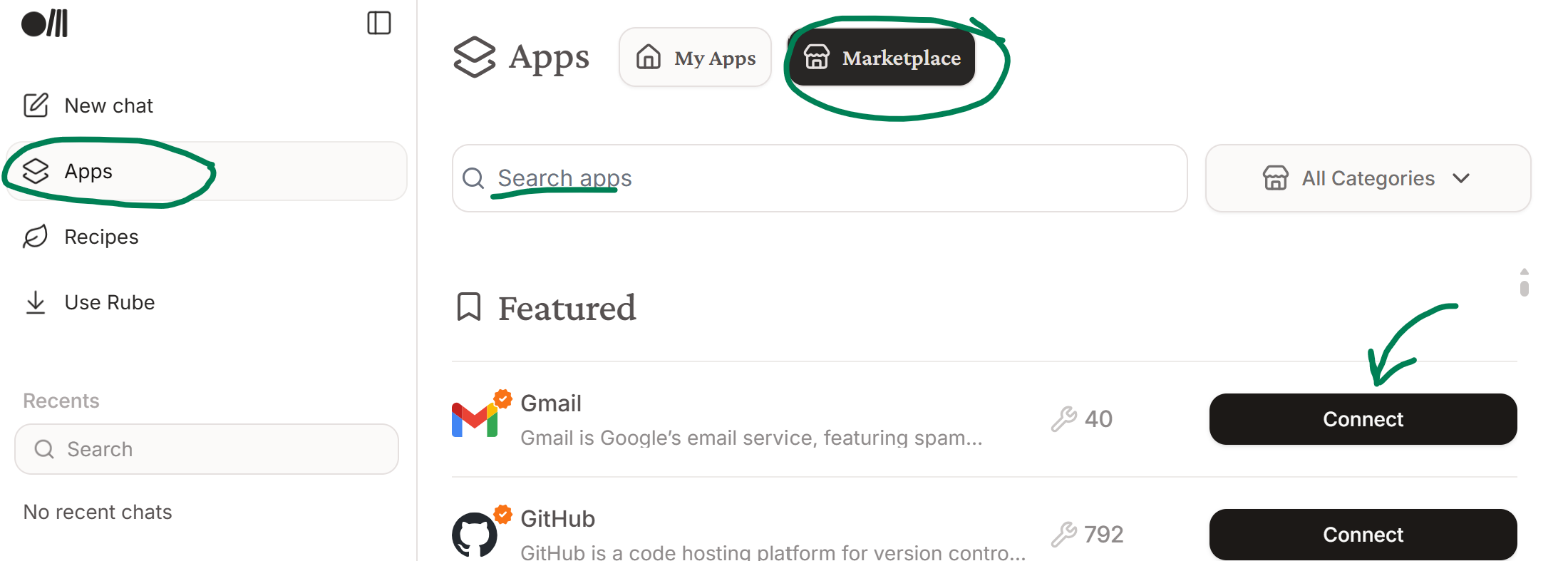
Navigate to Apps > Marketplace. Then choose one or more apps to connect to. Click “Connect” and authenticate.
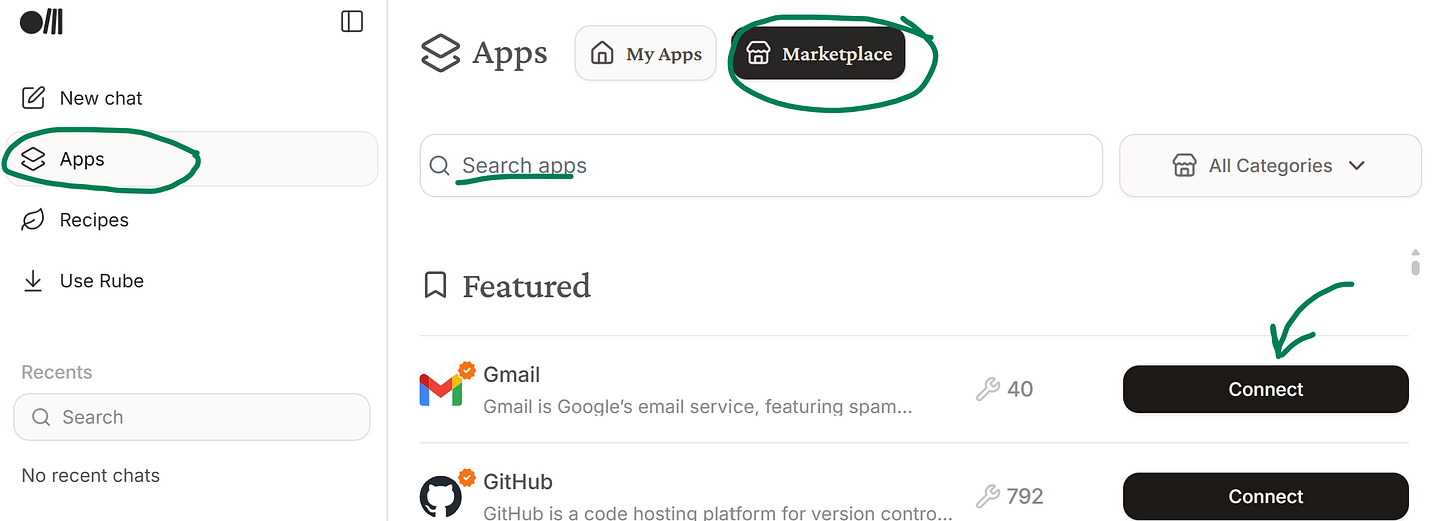
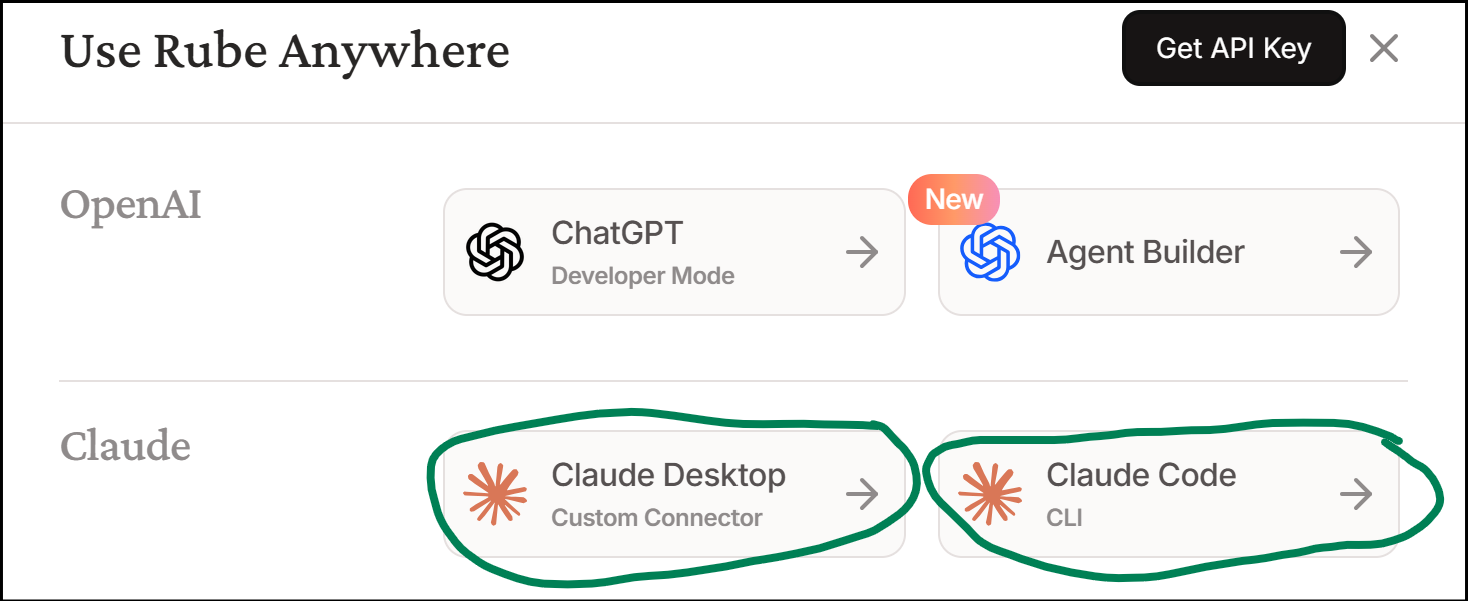
Create an account at rube.app. Then go to Apps > Marketplace and connect to your preferred apps Connect Claude to Rube. Click “Use Rube” on the left panel (just below “Apps” and “Recipes”) which will open a popup.
Then if you’re using Cowork, select “Claude Desktop”.
If you’re using Claude Code, select “Claude Code”.
Follow the instructions in the pop-up, which we’ve also explained below. Claude Code users should also complete the Claude Desktop steps below so that Rube connectors will be available from your phone.
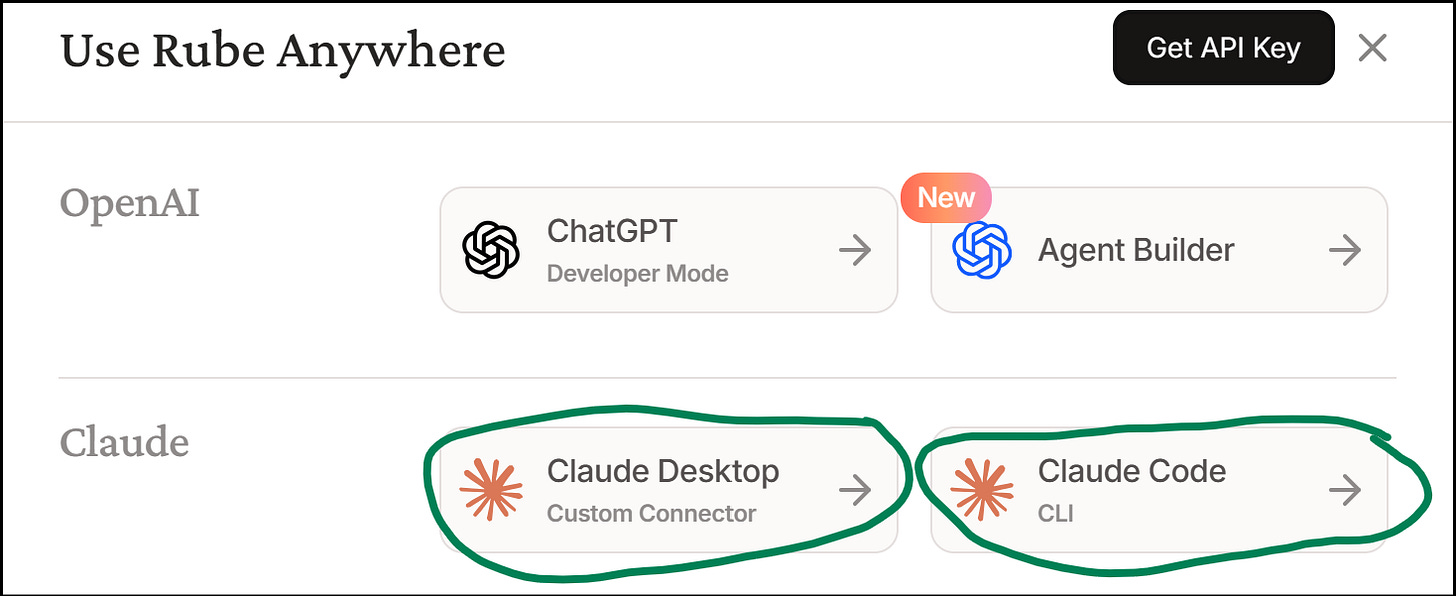
Click “Use Rube” in the left sidepanel. Then select your version of Claude (Desktop for Cowork or Claude Code) Claude Desktop (including Cowork):
Copy the MCP URL:
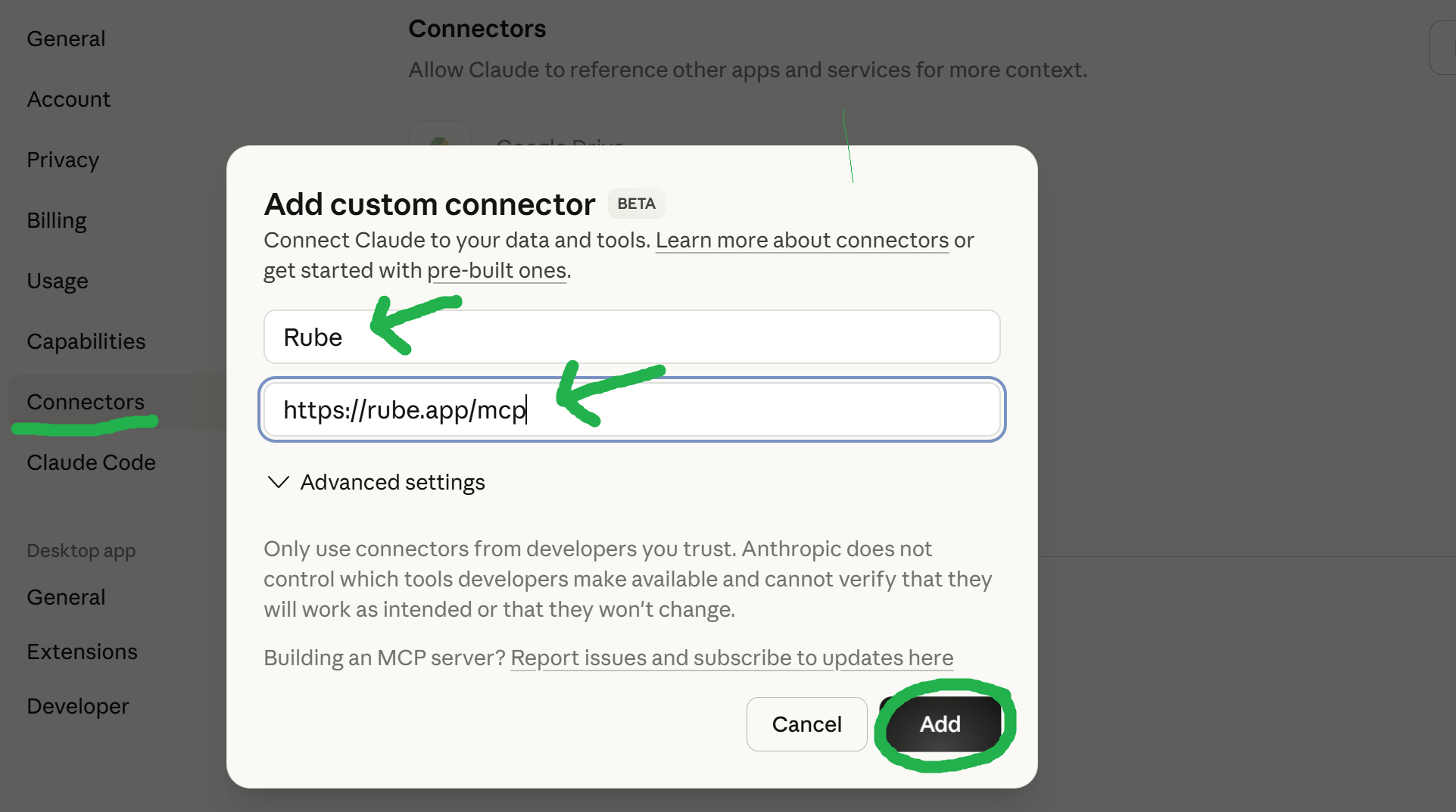
https://rube.app/mcpOpen the Claude Desktop app. Click your name at the lower left, then go to Settings > Connectors > Add custom connector
Enter “Rube” in Name field. Paste the URL (
https://rube.app/mcp)and click “Add”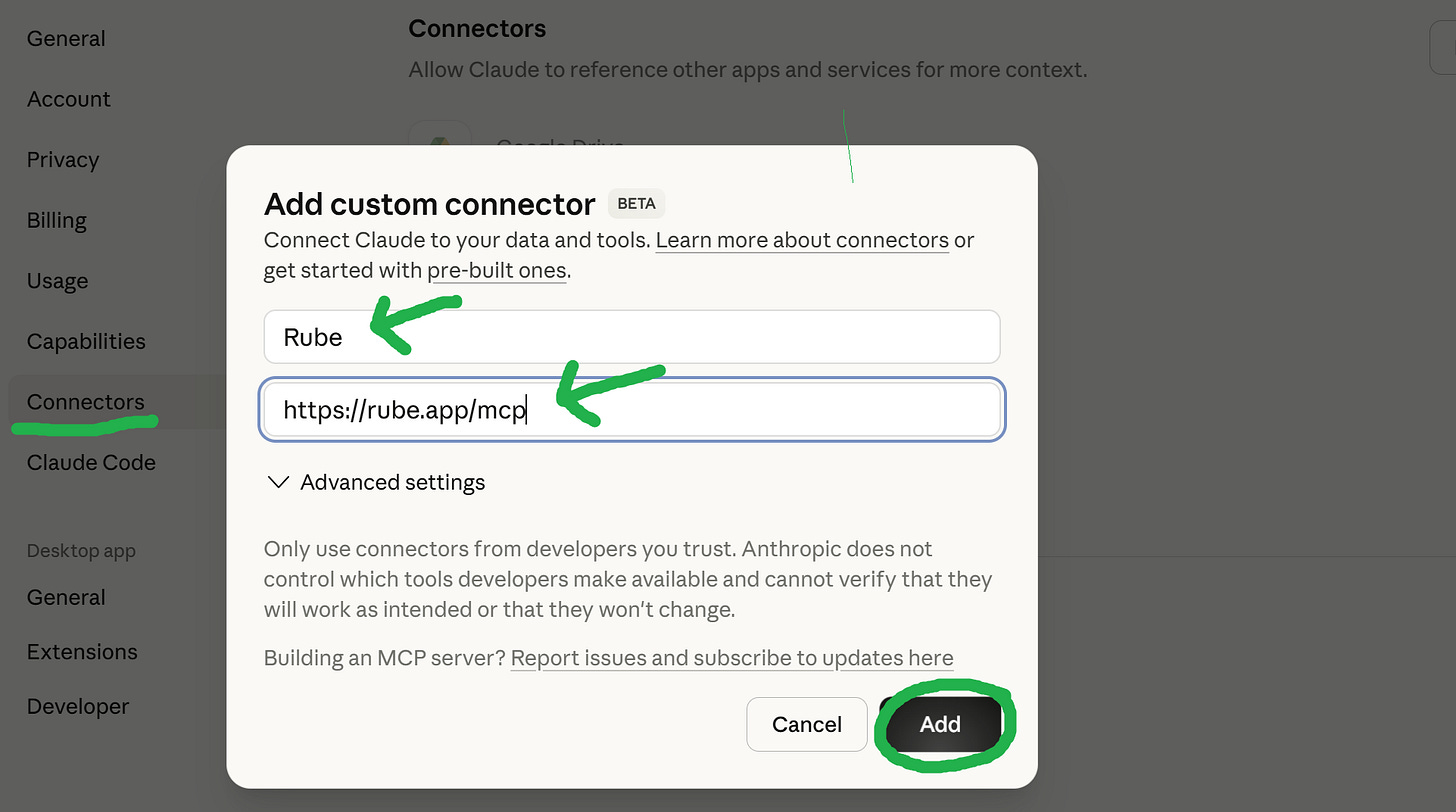
Settings > Connectors > Add Custom Connector > Enter Rube details > Add
Claude Code Users:
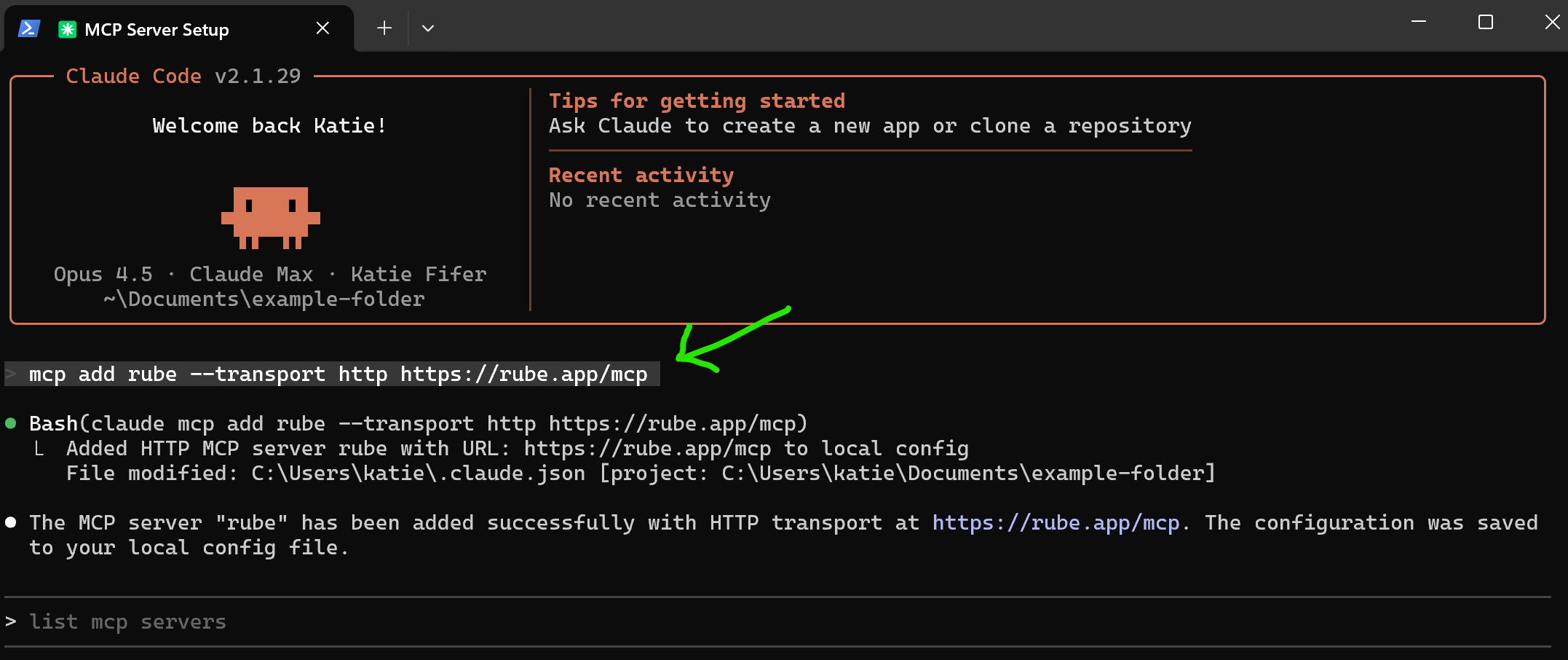
Open your Terminal (Windows button > Terminal or Windows Power Shell).
Navigate to your project folder (recommended, although you can also skip this and install globally). To navigate: Type
cd ~to return to your home folder. Typelsto list what’s in the current folder. Typecd folder_nameto move into a folder.Once you’re in the desired folder, start Claude by typing “claude” followed by Enter.
Then paste:
mcp add rube --transport http https://rube.app/mcp(enter). It will ask you if you want to proceed. Hit Enter to proceed.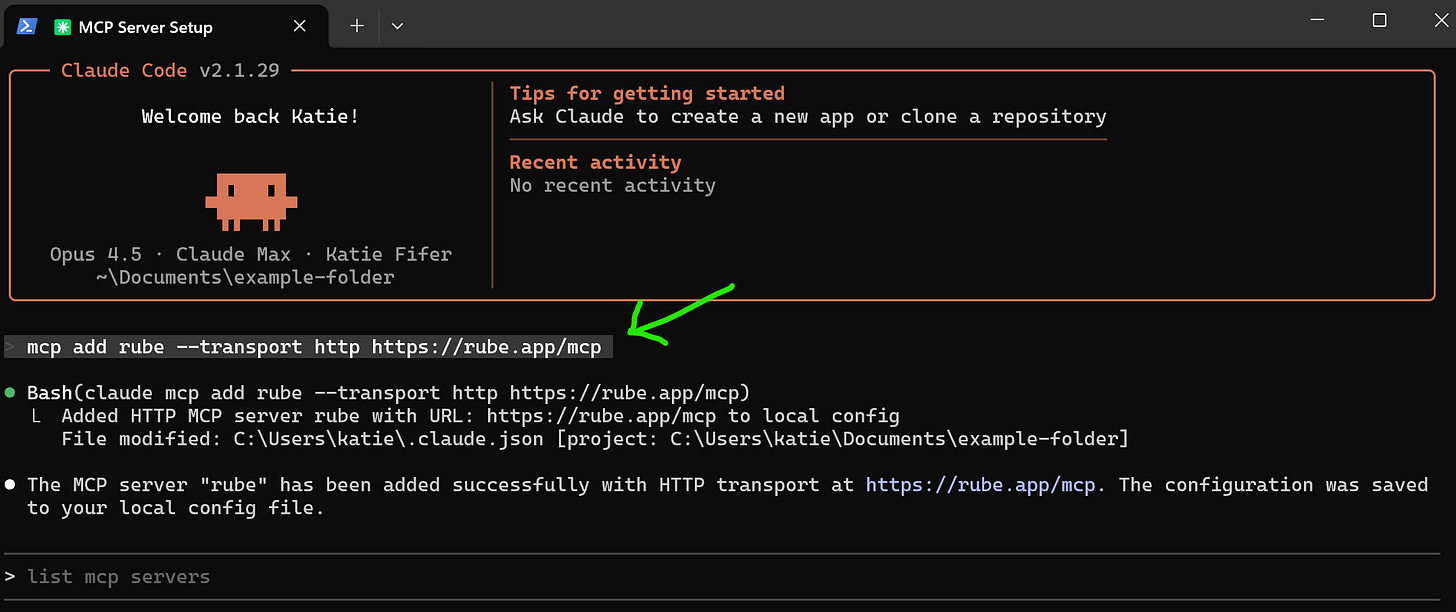
Close and reopen the Terminal. Navigate back to that folder. Type:
/mcpto see your servers (enter). You should now see rube. Select rube and hit enter to authenticate in your browser. Log in.You are now done with installation and can return to working with Claude Code in the Desktop app if you prefer that to the Terminal (select “Code” in the top middle of the app).
Try it out!
Ask Claude (using Cowork or Claude Code in the Desktop) to “use rube to do xyz” where xyz could be “read my recent emails” or “summarize my calendar for this week” or “check what people are saying about AI this week on X”. You should be able to see it use Rube to go connect to the app and execute the task.
Magic!
Tip: you can also ask Claude "what apps can Rube connect to?” as well as what capabilities it has in those tools to see your options.
Skills: help Claude use Tools well
Claude does a much better job when you teach it how to do things and have it save that knowledge as a Skill. This is analogous to onboarding and continuing to train a new employee.
And it’s extra important when Claude is taking complex actions with your apps.
We wrote an in-depth tutorial on Claude Skills and explain the highlights below.
What is a Skill?
A Skill is a set of instructions that tells Claude how to do something specific. It’s saved as a file so Claude can use it again and again - you don’t have to re-explain every time.
Think of it like creating a checklist or procedure for a new hire. Instead of explaining your expense report process from scratch every time, you write it down once. Now Claude can follow it consistently.
Claude should automatically use its Skills, but sometimes it doesn’t. If it forgets, simply tell it to use the relevant Skill. Then ask it to improve the Skill so that it’s more likely to automatically use it the next time.
What should be a Skill?
More things than you might think! Good candidates for Skills are tasks that:
You do repeatedly (weekly inbox triage, meeting prep, expense reports).
Have a specific process you want followed (“always check X, then do Y”).
Require context about your preferences (“I like short bullet points” or “append ‘sent with Claude’ to the end of the message”).
For example, Katie made a “send Slack” Skill which knows which channels to use for different updates (client updates go to #business-development), has shortcuts for key teammates (can say "slack Suzanne"), matches her typical Slack writing tone, adds "sent with Claude" to the end, and confirms before sending.
How do you make a Skill?
Just ask Claude to create one.
After Claude helps you with something, say: “That was great. I want you to make a Skill so that we can do it the same way next time.” You can also ask Claude to interview you for any other information that might be helpful to know for the Skill.
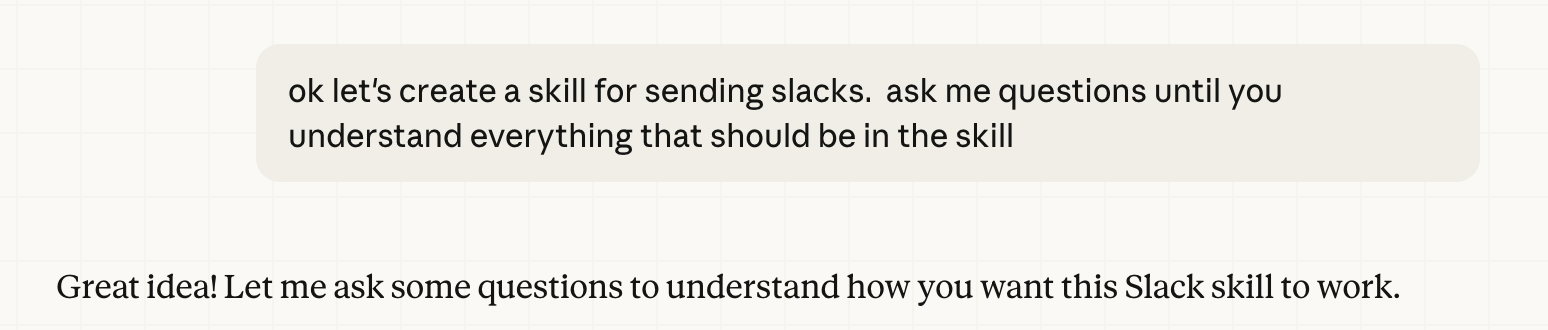
For Cowork Users
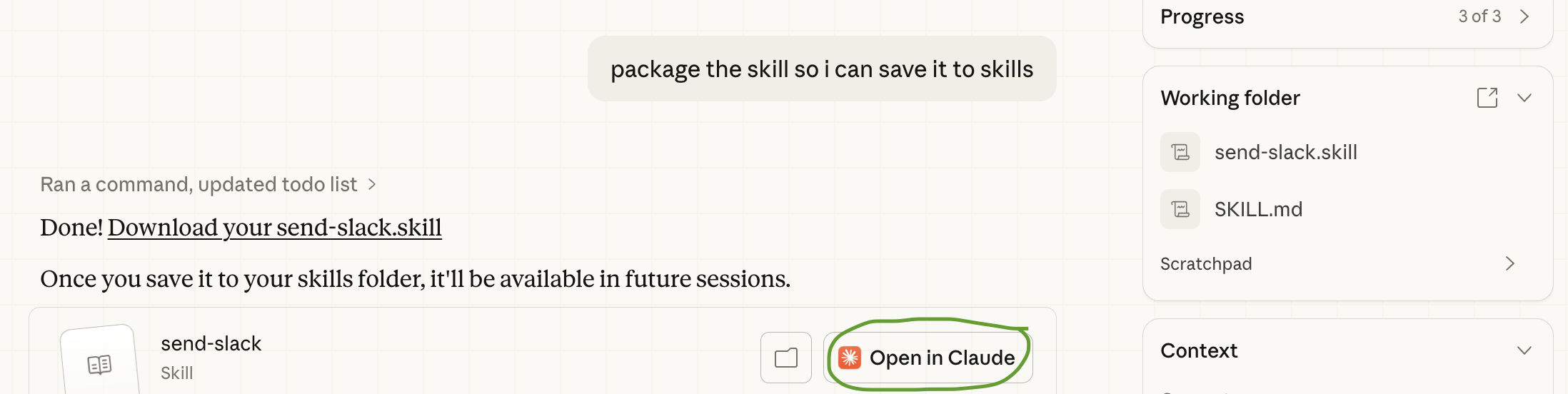
Claude will create the Skill and save it to your working folder. It’s better to also save it globally.
Ask Claude to “package the Skill so I can save it to Skills”.
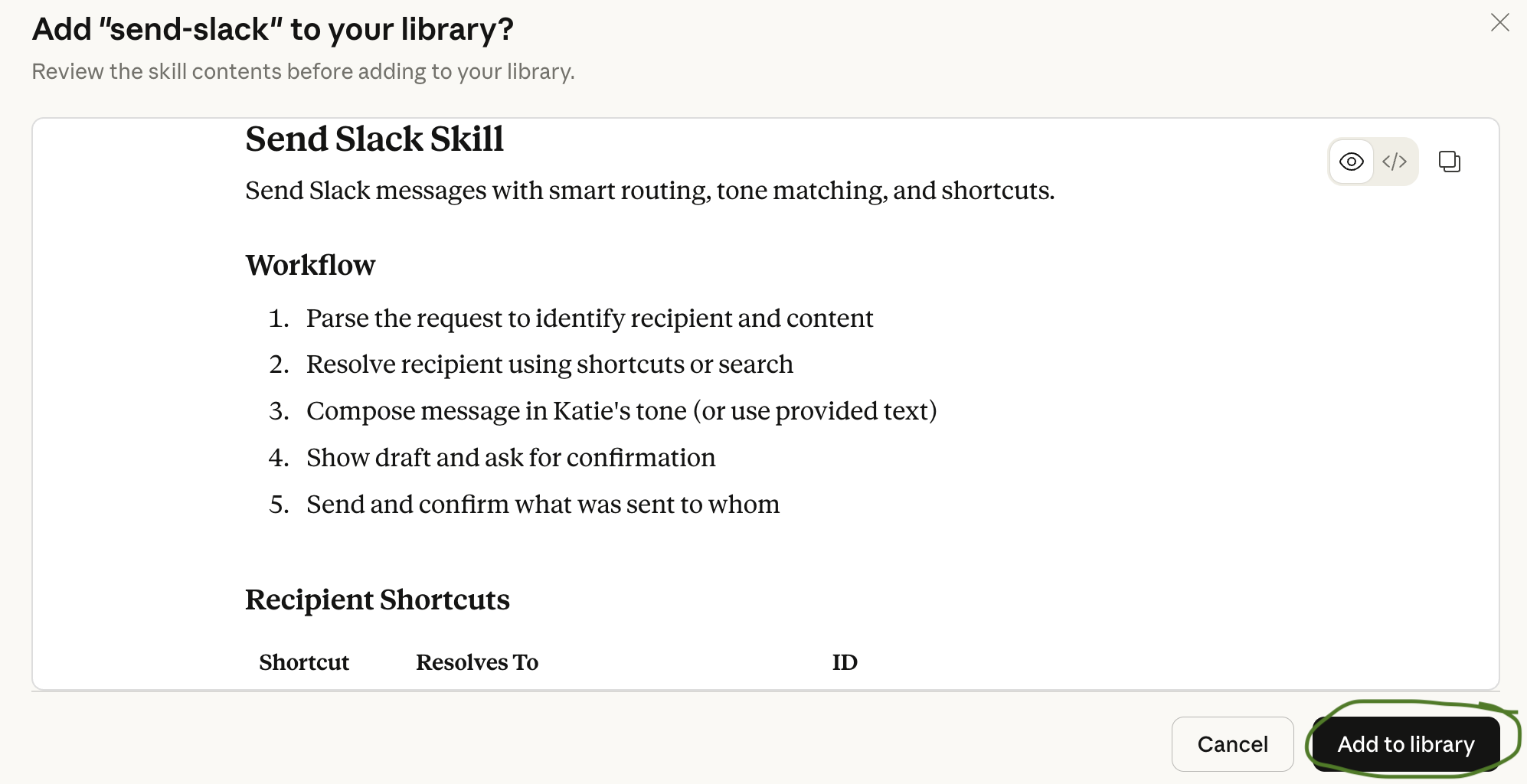
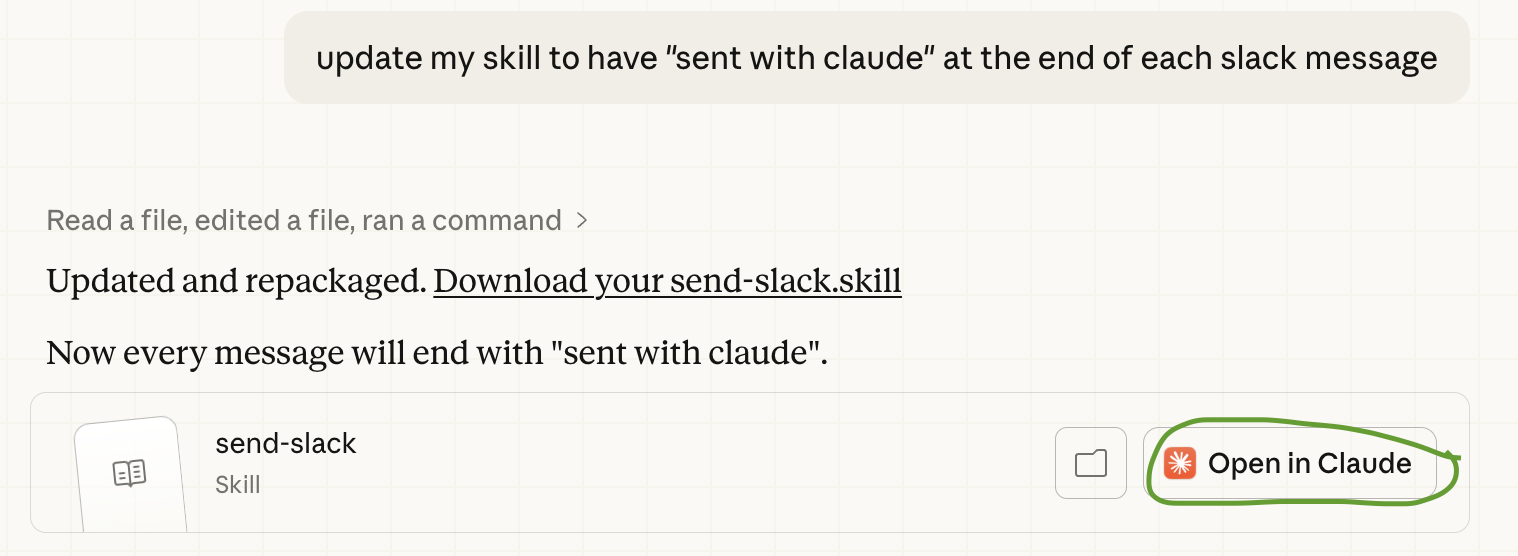
Click “Open in Claude”.
Click “Add to Library”.
Now the Skill will be available across all of your work in Claude chats (desktop/web/mobile) and Cowork.
For Claude Code Users
Just like in Cowork, you can ask Claude to create a Skill for you. Claude should save Skills as markdown (plain text) files in a .claude/skills/ folder. It knows how to do this, but sometimes you need to remind Claude to create (or check for) the directory called “.claude/” and then save Skills in a “skills” folder in there.
Slash commands
In Claude Code, your Skills will automatically be “slash commands”, meaning if you have a Skill called “slack”, you can type “/slack” to invoke the Skill. This is a nice UI feature. Claude can also invoke the Skill as needed itself.
Importing Skills to Claude.ai (Desktop/Web/Mobile)
The Skills you create in Claude Code will not be shared natively with claude.ai, meaning you won’t have them on mobile unless you upload them to claude.ai. Read our Claude Skills guide or ask Claude Code to package the Skill for you to upload to claude.ai.
Improve your Skills
Ask Claude to help you update Skills as you find ways to refine the workflow. If you’re in Cowork/web/mobile and it doesn’t package the Skill for you, tell it to. Then click Open in Claude > Add to Library > Upload and Replace.
In Claude Code, just ask it to update the Skill directly.
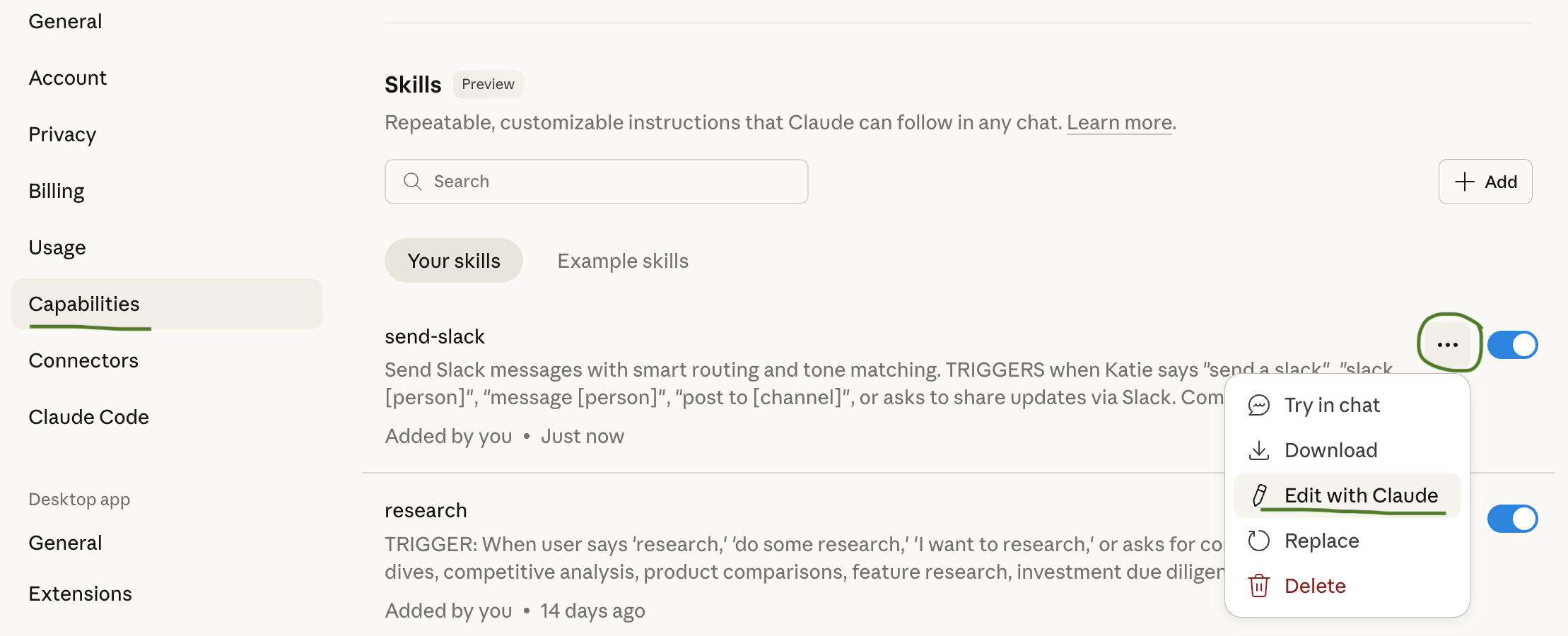
You can also go to Settings > Capabilities > Skills and click on the three dots to “Edit with Claude”. This will also let you read through the Skill which can be helpful for tuning it to behave exactly how you’d like.
Memory: turn Claude into a second brain
The third piece of a good personal agent is memory - giving Claude context about you, your work, and how you like things done.
Ask Claude to start keeping notes on your conversations in a notes folder. Client details, project context, team info, decisions made. It will create markdown files which are just plain text files with a .md ending which are easy for it to read and write.
Claude is surprisingly good at taking notes - your rambling thoughts quickly become clean, organized summaries. As you work with Claude, you can easily build out a more comprehensive notes system. And any time you want to reorganize, it’s easy: just ask Claude.
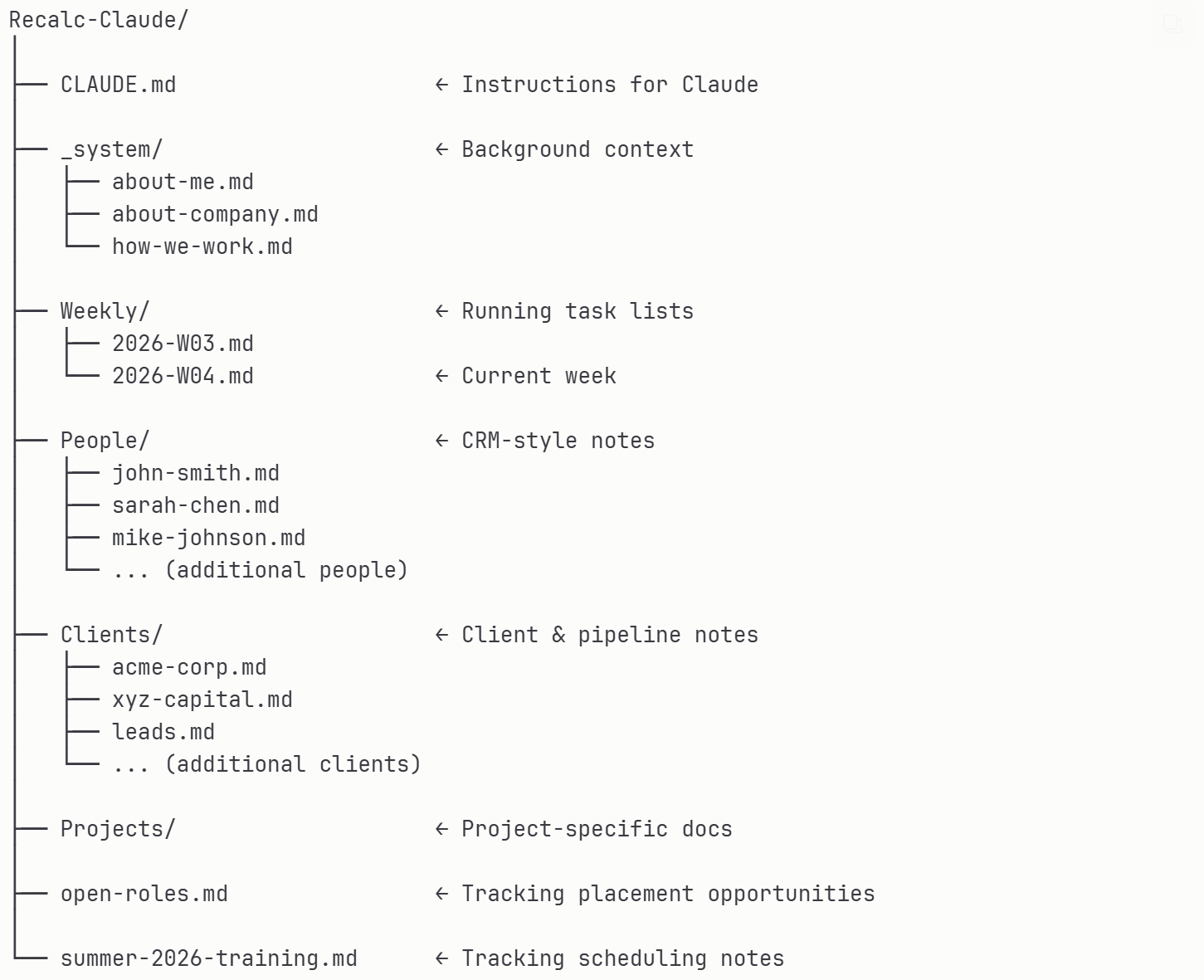
Our next post will cover optimizing Memory in more detail - including folder structure, CLAUDE.md files, syncing to Drive, and how to use Obsidian to easily browse and edit your notes yourself.
However, it’s easy to start today, and the more notes Claude takes, the more context it has and the more useful it becomes. Even a little context goes a surprisingly long way.
Start Simple, Build Over Time
Connected apps + Skills + Memory make Claude feel wildly more capable. But we recognize it can also feel overwhelming. The good news: you don’t need to set up everything at once.
Get Cowork or Claude Code running.
Connect one or two apps via Rube.
Ask Claude to start keeping notes.
Then have fun! As you get more comfortable, have Claude start turning tasks into Skills. Improve your memory system. You’ll truly be off to the races.
And remember, any time you get stuck, just ask Claude!
Technically Curious Substack Disclaimer
We’re figuring this out and sharing what we learn as we go. This is intended to be practical advice based on our own experimentation - not professional guidance. We make no representations about accuracy or outcomes and aren’t responsible for how you use this information. Features and interfaces may change. You are responsible for your own use of AI.
Thank you to our talented co-writer and personal agent, Claude!
We’d love to hear from you - share your questions and Claude stories in the comments.
Super helpful, and such an intelligent way to make use of these agents. Thanks for sharing!
Loved how clear and easy this was to understand.